Alibaba Cloud Full Stack (7): SLS, CloudMonitor, and Observability

Build full-stack observability: SLS for log collection and querying, CloudMonitor for metrics and alerts, ARMS for distributed tracing. Set up a complete monitoring stack for a production web application.

The worst production outage I ever caused took three hours to diagnose. A Node.js service was returning 502s intermittently — maybe 5% of requests — and I had nothing. No centralized logs (each ECS instance had its own /var/log/ and I was SSH-ing into them one at a time). No metrics dashboards (I was running top and df -h in terminals). No tracing (I was adding console.log timestamps to try to figure out which downstream call was hanging). Three hours later, I found the issue: a connection pool to RDS was exhausting under load because a forgotten cron job was holding connections open. The fix was two lines of code. The diagnosis took three hours of misery because I had zero observability.

The lesson was simple and costly: observability isn’t something you set up after your app is stable. You set it up before deploying to production. Ideally, before you even write the application code, because the observability stack shapes how you structure your logging, propagate request IDs, and instrument your dependencies. Set it up last, and you’ll have to retrofit everything. Set it up first, and everything will fit naturally.

This article covers the full observability stack on Alibaba Cloud: SLS for logs, CloudMonitor for metrics, and ARMS for traces. By the end you will have a working monitoring setup for the production web application we have been building throughout this series. The ECS instances come from Part 2 , the network from Part 3 . For the Terraform approach to provisioning these monitoring resources, see Terraform Part 7: Observability and Cost Control .


The Three Pillars of Observability#

The industry has converged on three signals that together provide a complete picture of what your system is doing:
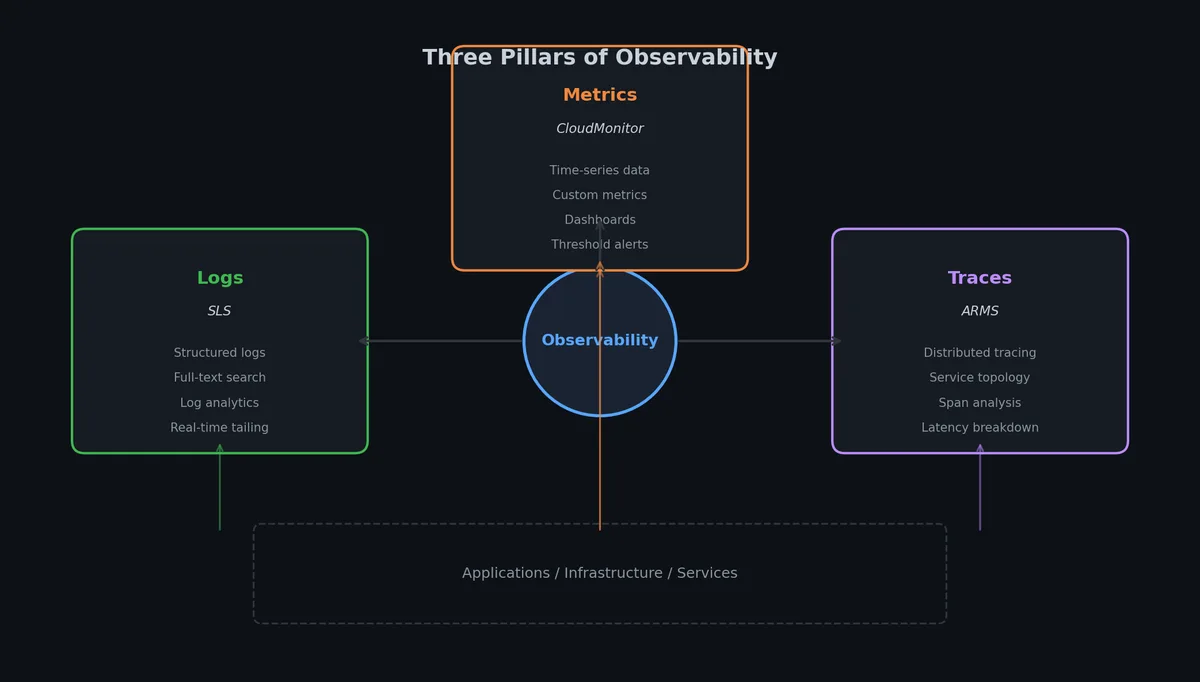
The three pillars of observability

Logs tell you what happened. A log line says “at 14:32:07, user abc123 requested /api/orders, which returned a 500 because the database connection timed out after 30 seconds.” Logs are discrete events, timestamped and structured. They are the forensic evidence you examine after something goes wrong.

Metrics tell you what is happening right now. A metric says “the P99 latency of /api/orders is currently 2.3 seconds, CPU utilization across the app tier is 78%, and the RDS connection pool is 90% exhausted.” Metrics are numerical time series. They are the vital signs you watch on a dashboard to spot problems before users report them.

Traces tell you why it happened. A trace says “this specific request spent 15ms in the API gateway, 200ms in the order service, 1800ms waiting for a database query, and 50ms serializing the response.” Traces follow a single request as it traverses multiple services. They are the X-ray that reveals which component in a distributed system is the bottleneck.

You need all three. Metrics tell you something is wrong (e.g., error rate spiked). Logs tell you what is wrong (e.g., database timeout errors). Traces tell you why it’s wrong (e.g., one specific query on the orders table is doing a full table scan because an index was dropped).

On Alibaba Cloud, the mapping is straightforward:

PillarAlibaba Cloud ServiceAWS EquivalentWhat It Does
LogsSLS (Simple Log Service)CloudWatch Logs + OpenSearchLog collection, indexing, querying, analytics
MetricsCloudMonitorCloudWatch MetricsInfrastructure and custom metrics, alerting
TracesARMS (Application Real-Time Monitoring)X-Ray + CloudWatch APMAPM, distributed tracing, service topology

These three services integrate with each other. CloudMonitor can trigger alerts based on SLS query results. ARMS traces link to SLS log entries. SLS dashboards can pull CloudMonitor metric data. The integration isn’t as seamless as Datadog’s unified platform, but it covers 90% of what you need without third-party tooling.

SLS: Simple Log Service#

SLS is the backbone of observability on Alibaba Cloud. Despite the name, it’s not simple—it’s a fully-featured log analytics platform that combines collection, storage, indexing, querying, visualization, and alerting in one service. Think of it as AWS CloudWatch Logs and Elasticsearch combined with a SQL query engine on top.

SLS log collection pipeline

Core Concepts#

SLS organizes everything into two levels:

Project — A top-level container, usually one per environment or application. A project is region-specific. All the logstores, dashboards, and alerts within a project share the same billing account and access control.

Logstore — A table of log data within a project. Each logstore has its own schema, retention period, and indexing configuration. You typically create one logstore per log source: one for nginx access logs, one for application logs, one for system logs.

1
2
3
4
5
6
7
8
SLS Project: prod-webapp
├── Logstore: nginx-access-log     (30-day retention)
├── Logstore: app-log              (30-day retention)
├── Logstore: system-log           (7-day retention)
├── Logstore: slow-query-log       (90-day retention)
├── Dashboard: ops-overview
├── Dashboard: error-analysis
└── Alert: high-error-rate

Create a project and logstores via the CLI:

 1
 2
 3
 4
 5
 6
 7
 8
 9
10
11
12
13
14
15
16
17
18
19
20
21
22
23
24
25
26
27
28
29
30
31
# Create the SLS project
aliyun sls CreateProject \
  --body '{
    "projectName": "prod-webapp",
    "description": "Production web application logs"
  }' \
  --endpoint cn-hangzhou.log.aliyuncs.com

# Create the nginx access log logstore
aliyun sls CreateLogStore \
  --project prod-webapp \
  --body '{
    "logstoreName": "nginx-access-log",
    "ttl": 30,
    "shardCount": 2,
    "autoSplit": true,
    "maxSplitShard": 8
  }' \
  --endpoint cn-hangzhou.log.aliyuncs.com

# Create the application log logstore
aliyun sls CreateLogStore \
  --project prod-webapp \
  --body '{
    "logstoreName": "app-log",
    "ttl": 30,
    "shardCount": 2,
    "autoSplit": true,
    "maxSplitShard": 8
  }' \
  --endpoint cn-hangzhou.log.aliyuncs.com

The shardCount determines write throughput. Each shard handles 5 MB/s write and 10 MB/s read. Two shards gives you 10 MB/s write capacity. With autoSplit enabled, SLS automatically adds shards when write pressure exceeds the threshold, up to maxSplitShard.

SLS vs AWS: What Is Different#

If you are coming from AWS, the mapping is worth clarifying because SLS is not a 1:1 CloudWatch Logs equivalent:

CapabilitySLSAWS
Log collection agentLogtail (SLS-native)CloudWatch Agent
Full-text searchBuilt-in, sub-second latencyCloudWatch Logs Insights (slower)
SQL analyticsFull SQL syntax on log dataCloudWatch Logs Insights (limited SQL)
DashboardsBuilt into SLSCloudWatch Dashboards (separate)
Long-term storageBuilt-in tiered storageExport to S3 + Athena
Schema-on-readYes, with indexingPartially (Insights)
Real-time streamingBuilt-in consumer groupsKinesis Data Streams (separate)

The biggest difference: SLS combines log storage, search, and analytics in one service. On AWS, you would use CloudWatch Logs for collection, possibly export to S3, set up Elasticsearch (OpenSearch) for search, and use Athena for SQL analytics. SLS does all of that in one service.lace. The tradeoff is vendor lock-in — SLS query syntax is not standard across clouds.

Log Query Syntax#

SLS supports three query modes, and understanding them saves a lot of frustration.

Full-text search — Just type a keyword. SLS searches across all indexed fields.

1
ERROR

This returns every log line containing the word “ERROR” anywhere.

Key-value search — Use field names with operators for precise filtering.

1
status >= 500 and request_method: POST

This returns log entries where the HTTP status code is 500 or above AND the request method is POST. The colon (:) is a contains operator; >= is numeric comparison.

SQL analytics — Append a pipe | after a search expression and write standard SQL.

1
2
3
4
5
6
status >= 500 | SELECT 
  date_format(__time__, '%H:%i') as time_bucket,
  count(*) as error_count,
  approx_distinct(client_ip) as affected_users
GROUP BY time_bucket
ORDER BY time_bucket

This finds all 5xx errors, then groups them by minute to show the error count and number of unique affected users over time. The __time__ field is the built-in log timestamp. The approx_distinct function is a HyperLogLog approximation — fast and memory-efficient for high-cardinality fields.
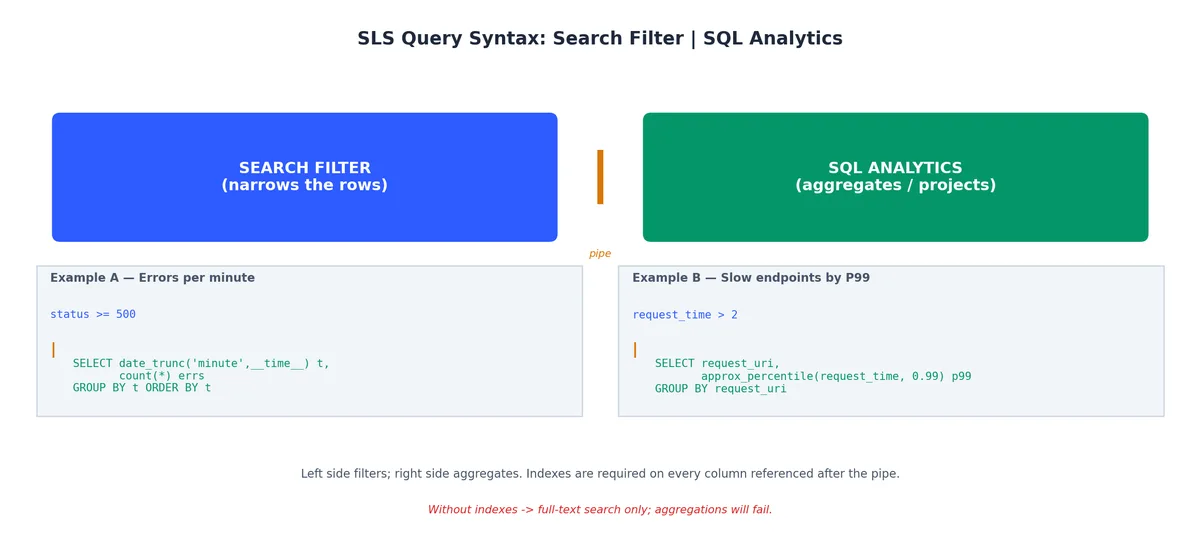
SLS query syntax: search filter piped into SQL analytics

Here are real queries I use daily:

 1
 2
 3
 4
 5
 6
 7
 8
 9
10
11
12
13
14
15
16
17
18
19
20
21
22
23
24
25
26
27
28
29
30
31
32
33
34
35
36
# Error rate over the last hour (as percentage)
* | SELECT 
  round(count_if(status >= 500) * 100.0 / count(*), 2) as error_rate_pct,
  count(*) as total_requests
WHERE __time__ > unix_timestamp() - 3600

# P50, P90, P99 latency by endpoint
* | SELECT 
  request_uri,
  approx_percentile(request_time, 0.50) as p50_ms,
  approx_percentile(request_time, 0.90) as p90_ms,
  approx_percentile(request_time, 0.99) as p99_ms,
  count(*) as request_count
GROUP BY request_uri
ORDER BY request_count DESC
LIMIT 20

# Top 10 client IPs by request volume (bot detection)
* | SELECT 
  client_ip,
  count(*) as requests,
  count_if(status >= 400) as errors,
  round(count_if(status >= 400) * 100.0 / count(*), 1) as error_pct
GROUP BY client_ip
ORDER BY requests DESC
LIMIT 10

# Slow requests (>2 seconds)
request_time > 2 | SELECT 
  request_uri,
  request_time,
  status,
  client_ip,
  __time__
ORDER BY request_time DESC
LIMIT 50

Enabling Indexes#

SLS does not index fields by default. Before you can use key-value queries or SQL analytics, you need to create an index configuration. Without indexes, only full-text search on raw log content works, and even that requires a full-text index.

 1
 2
 3
 4
 5
 6
 7
 8
 9
10
11
12
13
14
15
16
17
18
19
aliyun sls CreateIndex \
  --project prod-webapp \
  --logstore nginx-access-log \
  --body '{
    "line": {
      "token": [",", " ", "\"", "\\t", ";", "=", "(", ")", "[", "]", "{", "}", "?", "@", "&", "/", ":", "'"'"'"]
    },
    "keys": {
      "client_ip": {"type": "text", "doc_value": true},
      "request_method": {"type": "text", "doc_value": true},
      "request_uri": {"type": "text", "doc_value": true, "token": ["/", "?", "&", "="]},
      "status": {"type": "long", "doc_value": true},
      "body_bytes_sent": {"type": "long", "doc_value": true},
      "request_time": {"type": "double", "doc_value": true},
      "upstream_response_time": {"type": "double", "doc_value": true},
      "http_user_agent": {"type": "text", "doc_value": true}
    }
  }' \
  --endpoint cn-hangzhou.log.aliyuncs.com

The line section enables full-text indexing with the specified token delimiters. The keys section defines field-level indexes. Setting doc_value: true enables SQL analytics on that field. Every indexed field costs storage, so only index the fields you actually query.

Cost note: Indexing roughly doubles your storage cost. For high-volume logs where you only need full-text search, skip per-field indexing and rely on the line index. For access logs where you run SQL dashboards, per-field indexing is worth the cost.

Setting Up Logtail#

Logtail is SLS’s log collection agent. It runs on your ECS instances, watches log files, parses them according to your configuration, and ships them to SLS. It is lightweight (typically 50-100 MB RAM, <1% CPU), reliable (handles network interruptions with local buffering), and tightly integrated with SLS.

Logtail agent deployment architecture

Installation#

On an ECS instance in the same region, installation is one command:

1
2
3
4
5
6
7
# Download and install Logtail (cn-hangzhou region)
wget http://logtail-release-cn-hangzhou.oss-cn-hangzhou-internal.aliyuncs.com/linux64/logtail.sh -O logtail.sh
chmod 755 logtail.sh
sudo ./logtail.sh install cn-hangzhou

# Verify installation
sudo /etc/init.d/ilogtaild status

The install script detects whether you are on a VPC internal network or the public internet and configures the endpoint accordingly. VPC-internal communication is free — there are no data transfer charges for log shipping within the same region.

After installation, create a machine group in SLS to identify which instances should receive which log collection configs:

 1
 2
 3
 4
 5
 6
 7
 8
 9
10
11
12
13
14
15
16
17
18
aliyun sls CreateMachineGroup \
  --project prod-webapp \
  --body '{
    "groupName": "prod-app-servers",
    "machineIdentifyType": "ip",
    "groupType": "",
    "groupAttribute": {
      "externalName": "",
      "groupTopic": ""
    },
    "machineList": [
      "10.0.10.5",
      "10.0.10.6",
      "10.0.11.5",
      "10.0.11.6"
    ]
  }' \
  --endpoint cn-hangzhou.log.aliyuncs.com

For auto-scaling groups where IPs change, use user-defined identity instead of IP-based identification. Create a file /etc/ilogtail/user_defined_id on each instance containing a group identifier like prod-app-servers, and set machineIdentifyType to userdefined.

Collecting Nginx Access Logs#

The most common collection setup is parsing nginx access logs with a custom format. First, configure nginx to write structured logs:

1
2
3
4
5
6
7
8
# /etc/nginx/nginx.conf
log_format structured '$remote_addr - $remote_user [$time_local] '
                      '"$request_method $request_uri $server_protocol" '
                      '$status $body_bytes_sent '
                      '"$http_referer" "$http_user_agent" '
                      '$request_time $upstream_response_time';

access_log /var/log/nginx/access.log structured;

Then create a Logtail collection config that parses this format:

 1
 2
 3
 4
 5
 6
 7
 8
 9
10
11
12
13
14
15
16
17
18
19
20
21
22
23
24
{
  "configName": "nginx-access-config",
  "inputType": "file",
  "inputDetail": {
    "logType": "common_reg_log",
    "logPath": "/var/log/nginx",
    "filePattern": "access.log*",
    "topicFormat": "none",
    "timeFormat": "%d/%b/%Y:%H:%M:%S",
    "regex": "([\\d.]+) - (\\S+) \\[(\\S+ \\S+)\\] \"(\\w+) (\\S+) (\\S+)\" (\\d+) (\\d+) \"([^\"]*)\" \"([^\"]*)\" ([\\d.]+) ([\\d.-]+)",
    "key": [
      "client_ip", "remote_user", "time_local",
      "request_method", "request_uri", "protocol",
      "status", "body_bytes_sent",
      "http_referer", "http_user_agent",
      "request_time", "upstream_response_time"
    ]
  },
  "outputType": "LogService",
  "outputDetail": {
    "projectName": "prod-webapp",
    "logstoreName": "nginx-access-log"
  }
}

Apply the config via CLI:

 1
 2
 3
 4
 5
 6
 7
 8
 9
10
11
aliyun sls CreateConfig \
  --project prod-webapp \
  --body @nginx-access-config.json \
  --endpoint cn-hangzhou.log.aliyuncs.com

# Bind the config to the machine group
aliyun sls ApplyConfigToMachineGroup \
  --project prod-webapp \
  --groupName prod-app-servers \
  --configName nginx-access-config \
  --endpoint cn-hangzhou.log.aliyuncs.com

Within a minute, logs start flowing. You can verify in the SLS console or via CLI:

1
2
3
4
5
6
7
8
aliyun sls GetLogs \
  --project prod-webapp \
  --logstore nginx-access-log \
  --from $(date -d '5 minutes ago' +%s) \
  --to $(date +%s) \
  --query '*' \
  --line 5 \
  --endpoint cn-hangzhou.log.aliyuncs.com

Logtail config-to-machine-group binding model

Collecting Application Logs (JSON Format)#

For application logs, I strongly recommend JSON format. It eliminates the regex-parsing fragility and makes field indexing automatic.

Configure your application to emit JSON logs. Here is a Node.js example with pino:

 1
 2
 3
 4
 5
 6
 7
 8
 9
10
11
12
13
14
15
16
17
18
19
// logger.js
const pino = require('pino');

const logger = pino({
  level: process.env.LOG_LEVEL || 'info',
  formatters: {
    level(label) {
      return { level: label };
    }
  },
  timestamp: () => `,"timestamp":"${new Date().toISOString()}"`,
  base: {
    service: 'order-service',
    env: process.env.NODE_ENV,
    hostname: require('os').hostname()
  }
});

module.exports = logger;

This produces log lines like:

1
{"level":"info","timestamp":"2026-05-20T08:15:32.456Z","service":"order-service","env":"production","hostname":"app-01","msg":"order created","orderId":"ORD-12345","userId":"USR-789","amount":129.99,"latencyMs":45}

The Logtail config for JSON logs is much simpler — no regex needed:

 1
 2
 3
 4
 5
 6
 7
 8
 9
10
11
12
13
14
15
16
17
{
  "configName": "app-json-log-config",
  "inputType": "file",
  "inputDetail": {
    "logType": "json_log",
    "logPath": "/var/log/app",
    "filePattern": "*.log",
    "topicFormat": "none",
    "timeKey": "timestamp",
    "timeFormat": "%Y-%m-%dT%H:%M:%S"
  },
  "outputType": "LogService",
  "outputDetail": {
    "projectName": "prod-webapp",
    "logstoreName": "app-log"
  }
}

Collecting System Logs#

For syslog, journald, and system-level events, Logtail has built-in support:

 1
 2
 3
 4
 5
 6
 7
 8
 9
10
11
12
13
14
15
16
17
18
{
  "configName": "syslog-config",
  "inputType": "file",
  "inputDetail": {
    "logType": "common_reg_log",
    "logPath": "/var/log",
    "filePattern": "syslog*",
    "topicFormat": "none",
    "regex": "(\\w+ \\d+ \\d+:\\d+:\\d+) (\\S+) (\\S+): (.*)",
    "key": ["timestamp", "hostname", "program", "message"],
    "timeFormat": "%b %d %H:%M:%S"
  },
  "outputType": "LogService",
  "outputDetail": {
    "projectName": "prod-webapp",
    "logstoreName": "system-log"
  }
}

Building Dashboards#

A dashboard that nobody looks at is worse than useless — it gives false confidence. The key is building dashboards around the questions you actually ask during incidents, not the metrics that look impressive.

SLS dashboard layout

The Five Essential Panels#

Every production web application needs exactly these panels on the primary dashboard:

PanelSLS QueryWhat It Tells You
QPS trend* | SELECT date_trunc('minute', __time__) as t, count(*)/60.0 as qps GROUP BY t ORDER BY tTraffic pattern — is a spike causing the problem, or did traffic drop (upstream failure)?
Error rate* | SELECT date_trunc('minute', __time__) as t, round(count_if(status>=500)*100.0/count(*),2) as err_pct GROUP BY t ORDER BY tIs the error rate elevated? Anything above 0.1% deserves investigation.
P99 latency* | SELECT date_trunc('minute', __time__) as t, approx_percentile(request_time, 0.99) as p99 GROUP BY t ORDER BY tIs the service getting slower? P99 catches tail latency that averages hide.
Top endpoints* | SELECT request_uri, count(*) as cnt, approx_percentile(request_time, 0.50) as p50 GROUP BY request_uri ORDER BY cnt DESC LIMIT 10Where is traffic going? Which endpoints are slow?
Status code distribution* | SELECT status, count(*) as cnt GROUP BY status ORDER BY cnt DESCAre you seeing unusual 4xx/5xx patterns?

The five essential dashboard panels

Creating a Dashboard#

SLS dashboards are defined as JSON. Here is a stripped-down but functional ops dashboard:

 1
 2
 3
 4
 5
 6
 7
 8
 9
10
11
12
13
14
15
16
17
18
19
20
21
22
23
24
25
26
27
28
29
30
31
32
33
34
35
36
37
38
39
40
41
42
43
44
45
46
47
48
49
50
51
52
53
54
55
56
57
58
59
60
61
62
63
64
65
66
67
68
69
70
71
72
73
74
75
76
77
78
79
80
81
82
83
84
{
  "dashboardName": "ops-overview",
  "displayName": "Production Ops Overview",
  "charts": [
    {
      "title": "QPS (Requests per Second)",
      "type": "line",
      "search": {
        "logstore": "nginx-access-log",
        "topic": "",
        "query": "* | SELECT date_trunc('minute', __time__) as time, round(count(*)/60.0, 1) as qps GROUP BY time ORDER BY time",
        "start": "-1h",
        "end": "now"
      },
      "display": {
        "xAxis": ["time"],
        "yAxis": ["qps"],
        "height": 300
      }
    },
    {
      "title": "Error Rate (%)",
      "type": "line",
      "search": {
        "logstore": "nginx-access-log",
        "topic": "",
        "query": "* | SELECT date_trunc('minute', __time__) as time, round(count_if(status >= 500) * 100.0 / count(*), 2) as error_rate GROUP BY time ORDER BY time",
        "start": "-1h",
        "end": "now"
      },
      "display": {
        "xAxis": ["time"],
        "yAxis": ["error_rate"],
        "height": 300
      }
    },
    {
      "title": "P50 / P90 / P99 Latency (seconds)",
      "type": "line",
      "search": {
        "logstore": "nginx-access-log",
        "topic": "",
        "query": "* | SELECT date_trunc('minute', __time__) as time, approx_percentile(request_time, 0.50) as p50, approx_percentile(request_time, 0.90) as p90, approx_percentile(request_time, 0.99) as p99 GROUP BY time ORDER BY time",
        "start": "-1h",
        "end": "now"
      },
      "display": {
        "xAxis": ["time"],
        "yAxis": ["p50", "p90", "p99"],
        "height": 300
      }
    },
    {
      "title": "Status Code Distribution",
      "type": "pie",
      "search": {
        "logstore": "nginx-access-log",
        "topic": "",
        "query": "* | SELECT CASE WHEN status >= 200 AND status < 300 THEN '2xx' WHEN status >= 300 AND status < 400 THEN '3xx' WHEN status >= 400 AND status < 500 THEN '4xx' WHEN status >= 500 THEN '5xx' END as code_class, count(*) as cnt GROUP BY code_class ORDER BY cnt DESC",
        "start": "-1h",
        "end": "now"
      },
      "display": {
        "xAxis": ["code_class"],
        "yAxis": ["cnt"],
        "height": 300
      }
    },
    {
      "title": "Top 10 Endpoints by Volume",
      "type": "table",
      "search": {
        "logstore": "nginx-access-log",
        "topic": "",
        "query": "* | SELECT request_uri, count(*) as requests, round(avg(request_time), 3) as avg_latency, approx_percentile(request_time, 0.99) as p99_latency, count_if(status >= 500) as errors GROUP BY request_uri ORDER BY requests DESC LIMIT 10",
        "start": "-1h",
        "end": "now"
      },
      "display": {
        "height": 300
      }
    }
  ]
}

Create it via CLI:

1
2
3
4
aliyun sls CreateDashboard \
  --project prod-webapp \
  --body @ops-dashboard.json \
  --endpoint cn-hangzhou.log.aliyuncs.com

Practical tip: Start with the SLS console’s visual editor to build charts interactively, then export the JSON definition for version control. Editing dashboard JSON by hand is tedious. The console’s query explorer lets you test SLS queries with instant feedback before committing them to a dashboard panel.

CloudMonitor: Infrastructure Metrics and Alerting#

While SLS handles logs, CloudMonitor handles metrics — the numerical time series that track the health of your infrastructure. CloudMonitor is automatically enabled for all Alibaba Cloud resources. The moment you create an ECS instance, RDS database, or SLB load balancer, CloudMonitor starts collecting basic metrics.

Built-in Metrics#

CloudMonitor collects these metrics out of the box for every ECS instance:

MetricDescriptionCollection Interval
CPUUtilizationCPU usage percentage60 seconds
MemoryUsedPercentMemory usage percentage60 seconds
DiskReadBPS / DiskWriteBPSDisk I/O throughput60 seconds
DiskReadIOPS / DiskWriteIOPSDisk I/O operations60 seconds
InternetInRate / InternetOutRateNetwork throughput60 seconds
IntranetInRate / IntranetOutRateVPC internal network throughput60 seconds
disk_usage_percentDisk space used (requires agent)60 seconds
load_5m5-minute load average (requires agent)60 seconds

The first six come from the hypervisor and require no agent. The last two require the CloudMonitor agent installed on the instance. Install it alongside Logtail:

 1
 2
 3
 4
 5
 6
 7
 8
 9
10
11
# Install CloudMonitor agent
ARGUS_VERSION=3.5.9
REGION_ID=cn-hangzhou

wget "http://cms-download.aliyun.com/cms-go-client/$ARGUS_VERSION/cms-go-client.linux-amd64.tar.gz"
tar xzf cms-go-client.linux-amd64.tar.gz
sudo ./cms-go-client.linux-amd64/cloudmonitor --install
sudo ./cms-go-client.linux-amd64/cloudmonitor --start

# Verify
sudo ./cms-go-client.linux-amd64/cloudmonitor --status

For other services, CloudMonitor provides metrics without any agent:

ServiceKey Metrics
RDSCPU, memory, connections, IOPS, disk usage, slow queries per second
SLBActive connections, new connections, QPS, healthy host count, latency
OSSRequest count, bandwidth, availability, first-byte latency
Redis (Tair)CPU, memory usage, connections, QPS, hit rate, evictions
NAT GatewayActive connections, bandwidth, packet rate

Custom Metrics#

For application-level metrics that CloudMonitor does not collect automatically, push custom metrics via the API:

 1
 2
 3
 4
 5
 6
 7
 8
 9
10
11
12
13
14
15
16
17
18
19
20
21
# Push a custom metric: order processing latency
aliyun cms PutCustomMetric \
  --MetricList '[
    {
      "groupId": 12345,
      "metricName": "order_processing_latency",
      "dimensions": {
        "service": "order-service",
        "env": "production"
      },
      "time": "'$(date +%s%3N)'",
      "type": 0,
      "values": {
        "Average": 245,
        "Maximum": 1830,
        "Minimum": 12,
        "SampleCount": 150,
        "Sum": 36750
      }
    }
  ]'

In application code, batch custom metrics and push them on a schedule (every 60 seconds) rather than per-request:

 1
 2
 3
 4
 5
 6
 7
 8
 9
10
11
12
13
14
15
16
17
18
19
20
21
22
23
24
25
26
27
28
29
30
31
32
33
34
35
36
37
38
39
40
41
42
43
44
45
46
47
48
49
50
51
52
53
54
55
// metrics-reporter.js
const Core = require('@alicloud/pop-core');

const client = new Core({
  accessKeyId: process.env.ALIBABA_CLOUD_ACCESS_KEY_ID,
  accessKeySecret: process.env.ALIBABA_CLOUD_ACCESS_KEY_SECRET,
  endpoint: 'https://metrics.cn-hangzhou.aliyuncs.com',
  apiVersion: '2019-01-01'
});

class MetricsBuffer {
  constructor(groupId, flushIntervalMs = 60000) {
    this.groupId = groupId;
    this.buffer = {};
    setInterval(() => this.flush(), flushIntervalMs);
  }

  record(metricName, value, dimensions = {}) {
    const key = `${metricName}:${JSON.stringify(dimensions)}`;
    if (!this.buffer[key]) {
      this.buffer[key] = { metricName, dimensions, values: [] };
    }
    this.buffer[key].values.push(value);
  }

  async flush() {
    const metricList = [];
    for (const [key, entry] of Object.entries(this.buffer)) {
      if (entry.values.length === 0) continue;
      const sorted = entry.values.sort((a, b) => a - b);
      metricList.push({
        groupId: this.groupId,
        metricName: entry.metricName,
        dimensions: entry.dimensions,
        time: Date.now().toString(),
        type: 0,
        values: {
          Average: sorted.reduce((a, b) => a + b, 0) / sorted.length,
          Maximum: sorted[sorted.length - 1],
          Minimum: sorted[0],
          SampleCount: sorted.length,
          Sum: sorted.reduce((a, b) => a + b, 0)
        }
      });
    }
    this.buffer = {};
    if (metricList.length === 0) return;

    await client.request('PutCustomMetric', {
      MetricList: JSON.stringify(metricList)
    });
  }
}

module.exports = MetricsBuffer;

Event Monitoring#

CloudMonitor also tracks system events — things that happen to your resources outside of normal metric collection. ECS instance restarts, disk errors, scheduled maintenance, security alerts. These are discrete events, not continuous time series.

Key events to watch:

EventWhat It MeansRecommended Action
Instance:SystemFailure.RebootAlibaba Cloud rebooted your instance due to host failureCheck if your app recovered cleanly
Disk:StalledDisk I/O stalled, likely a storage backend issueMonitor for data corruption
Instance:PerformanceLimitedBurstable instance (t-series) exhausted its CPU creditsUpgrade instance type or switch to non-burstable
SecurityGroup:AuthorizeFailedA connection was blocked by security group rulesVerify if this is expected or a misconfiguration

Subscribe to events to receive notifications:

 1
 2
 3
 4
 5
 6
 7
 8
 9
10
11
12
13
aliyun cms PutEventRule \
  --RuleName ecs-system-events \
  --EventPattern '{
    "product": "ECS",
    "eventTypeList": [
      "StatusNotification",
      "SystemFailure.Reboot",
      "SystemMaintenance.Reboot",
      "Disk:Stalled"
    ]
  }' \
  --ContactGroups '["ops-team"]' \
  --State ENABLED

Alert Configuration#

Alerts are the bridge between observability and action. The right alert wakes you up at 3 AM when the error rate spikes. The wrong alert wakes you up at 3 AM because CPU briefly hit 81% during a scheduled backup and went back down 30 seconds later. Getting alert thresholds right is an art, but the following rules of thumb have served me well.

Alert configuration and notification flow

Alert Design Principles#

  1. Alert on symptoms, not causes. Alert on “error rate > 1%” not “CPU > 80%.” High CPU is only a problem if it causes user-visible impact. Error rate is the user-visible impact itself.
  2. Use sustained thresholds. Never alert on a single data point. Require the condition to persist for 3-5 minutes to filter out transient spikes.
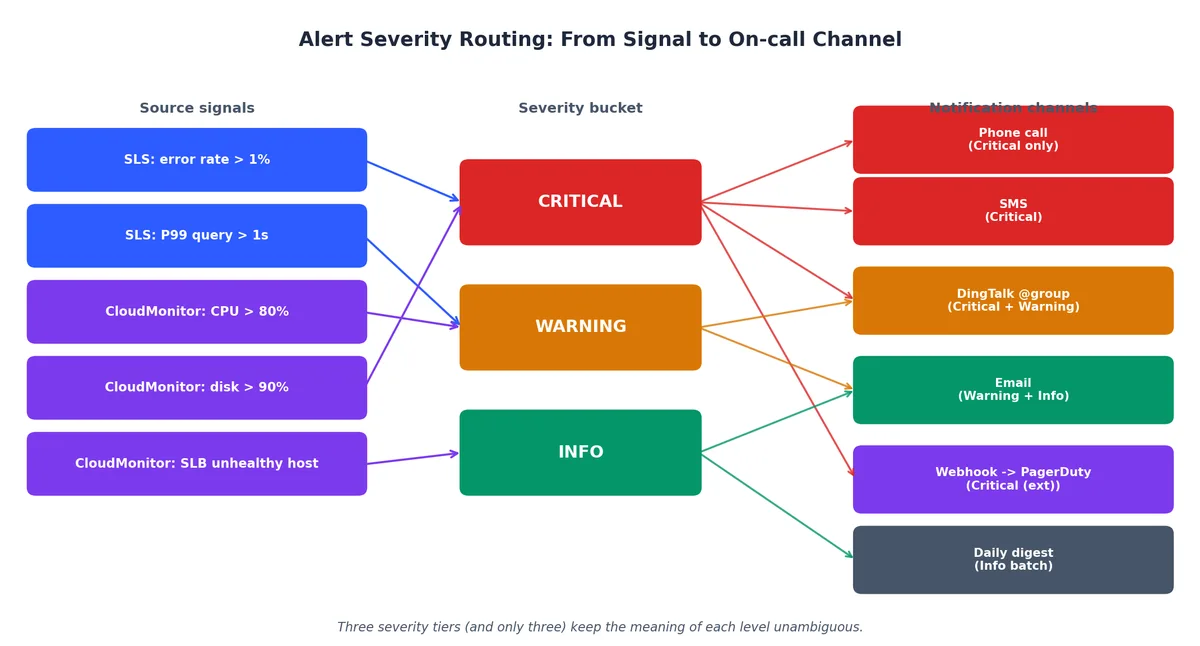
  3. Have exactly three severity levels. Critical (pages someone now), Warning (needs investigation within hours), Info (logged for review). More than three and nobody knows what each level means.
  4. Mute during known maintenance. Nothing destroys alert trust faster than alerts firing during a deployment you announced in advance.

Symptom-based vs cause-based alert design

Setting Up Alert Rules#

Here are the four alerts every production system needs:

1. High Error Rate (Critical)

 1
 2
 3
 4
 5
 6
 7
 8
 9
10
11
12
13
14
15
16
17
18
19
20
21
22
23
24
25
26
27
28
29
30
31
32
33
34
35
36
37
# SLS Alert: Error rate exceeds 1% for 5 minutes
aliyun sls CreateAlert \
  --project prod-webapp \
  --body '{
    "name": "high-error-rate",
    "displayName": "High Error Rate (>1%)",
    "description": "5xx error rate exceeds 1% over 5 minutes",
    "schedule": {
      "type": "FixedRate",
      "interval": "1m"
    },
    "configuration": {
      "type": "default",
      "queryList": [
        {
          "project": "prod-webapp",
          "logstore": "nginx-access-log",
          "query": "* | SELECT round(count_if(status >= 500) * 100.0 / count(*), 2) as error_rate, count(*) as total WHERE __time__ > unix_timestamp() - 300",
          "timeSpanType": "Custom",
          "start": "-5m",
          "end": "now"
        }
      ],
      "condition": "error_rate > 1 && total > 100",
      "threshold": 1,
      "noDataFire": false,
      "sendResolved": true,
      "notificationList": [
        {
          "type": "DingTalk",
          "serviceUri": "https://oapi.dingtalk.com/robot/send?access_token=YOUR_TOKEN",
          "content": "CRITICAL: Error rate is ${error_rate}% (${total} requests in last 5min)"
        }
      ]
    }
  }' \
  --endpoint cn-hangzhou.log.aliyuncs.com

The total > 100 condition prevents false alerts during low-traffic periods. If only 3 requests came in and 1 failed, that is 33% error rate — alarming numerically, meaningless practically.

2. High CPU Sustained (Warning)

 1
 2
 3
 4
 5
 6
 7
 8
 9
10
11
12
13
# CloudMonitor Alert: CPU > 80% for 5 minutes
aliyun cms PutResourceMetricRule \
  --RuleId cpu-high-warning \
  --RuleName "High CPU Utilization" \
  --Namespace acs_ecs_dashboard \
  --MetricName CPUUtilization \
  --ContactGroups '["ops-team"]' \
  --Resources '[{"instanceId":"i-bp1xxxxxxxxx"}]' \
  --Escalations.Warn.Statistics Average \
  --Escalations.Warn.ComparisonOperator GreaterThanOrEqualToThreshold \
  --Escalations.Warn.Threshold 80 \
  --Escalations.Warn.Times 5 \
  --Period 60

Times: 5 means the condition must be true for 5 consecutive evaluation periods (5 minutes at 60-second intervals). A brief CPU spike from a burst of traffic will not trigger this.

3. Disk Space Low (Warning)

 1
 2
 3
 4
 5
 6
 7
 8
 9
10
11
12
13
14
15
16
17
aliyun cms PutResourceMetricRule \
  --RuleId disk-space-warning \
  --RuleName "Low Disk Space" \
  --Namespace acs_ecs_dashboard \
  --MetricName diskusage_utilization \
  --ContactGroups '["ops-team"]' \
  --Resources '[{"instanceId":"i-bp1xxxxxxxxx"}]' \
  --Escalations.Warn.Statistics Maximum \
  --Escalations.Warn.ComparisonOperator GreaterThanOrEqualToThreshold \
  --Escalations.Warn.Threshold 80 \
  --Escalations.Warn.Times 3 \
  --Period 60 \
  --Escalations.Critical.Statistics Maximum \
  --Escalations.Critical.ComparisonOperator GreaterThanOrEqualToThreshold \
  --Escalations.Critical.Threshold 90 \
  --Escalations.Critical.Times 1 \
  --Period 60

This has two escalation levels: warn at 80% disk usage (sustained), critical at 90% (immediate). Disks filling up is the most preventable and most common cause of outages I have seen.

4. Slow Database Queries (Warning)

 1
 2
 3
 4
 5
 6
 7
 8
 9
10
11
12
13
14
15
16
17
18
19
20
21
22
23
24
25
26
27
28
29
30
31
32
33
34
35
36
37
# SLS Alert: P99 query time exceeds 1 second
aliyun sls CreateAlert \
  --project prod-webapp \
  --body '{
    "name": "slow-queries",
    "displayName": "Slow Database Queries",
    "description": "P99 query time exceeds 1 second over 10 minutes",
    "schedule": {
      "type": "FixedRate",
      "interval": "5m"
    },
    "configuration": {
      "type": "default",
      "queryList": [
        {
          "project": "prod-webapp",
          "logstore": "slow-query-log",
          "query": "* | SELECT approx_percentile(query_time, 0.99) as p99_query_time, count(*) as slow_query_count WHERE __time__ > unix_timestamp() - 600",
          "timeSpanType": "Custom",
          "start": "-10m",
          "end": "now"
        }
      ],
      "condition": "p99_query_time > 1",
      "threshold": 1,
      "noDataFire": false,
      "sendResolved": true,
      "notificationList": [
        {
          "type": "DingTalk",
          "serviceUri": "https://oapi.dingtalk.com/robot/send?access_token=YOUR_TOKEN",
          "content": "WARNING: P99 query time is ${p99_query_time}s (${slow_query_count} slow queries in last 10min)"
        }
      ]
    }
  }' \
  --endpoint cn-hangzhou.log.aliyuncs.com

Contact Groups and Notification Channels#

CloudMonitor routes alert notifications through contact groups. Create a group and add notification channels:

 1
 2
 3
 4
 5
 6
 7
 8
 9
10
11
12
13
14
# Create a contact group
aliyun cms PutContactGroup \
  --ContactGroupName ops-team \
  --ContactNames '["engineer-a", "engineer-b", "on-call"]' \
  --Describe "Production operations team"

# Create a contact with DingTalk and email
aliyun cms PutContact \
  --ContactName engineer-a \
  --Channels '{
    "Mail": "engineer-a@company.com",
    "DingWebHook": "https://oapi.dingtalk.com/robot/send?access_token=YOUR_TOKEN"
  }' \
  --Describe "Engineer A - primary on-call"

Supported notification channels:

ChannelUse Case
EmailNon-urgent warnings, daily summaries
DingTalk webhookTeam-visible alerts, incident coordination
SMSCritical alerts that need immediate attention
Phone callProduction-down severity (use sparingly)
Webhook (HTTP)Integration with PagerDuty, Slack, custom systems

Alert severity routing across notification channels

Mute periods: For scheduled maintenance windows, set a mute period on the alert rule to suppress notifications. This is better than disabling the alert entirely because the alert still fires and records the event — you just do not get woken up for something you already know about.

ARMS: Application Real-Time Monitoring#

ARMS completes the observability picture by providing the third pillar: traces. While SLS tells you what happened and CloudMonitor tells you the system-level impact, ARMS tells you exactly where in your application the problem occurs.

Distributed tracing with ARMS

What ARMS Does#

ARMS is an APM (Application Performance Monitoring) platform that provides:

  • Distributed tracing — Follow a request across services, databases, caches, and message queues. See exactly where time is spent.
  • Service topology — Auto-discovered map of how your services communicate. See dependencies, call volumes, and error rates at a glance.
  • Exception diagnostics — Automatic capture and aggregation of exceptions with stack traces, frequency, and affected users.
  • Slow transaction analysis — Drill into specific slow requests to see the full call chain, including database queries and external API calls.

ARMS supports automatic instrumentation for:

LanguageAgent TypeWhat Gets Instrumented
JavaByteBuddy agentSpring, Dubbo, gRPC, JDBC, Redis, HTTP clients
Node.jsnpm packageExpress, Koa, MySQL, Redis, HTTP, gRPC
Pythonpip packageDjango, Flask, SQLAlchemy, Redis, requests
GoSDKnet/http, gRPC, database/sql, go-redis
PHPExtensionLaravel, ThinkPHP, MySQLi, cURL

“Automatic instrumentation” means you do not need to modify your application code. The agent intercepts framework-level calls and generates trace spans automatically. You add the agent to your startup command and traces appear.

Installing the ARMS Agent (Node.js)#

For the Node.js application we have been running on our ECS instances:

1
2
3
4
5
6
7
# Install the ARMS Node.js agent
npm install @alicloud/china-arms-apm --save

# Set environment variables
export ARMS_APP_NAME=order-service
export ARMS_LICENSE_KEY=your-license-key-from-console
export ARMS_REGION_ID=cn-hangzhou

Add the agent require at the very top of your application entry point, before any other imports:

1
2
3
4
5
6
7
// app.js - this MUST be the first line
require('@alicloud/china-arms-apm').default({ appName: 'order-service' });

// everything else follows
const express = require('express');
const app = express();
// ... rest of your application

For Java applications, it is even simpler — just add a JVM flag:

1
2
3
4
java -javaagent:/path/to/arms-agent.jar \
     -Darms.appName=order-service \
     -Darms.licenseKey=your-license-key \
     -jar your-application.jar

Reading Traces#

Once the agent is running, ARMS starts generating traces for every incoming request. Each trace consists of spans — one span per operation (HTTP call, database query, cache lookup). The spans form a tree that shows the complete request lifecycle.

A typical trace for an API request looks like this:

 1
 2
 3
 4
 5
 6
 7
 8
 9
10
11
Trace: abc-123-def (total: 234ms)
├── [order-service] POST /api/orders                       0-234ms
   ├── [order-service] MySQL: SELECT * FROM users         12-18ms
   ├── [order-service] Redis: GET user:789:cart            19-21ms
   ├── [order-service] MySQL: INSERT INTO orders           22-89ms
   ├── [order-service] HTTP: POST payment-service/charge   90-210ms
      ├── [payment-service] POST /charge                  95-205ms
         ├── [payment-service] MySQL: SELECT balance     100-105ms
         ├── [payment-service] HTTP: POST alipay.com     106-195ms
         └── [payment-service] MySQL: UPDATE balance     196-203ms
   └── [order-service] Redis: DEL user:789:cart            211-213ms

From this trace you can see that the payment service’s call to Alipay takes 89ms — that is an external dependency you cannot optimize. The database INSERT takes 67ms — worth investigating if that number is normally lower. The total 234ms is acceptable for a checkout flow, but if it was 2340ms, you would know exactly which span to look at.

Linking Traces to Logs#

The real power comes from linking ARMS traces to SLS log entries. When a trace shows that a specific database query was slow, you want to see the corresponding application log to understand the context — what user triggered it, what parameters were passed, what the query plan was.

Enable trace-log correlation by including the trace ID in your log output:

 1
 2
 3
 4
 5
 6
 7
 8
 9
10
11
12
13
// middleware to inject trace ID into logs
app.use((req, res, next) => {
  const traceId = req.headers['eagleeye-traceid'] || 'no-trace';
  req.logger = logger.child({ traceId });
  next();
});

// In your route handlers, use req.logger
app.post('/api/orders', async (req, res) => {
  req.logger.info({ userId: req.user.id }, 'creating order');
  // ... business logic
  req.logger.info({ orderId: order.id, latencyMs: elapsed }, 'order created');
});

Now in SLS, you can search for all logs associated with a specific trace:

1
traceId: abc-123-def

And in ARMS, each trace span links back to the corresponding SLS log entries. This bidirectional link is what makes debugging production issues fast.

Bidirectional trace-log correlation via traceId

Solution: Full-Stack Observability Setup#

Let me bring everything together into a complete setup sequence. This assumes you have ECS instances running behind an SLB load balancer with an RDS database — the architecture from the previous articles in this series.

Step 1: Install Agents on All ECS Instances#

Create a cloud-init script or Ansible playbook that installs both agents on every app server:

 1
 2
 3
 4
 5
 6
 7
 8
 9
10
11
12
13
14
15
16
17
18
19
20
21
22
23
24
25
26
27
28
29
30
31
32
33
34
35
36
37
#!/bin/bash
# install-observability.sh
# Run on each ECS instance in the app tier

set -euo pipefail

REGION=cn-hangzhou
SLS_PROJECT=prod-webapp

echo "=== Installing Logtail ==="
wget -q http://logtail-release-${REGION}.oss-${REGION}-internal.aliyuncs.com/linux64/logtail.sh -O /tmp/logtail.sh
chmod 755 /tmp/logtail.sh
sudo /tmp/logtail.sh install ${REGION}

# Set machine group identity
sudo mkdir -p /etc/ilogtail
echo "prod-app-servers" | sudo tee /etc/ilogtail/user_defined_id

# Restart Logtail to pick up identity
sudo /etc/init.d/ilogtaild restart

echo "=== Installing CloudMonitor Agent ==="
ARGUS_VERSION=3.5.9
wget -q "http://cms-download.aliyun.com/cms-go-client/${ARGUS_VERSION}/cms-go-client.linux-amd64.tar.gz" -O /tmp/cms-agent.tar.gz
cd /tmp && tar xzf cms-agent.tar.gz
sudo /tmp/cms-go-client.linux-amd64/cloudmonitor --install
sudo /tmp/cms-go-client.linux-amd64/cloudmonitor --start

echo "=== Installing ARMS Node.js Agent ==="
cd /opt/app
npm install @alicloud/china-arms-apm --save

echo "=== Verifying ==="
sudo /etc/init.d/ilogtaild status
sudo /tmp/cms-go-client.linux-amd64/cloudmonitor --status

echo "All agents installed successfully."

Step 2: Configure Log Collection#

Apply Logtail configs for all log sources:

 1
 2
 3
 4
 5
 6
 7
 8
 9
10
11
12
13
14
15
16
17
18
19
20
21
22
23
24
25
26
27
28
29
30
31
32
33
34
35
36
# Create SLS project and logstores
aliyun sls CreateProject --body '{"projectName":"prod-webapp","description":"Production logs"}' \
  --endpoint cn-hangzhou.log.aliyuncs.com

for STORE in nginx-access-log app-log system-log slow-query-log; do
  aliyun sls CreateLogStore --project prod-webapp \
    --body "{\"logstoreName\":\"${STORE}\",\"ttl\":30,\"shardCount\":2,\"autoSplit\":true,\"maxSplitShard\":8}" \
    --endpoint cn-hangzhou.log.aliyuncs.com
done

# Create machine group (user-defined identity)
aliyun sls CreateMachineGroup --project prod-webapp \
  --body '{
    "groupName":"prod-app-servers",
    "machineIdentifyType":"userdefined",
    "groupAttribute":{"externalName":"prod-app-servers","groupTopic":""},
    "machineList":["prod-app-servers"]
  }' \
  --endpoint cn-hangzhou.log.aliyuncs.com

# Apply collection configs (nginx, app JSON, syslog)
aliyun sls CreateConfig --project prod-webapp --body @nginx-access-config.json \
  --endpoint cn-hangzhou.log.aliyuncs.com
aliyun sls ApplyConfigToMachineGroup --project prod-webapp \
  --groupName prod-app-servers --configName nginx-access-config \
  --endpoint cn-hangzhou.log.aliyuncs.com

aliyun sls CreateConfig --project prod-webapp --body @app-json-log-config.json \
  --endpoint cn-hangzhou.log.aliyuncs.com
aliyun sls ApplyConfigToMachineGroup --project prod-webapp \
  --groupName prod-app-servers --configName app-json-log-config \
  --endpoint cn-hangzhou.log.aliyuncs.com

# Create indexes for nginx logs
aliyun sls CreateIndex --project prod-webapp --logstore nginx-access-log \
  --body @nginx-index.json --endpoint cn-hangzhou.log.aliyuncs.com

Step 3: Set Up CloudMonitor Alerts#

 1
 2
 3
 4
 5
 6
 7
 8
 9
10
11
12
13
14
15
16
17
18
19
20
21
22
23
24
25
26
27
28
29
30
31
32
33
34
35
36
37
38
39
40
41
42
43
44
45
46
47
48
49
50
51
52
53
54
55
56
57
58
59
60
61
62
63
64
65
66
67
# Create contact group
aliyun cms PutContactGroup \
  --ContactGroupName ops-team \
  --ContactNames '["primary-oncall"]'

# ECS alerts
for INSTANCE_ID in i-bp1xxxxxxxxx i-bp1yyyyyyyyy; do
  # CPU alert
  aliyun cms PutResourceMetricRule \
    --RuleId "cpu-high-${INSTANCE_ID}" \
    --RuleName "High CPU - ${INSTANCE_ID}" \
    --Namespace acs_ecs_dashboard \
    --MetricName CPUUtilization \
    --ContactGroups '["ops-team"]' \
    --Resources "[{\"instanceId\":\"${INSTANCE_ID}\"}]" \
    --Escalations.Warn.Statistics Average \
    --Escalations.Warn.ComparisonOperator GreaterThanOrEqualToThreshold \
    --Escalations.Warn.Threshold 80 \
    --Escalations.Warn.Times 5 \
    --Period 60

  # Disk alert
  aliyun cms PutResourceMetricRule \
    --RuleId "disk-high-${INSTANCE_ID}" \
    --RuleName "Low Disk - ${INSTANCE_ID}" \
    --Namespace acs_ecs_dashboard \
    --MetricName diskusage_utilization \
    --ContactGroups '["ops-team"]' \
    --Resources "[{\"instanceId\":\"${INSTANCE_ID}\"}]" \
    --Escalations.Warn.Statistics Maximum \
    --Escalations.Warn.ComparisonOperator GreaterThanOrEqualToThreshold \
    --Escalations.Warn.Threshold 80 \
    --Escalations.Warn.Times 3 \
    --Escalations.Critical.Statistics Maximum \
    --Escalations.Critical.ComparisonOperator GreaterThanOrEqualToThreshold \
    --Escalations.Critical.Threshold 90 \
    --Escalations.Critical.Times 1 \
    --Period 60
done

# RDS alerts
aliyun cms PutResourceMetricRule \
  --RuleId rds-connections-high \
  --RuleName "RDS Connection Pool Exhaustion" \
  --Namespace acs_rds_dashboard \
  --MetricName ConnectionUsage \
  --ContactGroups '["ops-team"]' \
  --Resources '[{"instanceId":"rm-bp1xxxxxxxxx"}]' \
  --Escalations.Warn.Statistics Average \
  --Escalations.Warn.ComparisonOperator GreaterThanOrEqualToThreshold \
  --Escalations.Warn.Threshold 80 \
  --Escalations.Warn.Times 3 \
  --Period 60

# SLB health check alert
aliyun cms PutResourceMetricRule \
  --RuleId slb-unhealthy-hosts \
  --RuleName "SLB Unhealthy Backend Servers" \
  --Namespace acs_slb_dashboard \
  --MetricName UnhealthyServerCount \
  --ContactGroups '["ops-team"]' \
  --Resources '[{"instanceId":"lb-bp1xxxxxxxxx"}]' \
  --Escalations.Critical.Statistics Maximum \
  --Escalations.Critical.ComparisonOperator GreaterThanThreshold \
  --Escalations.Critical.Threshold 0 \
  --Escalations.Critical.Times 2 \
  --Period 60

Step 4: Configure SLS Dashboard and Alerts#

 1
 2
 3
 4
 5
 6
 7
 8
 9
10
11
12
13
# Create the ops dashboard
aliyun sls CreateDashboard --project prod-webapp \
  --body @ops-dashboard.json \
  --endpoint cn-hangzhou.log.aliyuncs.com

# Create SLS alerts for error rate and slow queries
aliyun sls CreateAlert --project prod-webapp \
  --body @high-error-rate-alert.json \
  --endpoint cn-hangzhou.log.aliyuncs.com

aliyun sls CreateAlert --project prod-webapp \
  --body @slow-queries-alert.json \
  --endpoint cn-hangzhou.log.aliyuncs.com

Step 5: Verify Everything Works#

 1
 2
 3
 4
 5
 6
 7
 8
 9
10
11
12
13
14
15
16
17
18
19
20
21
22
23
24
25
26
27
28
29
30
31
32
# 1. Check Logtail is collecting logs
aliyun sls GetLogs --project prod-webapp --logstore nginx-access-log \
  --from $(date -d '5 minutes ago' +%s) --to $(date +%s) \
  --query '*' --line 3 --endpoint cn-hangzhou.log.aliyuncs.com

# 2. Check CloudMonitor agent metrics
aliyun cms DescribeMetricLast \
  --Namespace acs_ecs_dashboard \
  --MetricName CPUUtilization \
  --Dimensions '[{"instanceId":"i-bp1xxxxxxxxx"}]'

# 3. Generate test traffic and verify dashboard
for i in $(seq 1 100); do
  curl -s -o /dev/null -w "%{http_code}\n" https://your-app.com/api/health
done

# 4. Trigger a test alert (temporarily lower threshold)
aliyun cms PutResourceMetricRule \
  --RuleId cpu-high-test \
  --RuleName "Test CPU Alert" \
  --Namespace acs_ecs_dashboard \
  --MetricName CPUUtilization \
  --ContactGroups '["ops-team"]' \
  --Resources '[{"instanceId":"i-bp1xxxxxxxxx"}]' \
  --Escalations.Warn.Statistics Average \
  --Escalations.Warn.ComparisonOperator GreaterThanOrEqualToThreshold \
  --Escalations.Warn.Threshold 1 \
  --Escalations.Warn.Times 1 \
  --Period 60

# Wait for the test alert, then delete it
# aliyun cms DeleteMetricRules --Id '["cpu-high-test"]'

The Complete Architecture#

After completing all five steps, your observability stack looks like this:

 1
 2
 3
 4
 5
 6
 7
 8
 9
10
11
12
13
14
15
16
17
18
19
20
21
22
23
24
25
26
27
28
29
30
                        ┌───────────────────────────────────────────┐
                        │              SLS Dashboard                │
                        │  QPS | Errors | Latency | Top Endpoints  │
                        └──────────┬───────────────┬────────────────┘
                                   │               │
                    ┌──────────────┴───┐    ┌──────┴──────────┐
                    │   SLS Alerts     │    │ CloudMonitor     │
                    │  error rate >1%  │    │  CPU > 80%       │
                    │  slow queries    │    │  disk > 80%      │
                    └──────┬───────────┘    │  RDS conn > 80%  │
                           │               │  SLB unhealthy   │
                    ┌──────┴───────┐       └──────┬───────────┘
                    │              │               │
              ┌─────▼─────┐  ┌────▼──────┐  ┌────▼──────────┐
              │ SLS       │  │ SLS       │  │ DingTalk /    │
              │ Logstore  │  │ Logstore  │  │ Email / SMS   │
              │ nginx     │  │ app       │  │ Webhook       │
              └─────▲─────┘  └────▲──────┘  └───────────────┘
                    │             │
              ┌─────┴─────────────┴──────────────────────┐
              │              Logtail Agent                │
              │    /var/log/nginx/    /var/log/app/       │
              ├──────────────────────────────────────────┤
              │              ARMS Agent                   │
              │    Traces → ARMS Console                 │
              ├──────────────────────────────────────────┤
              │           CloudMonitor Agent              │
              │    CPU, Memory, Disk → CloudMonitor       │
              └──────────────────────────────────────────┘
                         ECS Instance (App Tier)

Costs#

Observability is not free, and costs can sneak up on you. Here is a realistic cost estimate for a small production setup (2 ECS instances, moderate traffic):
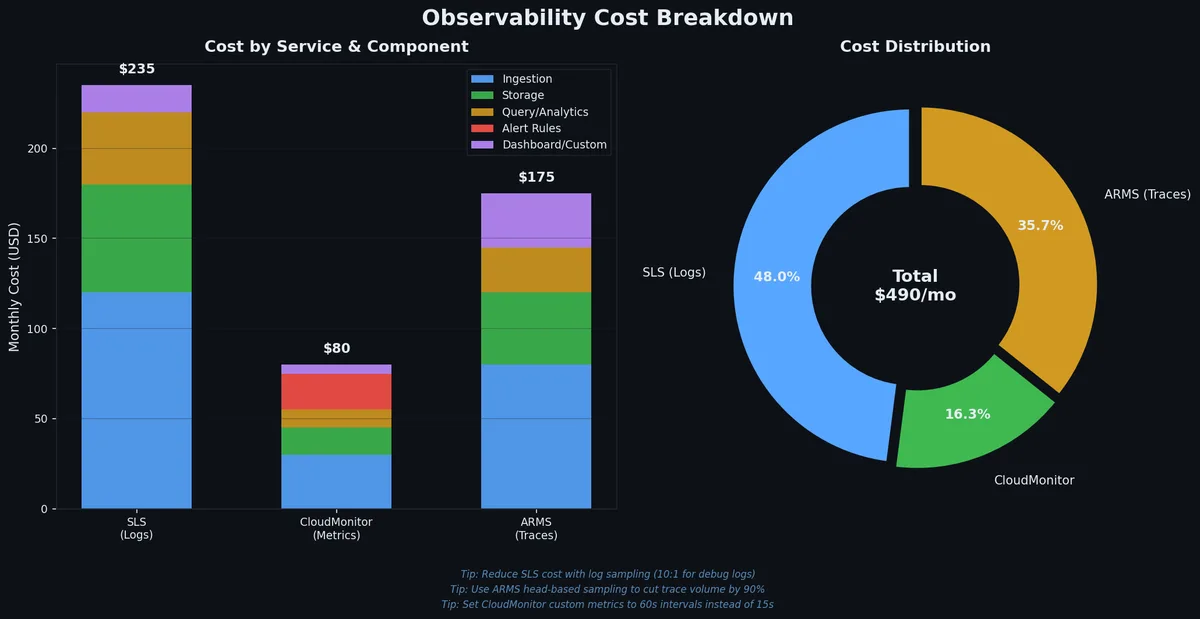
Observability cost breakdown

ComponentFree TierTypical Monthly Cost
SLS ingestion500 MB/day50-200 CNY (depends on log volume)
SLS storageIncluded in ingestionIncluded
SLS indexingIncludedRoughly 2x storage cost
CloudMonitorBasic metrics free0 for built-in; 10-50 CNY for custom metrics
ARMS15-day free trial100-500 CNY (depends on trace volume)

Cost optimization tips:

  • Set appropriate retention periods. Access logs rarely need more than 30 days. System logs can be 7 days. Slow query logs keep for 90 days. Reducing retention from 90 to 30 days cuts storage cost by 66%.
  • Index only fields you query. Every indexed field doubles storage for that field. If you never query http_user_agent in SQL, do not create a field index for it.
  • Use sampling for ARMS. In high-traffic applications, trace 10% of requests instead of 100%. You still catch anomalies, but at 1/10 the cost.
  • Aggregate before storing. For metrics you only need at 5-minute granularity, aggregate in your application and push the aggregate rather than pushing per-request data points.

Summary#

  1. Set up observability before you deploy your application, not after. The cost of instrumenting retroactively — restructuring logs, adding trace propagation, rebuilding dashboards — is always higher than doing it from the start. Install Logtail, CloudMonitor agent, and ARMS agent as part of your instance provisioning script.

  2. The three pillars are complementary, not redundant. Metrics tell you something is wrong (error rate spike on the dashboard). Logs tell you what is wrong (database timeout in the application log). Traces tell you why it is wrong (one specific query path takes 3 seconds because of a missing index). You need all three to debug production issues efficiently.

  3. SLS is the Swiss Army knife. It handles log collection, search, SQL analytics, dashboards, and alerting in one service. Learn the query syntax — the search | SQL pattern with full-text search on the left and analytics on the right. The five essential dashboard panels (QPS, error rate, P99 latency, top endpoints, status distribution) cover 80% of incident triage.

  4. Alert on symptoms, not causes. “Error rate > 1% for 5 minutes” is a better alert than “CPU > 80%.” Always require sustained thresholds (3-5 consecutive data points) to avoid alert fatigue from transient spikes. Set up mute periods for planned maintenance.

  5. Start with the minimum viable monitoring stack. Logtail for nginx and application logs, CloudMonitor for ECS/RDS/SLB built-in metrics, four alert rules (error rate, CPU, disk, DB connections), one ops dashboard. You can add ARMS tracing, custom metrics, and advanced dashboards incrementally as your application grows. Perfect observability on day one is not the goal — having something that pages you when the site is down is.

In the next article, we tackle containers with ACK and SAE — and you will be glad you set up observability first, because debugging a misbehaving Kubernetes cluster without centralized logging is a special kind of pain.

In this series

Alibaba Cloud Full Stack 12 parts

  1. 01 Alibaba Cloud Full Stack (1): The Ecosystem Map — What Alibaba Cloud Actually Is
  2. 02 Alibaba Cloud Full Stack (2): ECS — Compute That Actually Makes Sense
  3. 03 Alibaba Cloud Full Stack (3): VPC, SLB, and the Network Layer
  4. 04 Alibaba Cloud Full Stack (4): OSS — Object Storage Done Right
  5. 05 Alibaba Cloud Full Stack (5): RDS and PolarDB — The Database Layer
  6. 06 Alibaba Cloud Full Stack (6): RAM, KMS, and Cloud Security
  7. 07 Alibaba Cloud Full Stack (7): SLS, CloudMonitor, and Observability you are here
  8. 08 Alibaba Cloud Full Stack (8): Serverless — Function Compute and EventBridge
  9. 09 Alibaba Cloud Full Stack (9): OpenSearch and AI Search
  10. 10 Alibaba Cloud Full Stack (10): Bailian and DashScope — The LLM Layer
  11. 11 Alibaba Cloud Full Stack (11): PAI — The ML Platform
  12. 12 Alibaba Cloud Full Stack (12): End-to-End — One Terraform Apply for Everything

Liked this piece?

Follow on GitHub for the next one — usually one a week.

GitHub