Docker and Containers (1): Why Containers — The Problem VMs Didn't Solve
Containers solve the 'works on my machine' problem that VMs made expensive. Learn what containers actually are, how they differ from VMs, and run your first one.
Every developer has heard the phrase “it works on my machine.” Virtual machines were supposed to fix that, and they did — at the cost of gigabytes of RAM, minutes of boot time, and an entire duplicate operating system per application. Containers asked a different question: what if we could isolate applications without duplicating the kernel?
The Actual Problem#
Consider deploying a Python web application. You need Python 3.11, specific pip packages, a particular version of libssl, and some system-level configuration. Your colleague’s app needs Python 3.9 and a conflicting libssl version. The staging server runs Ubuntu 20.04 while production runs Amazon Linux 2.
Virtual machines solve this by giving each application its own entire operating system. It works, but it’s wasteful. Each VM carries:
- A full kernel (hundreds of MB)
- System daemons (init, syslog, cron — none of which your app needs)
- Duplicate copies of shared libraries
- Its own memory management overhead
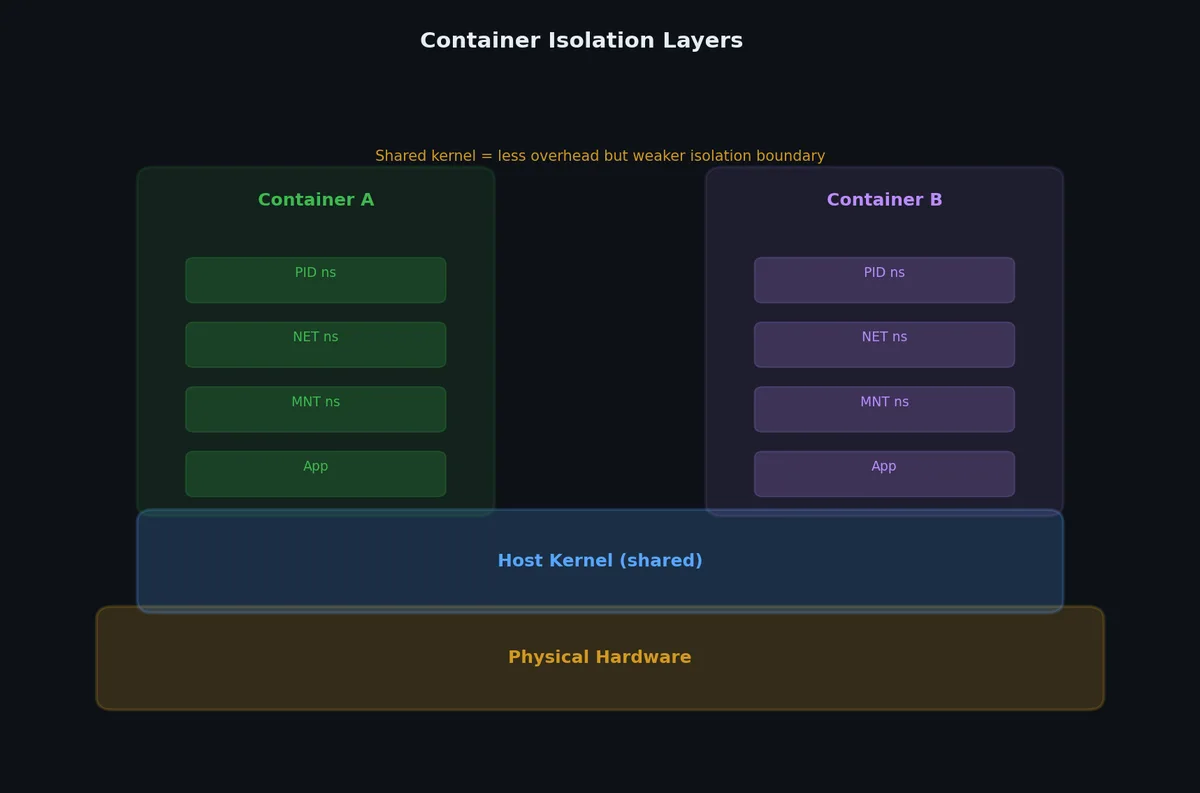
Containers solve the same isolation problem by sharing the host kernel and isolating only what matters: the filesystem, process tree, network stack, and resource limits.
What Containers Actually Are#
A container is not a lightweight VM. That analogy is convenient but misleading. A container is a regular Linux process (or group of processes) with three kernel features applied to it:
Namespaces — What the Process Can See#
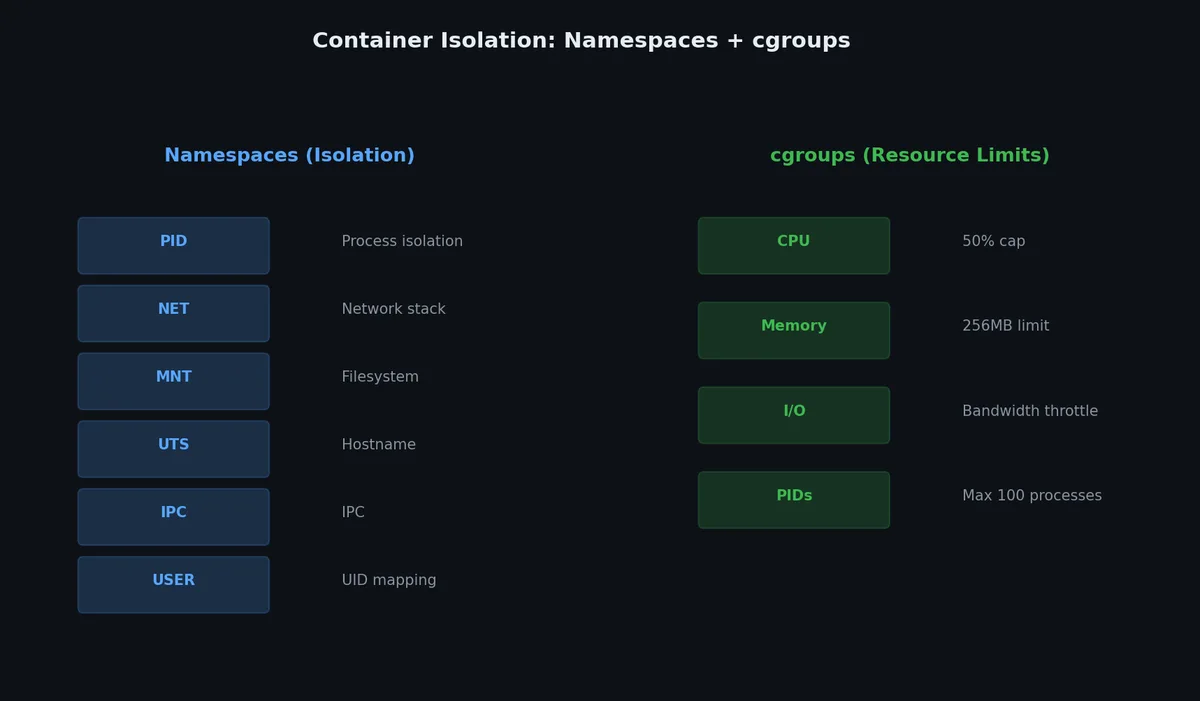
Linux namespaces partition kernel resources so that one set of processes sees one set of resources while another set sees a different set. There are several namespace types:
| Namespace | Isolates | Effect |
|---|---|---|
pid | Process IDs | Container sees only its own processes; PID 1 inside is not PID 1 on host |
net | Network stack | Container gets its own IP address, routing table, ports |
mnt | Mount points | Container has its own filesystem view |
uts | Hostname | Container can have its own hostname |
ipc | Inter-process communication | Shared memory and semaphores are isolated |
user | User/group IDs | Root inside container can map to non-root on host |
cgroup | Cgroup root directory | Container sees only its own cgroup hierarchy |
When you run docker run nginx, Docker creates a new set of these namespaces and launches the nginx process inside them. The process is still a regular process on the host — you can see it with ps aux — but from inside, it thinks it’s alone on the machine.
Cgroups — What the Process Can Use#
Control groups (cgroups) limit and account for resource usage. While namespaces control visibility, cgroups control consumption:
| Resource | Cgroup Controller | What It Limits |
|---|---|---|
| CPU | cpu, cpuacct | CPU time, shares, quota |
| Memory | memory | RAM usage, swap, OOM behavior |
| Disk I/O | blkio | Read/write rates to block devices |
| Network | net_cls, net_prio | Traffic classification and priority |
| PIDs | pids | Maximum number of processes |
Without cgroups, a runaway container could consume all host memory and crash everything. With cgroups, you can say “this container gets at most 512MB of RAM and 0.5 CPU cores.”
Union Filesystem — How the Filesystem Works#
Containers use a layered filesystem. Instead of copying an entire OS filesystem for each container, layers are stacked on top of each other using a union filesystem (OverlayFS on modern Linux). The bottom layers are read-only (shared between containers), and each container gets a thin writable layer on top.
This is why starting a container is fast: there’s no filesystem to copy. The container just gets a pointer to existing read-only layers plus a new empty writable layer.
Containers vs Virtual Machines#

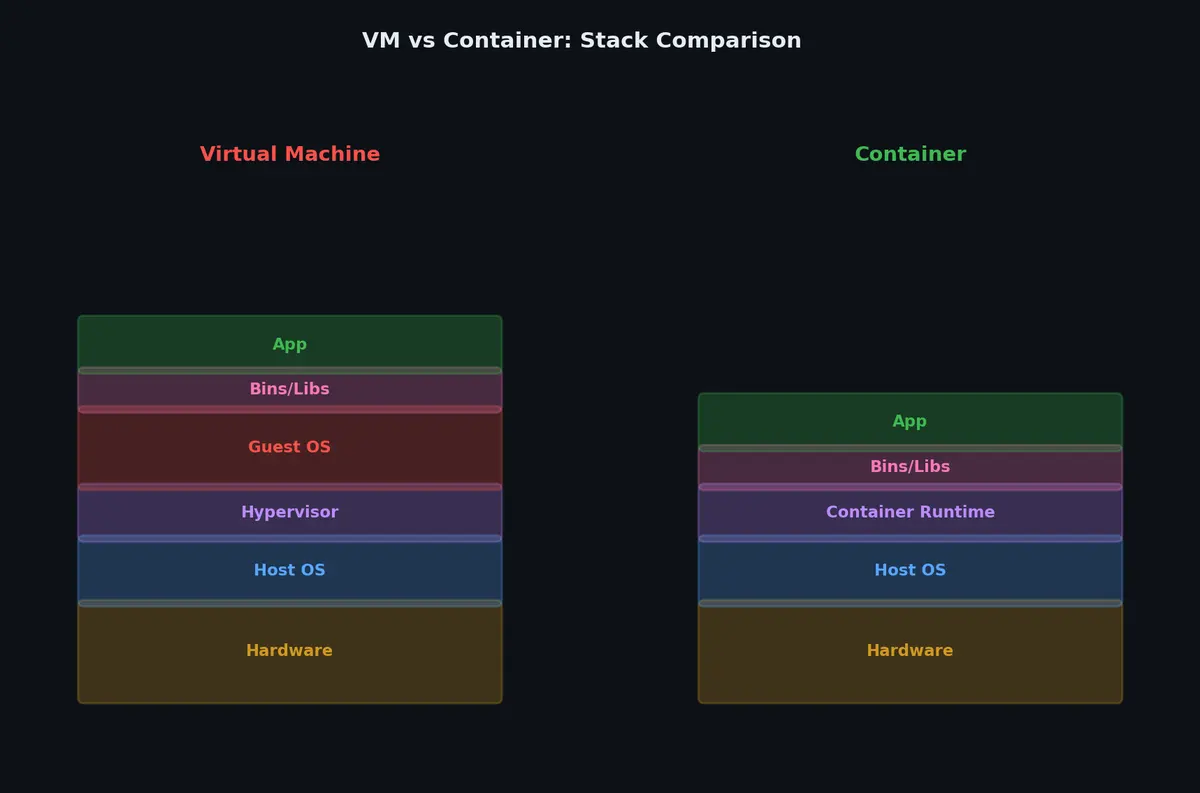
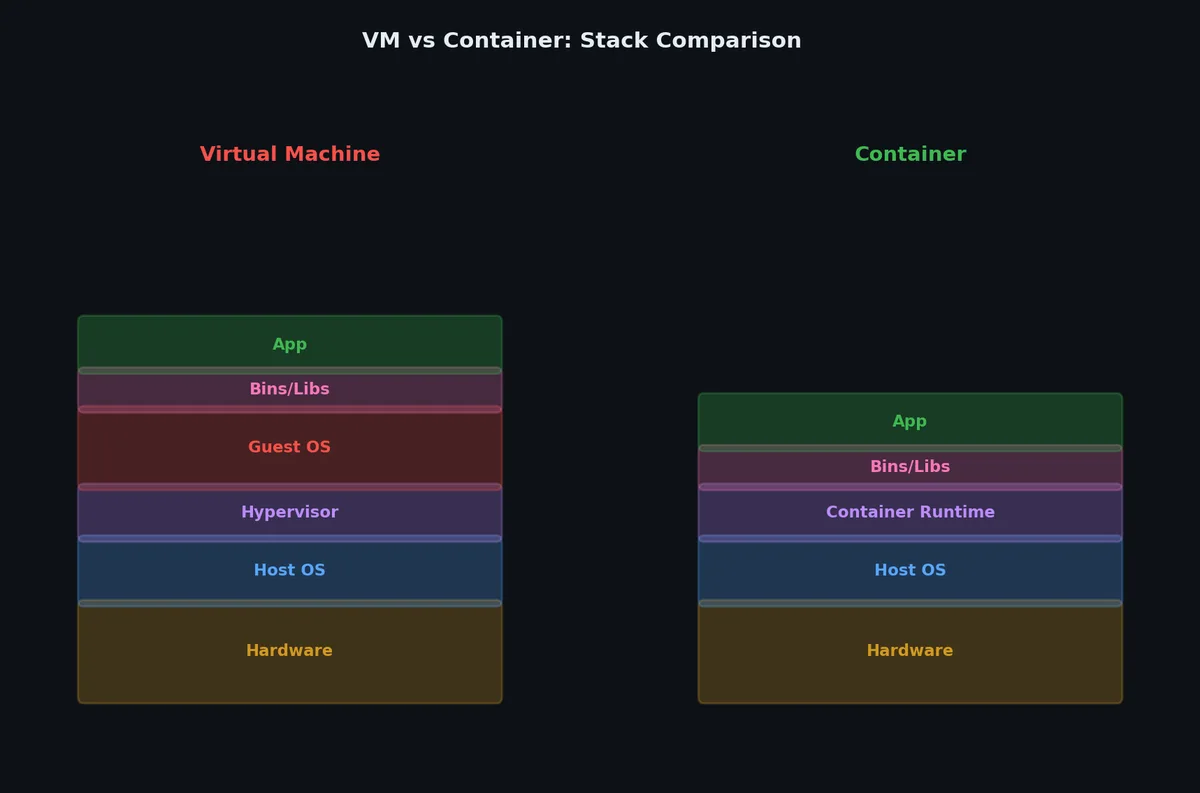
The architectural difference is fundamental. Here’s how the two stacks compare (imagine this as a diagram):
Virtual Machine stack (bottom to top):
| |
Container stack (bottom to top):
| |
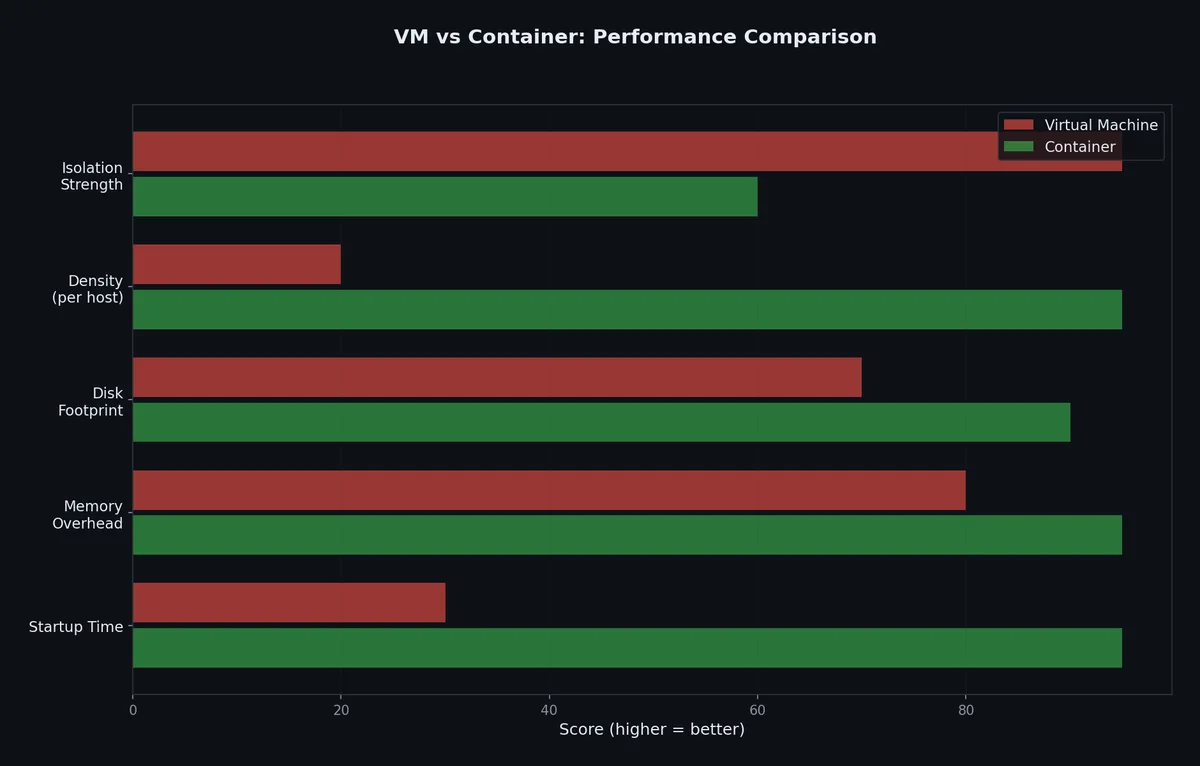
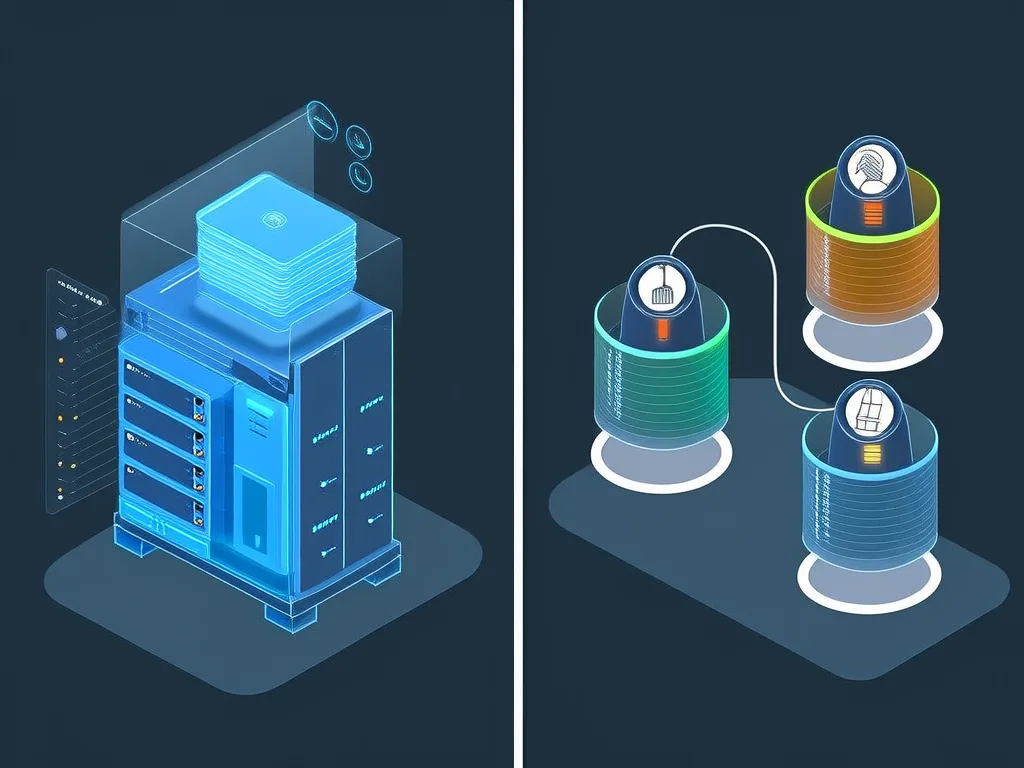
The key difference: VMs virtualize hardware. Containers virtualize the operating system. VMs run their own kernel. Containers share the host kernel.
Here’s a concrete comparison:
| Characteristic | Virtual Machine | Container |
|---|---|---|
| Boot time | 30-60 seconds | < 1 second |
| Disk footprint | 1-20 GB per VM | 10-500 MB per container |
| Memory overhead | 512 MB - several GB | Essentially zero (shared kernel) |
| Isolation level | Hardware-level (strong) | Process-level (good, not perfect) |
| Kernel | Own kernel per VM | Shared host kernel |
| OS support | Any OS (Windows on Linux, etc.) | Same kernel family as host |
| Density | 10-20 VMs per host typical | 100s of containers per host |
| Live migration | Supported | Not natively (orchestrators handle it) |
| Performance | Near-native with hardware virtualization | Native (no virtualization layer) |
When do you still want VMs? When you need strong security isolation (multi-tenant cloud), when you need a different kernel (running Windows workloads on Linux hosts), or when your compliance requirements mandate hardware-level separation.
The Container Ecosystem: OCI, Docker, containerd, Podman#
Docker popularized containers, but it’s not the only player. Understanding the ecosystem prevents confusion later.
The OCI Standard#
The Open Container Initiative (OCI) defines two specifications:
- Image Spec: What a container image looks like (layers, manifests, configuration)
- Runtime Spec: How to run a container (lifecycle, configuration format)
Any tool that follows these specs can build images that run anywhere. This is why you can build with Docker, push to any registry, and run with Podman.
The Container Runtime Stack#
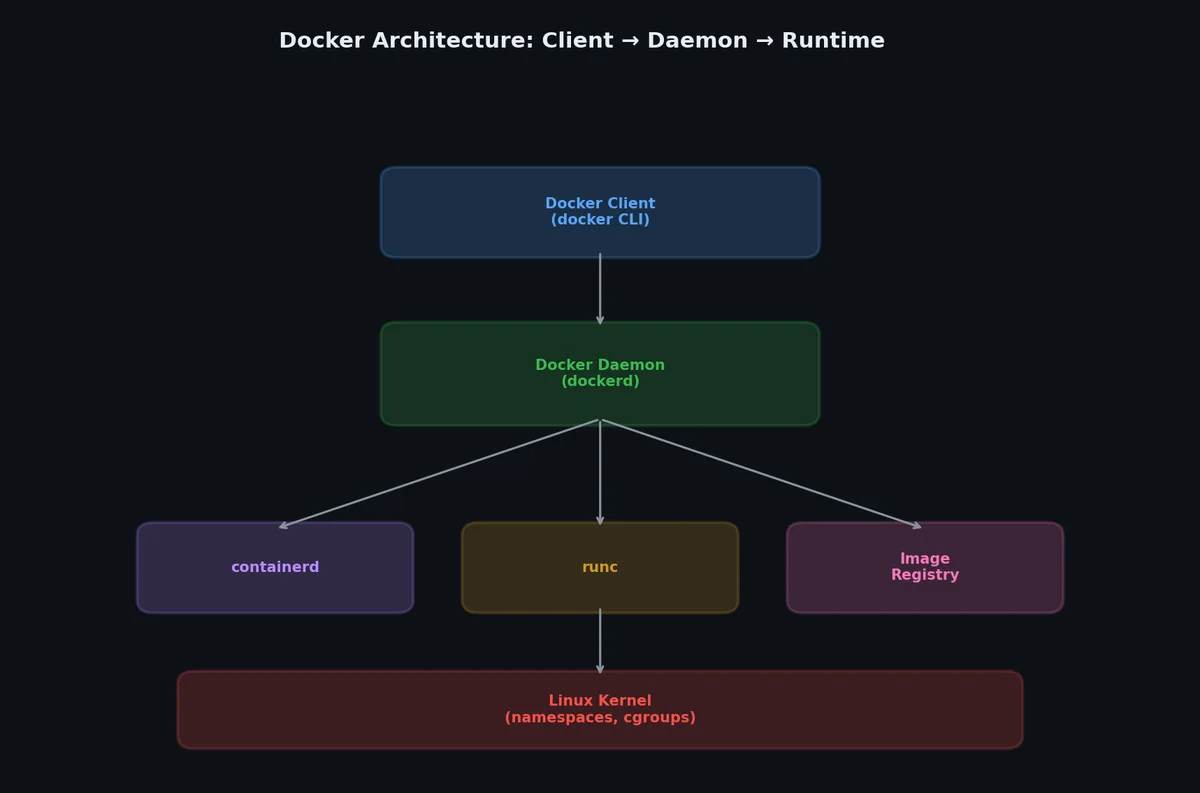
The stack has layers, and Docker sits on top:
| |
| Component | Role | Can You Use It Alone? |
|---|---|---|
runc | OCI runtime — actually creates namespaces and cgroups | Yes, but low-level |
containerd | Manages container lifecycle, image pulls, storage | Yes (used by Kubernetes directly) |
dockerd | Docker daemon — adds build, networking, volumes | Yes (what most people use) |
docker CLI | User-facing command-line tool | Talks to dockerd |
Docker vs Podman#
Podman is a daemonless container engine. Instead of talking to a daemon (dockerd), Podman runs containers directly. The commands are almost identical:
| |
Key differences:
| Feature | Docker | Podman |
|---|---|---|
| Daemon | Yes (dockerd) | No (daemonless) |
| Root required | Default yes (rootless mode available) | Rootless by default |
| Compose | docker compose | podman-compose (or compatible) |
| Swarm | Built-in | No |
| Kubernetes YAML | No native support | podman generate kube |
| Systemd integration | Requires configuration | Native |
For learning and most production use cases, Docker remains the standard. Podman matters when you care about rootless operation or systemd integration.
A Brief History of Containers#
Containers didn’t appear overnight. The journey took decades:
| Year | Technology | What It Did |
|---|---|---|
| 1979 | chroot | Changed the root directory for a process — first filesystem isolation |
| 2000 | FreeBSD Jails | Combined filesystem, process, and network isolation |
| 2001 | Linux VServer | Partitioned Linux into virtual private servers |
| 2004 | Solaris Zones | Full OS-level virtualization with resource controls |
| 2006 | Cgroups (Google) | Resource limiting and accounting — merged into Linux kernel |
| 2008 | LXC | Combined cgroups + namespaces into Linux containers |
| 2013 | Docker | Made containers accessible with a simple CLI and image format |
| 2014 | Kubernetes | Google open-sourced their container orchestration system |
| 2015 | OCI | Industry standard for container images and runtimes |
| 2017 | containerd | Extracted from Docker as a standalone runtime (CNCF project) |
Docker’s contribution wasn’t the technology itself — namespaces and cgroups existed before Docker. Docker’s contribution was the developer experience: a simple CLI, a portable image format, and a public registry (Docker Hub) to share images.
Installing Docker#
Linux (Ubuntu/Debian)#
Don’t install Docker from your distribution’s default repositories — those packages are often outdated. Use Docker’s official repository:
| |
Linux (CentOS/RHEL/Fedora)#
| |
macOS#
Docker Desktop is the standard approach for macOS. Docker doesn’t run natively on macOS — it runs inside a lightweight Linux VM managed by Docker Desktop.
- Download Docker Desktop from docker.com
- Open the
.dmgfile and drag Docker to Applications - Launch Docker Desktop — it will ask for permissions to install networking components
- Wait for the Docker icon in the menu bar to show “Docker Desktop is running”
Alternatively, use Homebrew:
| |
Then open Docker Desktop from Applications to complete the setup.
Verify Installation#
| |
Expected output:
| |
Notice both “Client” and “Server” sections. The client is the CLI tool; the server is the daemon that actually manages containers. On macOS, the server runs inside the Docker Desktop VM.
Running Your First Container#
| |
Output:
| |
Let’s break down what happened:
docker runtold the Docker client to run a container- The client sent this request to the Docker daemon (dockerd)
- The daemon looked for the
hello-world:latestimage locally — didn’t find it - The daemon pulled the image from Docker Hub (you can see the layer being downloaded)
- The daemon created a container from the image
- The container ran its program (which printed the message) and exited
Exploring Docker Info#
| |
This command reveals your Docker installation’s configuration:
| |
Key details to note:
- Storage Driver: overlay2 — the union filesystem driver being used
- Cgroup Driver: systemd — how resource limits are managed
- Docker Root Dir: /var/lib/docker — where all images, containers, and volumes live
- Security Options — AppArmor and seccomp profiles are active
- Runtimes: runc — the low-level OCI runtime
Running Something More Interesting#
Let’s run an interactive Ubuntu container:
| |
You’re now inside a container. Let’s explore:
| |
Notice PID 1 is bash. Inside the container, bash is the init process. On the host, this same process has a completely different PID. That’s namespace isolation in action.
After exiting, the container stops but isn’t deleted:
| |
| |
Running a Background Container#
Let’s run nginx as a background service:
| |
Breaking down the flags:
-d— detached mode (run in background)-p 8080:80— map host port 8080 to container port 80--name my-nginx— give the container a memorable namenginx— the image to use
| |
| |
| |
| |
| |
| |
| |
Essential Commands Reference#
| Command | Purpose |
|---|---|
docker run IMAGE | Create and start a container from an image |
docker ps | List running containers |
docker ps -a | List all containers (including stopped) |
docker stop CONTAINER | Gracefully stop a container |
docker rm CONTAINER | Remove a stopped container |
docker images | List downloaded images |
docker rmi IMAGE | Remove an image |
docker pull IMAGE | Download an image without running it |
docker exec -it CONTAINER bash | Open a shell inside a running container |
docker logs CONTAINER | View container output |
docker inspect CONTAINER | Detailed container metadata (JSON) |
What’s Next#
Now you know what containers are and how they differ from VMs. You’ve installed Docker, run your first container, and seen the basic commands. But we glossed over something important: when you ran docker run nginx, Docker downloaded an “image.” What exactly is an image? How are those layers structured? Why did only one small layer download when you pulled Ubuntu, but several layers downloaded for nginx? The next article digs into images and the layer model — the foundation that makes containers fast and space-efficient.
Docker and Containers 8 parts
- 01 Docker and Containers (1): Why Containers — The Problem VMs Didn't Solve you are here
- 02 Docker and Containers (2): Images and Layers — What docker pull Actually Downloads
- 03 Docker and Containers (3): Dockerfile Patterns — From Naive to Production
- 04 Docker and Containers (4): Networking and Volumes — How Containers Talk and Persist
- 05 Docker and Containers (5): Docker Compose — Multi-Container Applications
- 06 Docker and Containers (6): Debugging and Logging — When Things Go Wrong Inside a Box
- 07 Docker and Containers (7): Security — Running Containers Without Giving Away the Keys
- 08 Docker and Containers (8): Beyond Docker — Kubernetes, Swarm, and What Comes Next