Docker and Containers (2): Images and Layers — What docker pull Actually Downloads
Docker images aren't monolithic files — they're stacks of read-only layers shared between containers. Understanding layers is the key to fast builds and small images.
The first time I ran docker pull ubuntu I expected to download an entire operating system. Instead, it finished in seconds and was only 77 MB. That seemed impossibly small for a Linux distribution. The secret is layers — and understanding how they work changes the way you think about building and shipping containers.
Image vs Container#
Before diving into layers, let’s clarify a fundamental distinction that trips up many beginners.

An image is a read-only template containing the filesystem, environment variables, default command, and metadata needed to create a container. Think of it as a class definition in object-oriented programming.
A container is a running (or stopped) instance created from an image. It includes everything the image has, plus a writable layer and runtime state (network, process IDs, etc.). Think of it as an object instantiated from a class.
| |
| |
| |
| |
Notice two containers (web1 and web2) running from the same nginx image. They share the same read-only layers but each has its own writable layer. Changes in web1 don’t affect web2, and neither affects the image.
The Layer Model#
Every Docker image is built from a stack of layers. Each layer represents filesystem changes — files added, modified, or deleted. Layers are:

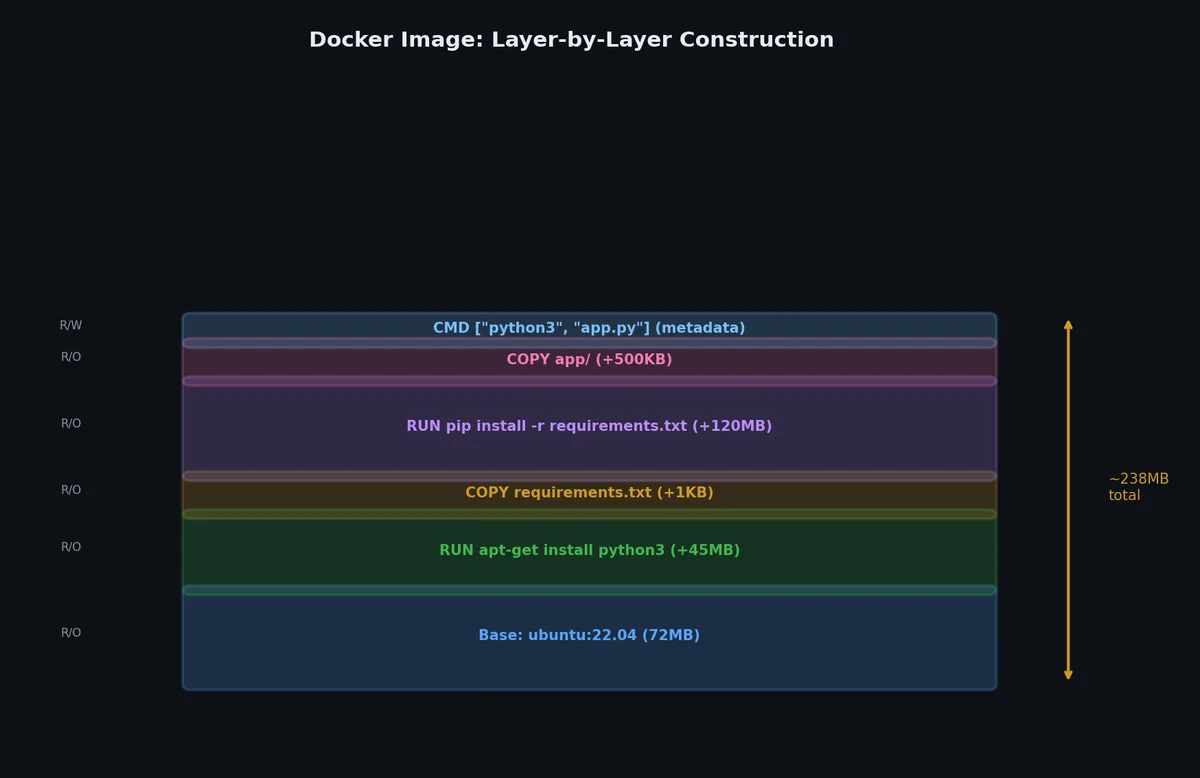
- Read-only — once created, a layer never changes
- Content-addressable — identified by a SHA256 hash of their contents
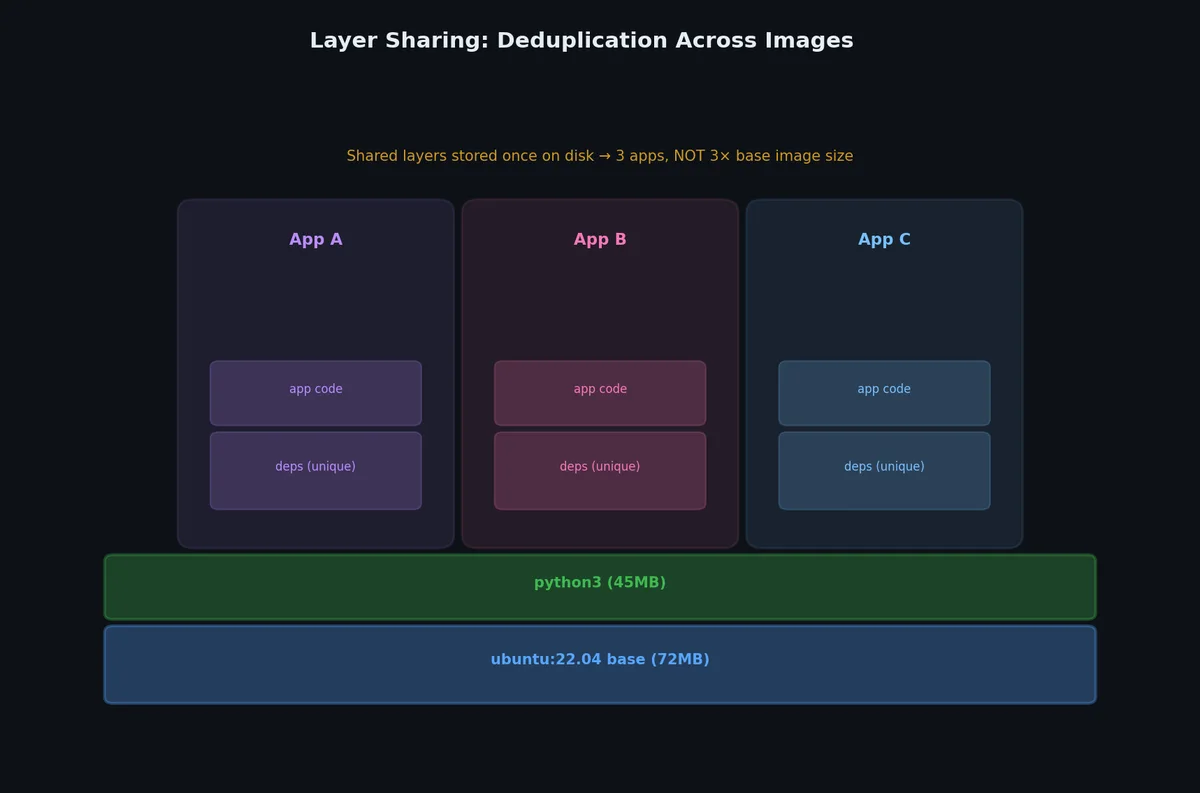
- Shared — if two images use the same base layer, it’s stored only once on disk
- Stacked — a union filesystem combines them into a single coherent view
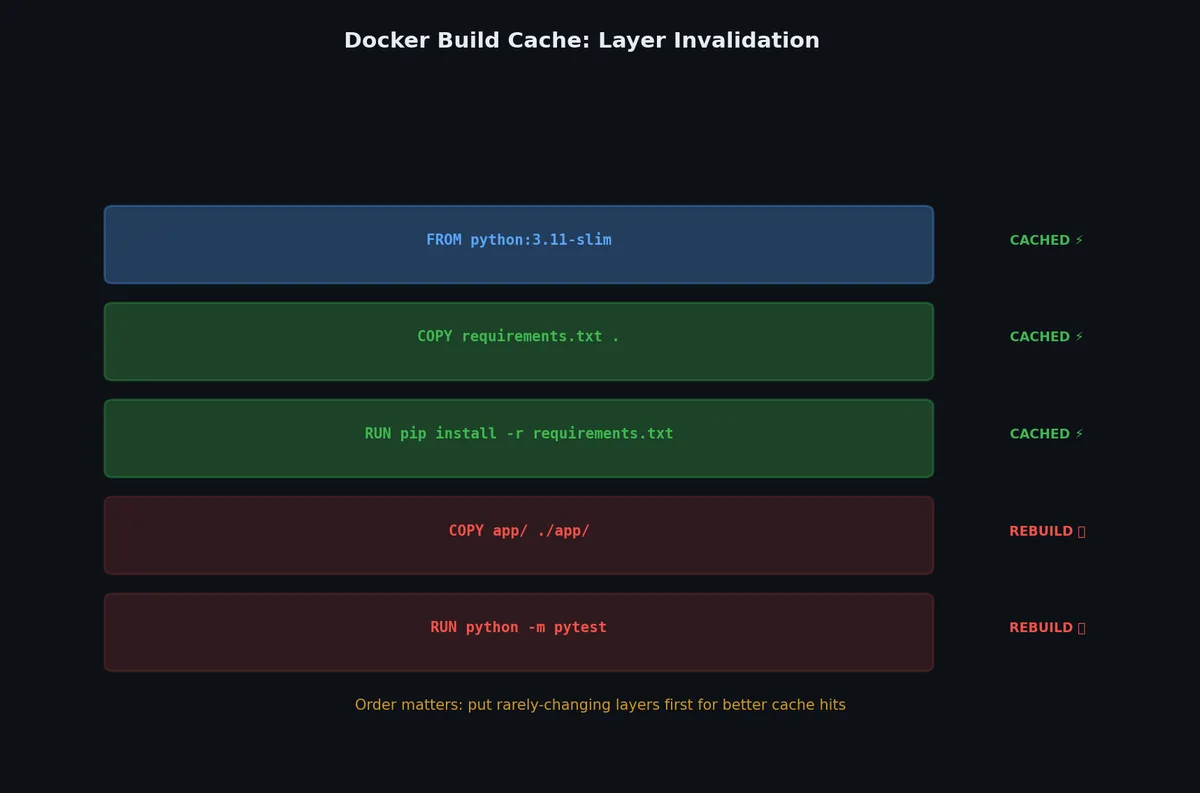
Here’s how layers work conceptually. Imagine building an image with this Dockerfile:
| |
Each instruction that modifies the filesystem creates a new layer. The CMD instruction only sets metadata — it doesn’t change any files, so it doesn’t create a layer.
When a container starts from this image, Docker adds one more layer on top:
| |
If you modify a file from a lower layer inside the container, the union filesystem uses copy-on-write: it copies the file up to the writable layer, then modifies the copy. The original in the read-only layer remains unchanged.
Pulling an Image: What Actually Downloads#
Let’s trace what happens during docker pull nginx:

| |
| |
Six layers downloaded. Each Pull complete line is a separate layer. Docker downloaded them in parallel (you’d see progress bars in a real terminal). The Digest is the SHA256 hash of the image manifest — it uniquely identifies this exact combination of layers.
Now pull another image that shares the same base:
| |
| |
Notice 59bf1c3509f3: Already exists. Docker recognized that it already had this layer (shared with another image, likely the Alpine base) and skipped downloading it. This is layer sharing in action — it saves both bandwidth and disk space.
Inspecting Image Layers#

docker history#
The docker history command shows each layer in an image, what instruction created it, and how large it is:
| |
| |
Reading from bottom to top (oldest layer first):
ADD file:756...— 74.8 MB — the Debian base filesystem- The big
set -x && addgroup...— 61.1 MB — nginx installation - Several
COPYinstructions — a few KB each — configuration files ENV,EXPOSE,CMD, etc. — 0 bytes — metadata only
The <missing> in the IMAGE column means these intermediate layers don’t have their own image tags. Only the final layer (the top one) has the image ID 61395b4c586d.
docker image inspect#
For detailed metadata in JSON format:
| |
| |
These are the content-addressable SHA256 hashes of each layer. Docker uses these to determine if a layer is already present locally.
Image Naming and Registries#
Docker images follow a naming convention:
| |
Examples:
| Full Name | Registry | Namespace | Repository | Tag |
|---|---|---|---|---|
nginx | docker.io (implicit) | library (implicit) | nginx | latest (implicit) |
nginx:1.25 | docker.io | library | nginx | 1.25 |
ubuntu:22.04 | docker.io | library | ubuntu | 22.04 |
myuser/myapp:v2 | docker.io | myuser | myapp | v2 |
gcr.io/project/app:prod | gcr.io | project | app | prod |
ghcr.io/owner/repo:sha-abc123 | ghcr.io | owner | repo | sha-abc123 |
registry.example.com:5000/team/svc:latest | registry.example.com:5000 | team | svc | latest |
Key rules:
- Omitting the registry defaults to
docker.io(Docker Hub) - Omitting the tag defaults to
latest(a convention, not a guarantee of being the newest) - Official images on Docker Hub have no namespace (e.g.,
nginx,ubuntu,python) - User images have a namespace (e.g.,
myuser/myapp) - Digests (
@sha256:...) are immutable — tags can be moved to point to different images, but digests are permanent
Docker Hub#
Docker Hub is the default public registry. When you run docker pull nginx, Docker contacts registry-1.docker.io to download the image.
| |
| |
Private Registries#
You can run your own registry or use cloud-provided ones:
| |
Common private registries:
| Registry | Provider |
|---|---|
| Amazon ECR | AWS |
| Google Artifact Registry | GCP |
| Azure Container Registry | Azure |
| GitHub Container Registry (ghcr.io) | GitHub |
| Docker Hub (private repos) | Docker |
| Harbor | Self-hosted (CNCF) |
| JFrog Artifactory | JFrog |
Image Size: Why It Matters#
Image size affects:
- Pull time — larger images take longer to download, slowing deployments
- Build time — larger layers take longer to push
- Disk space — each node stores images locally
- Security surface — more files mean more potential vulnerabilities
- Cold start — serverless platforms (AWS Lambda, Cloud Run) are slower with bigger images
Let’s compare base image sizes:
| |
| |
| Base Image | Size | Shell | Package Manager | Use Case |
|---|---|---|---|---|
ubuntu:22.04 | 77.8 MB | bash | apt | Development, debugging, familiarity |
debian:bookworm-slim | 74.8 MB | bash | apt | Production (official images use this) |
alpine:3.18 | 7.34 MB | sh | apk | Minimal production, size-sensitive |
distroless/static | 2.45 MB | No | No | Statically compiled binaries only |
scratch | 0 MB | No | No | Bare minimum (Go binaries, etc.) |
Alpine is 10x smaller than Ubuntu. Distroless is 30x smaller. The tradeoff: smaller images have fewer debugging tools. You can’t docker exec -it container bash into a distroless container because bash doesn’t exist.
We’ll explore optimization strategies in detail in the next article on Dockerfiles.
Exporting and Importing Images#
docker save / docker load#
These commands work with image tar archives — useful for transferring images without a registry:
| |
| |
The tar file contains all layers as separate tar files plus the manifest:
| |
| |
Each directory is a layer. Each layer.tar contains the filesystem changes for that layer.
docker export / docker import#
These work with containers (not images) and produce a flat filesystem:
| |
The key difference:
| Operation | Works With | Preserves Layers? | Preserves Metadata? |
|---|---|---|---|
save/load | Images | Yes | Yes (CMD, ENV, etc.) |
export/import | Containers | No (flattens to single layer) | No |
Use save/load for moving images between machines. Use export/import only when you need a flat filesystem snapshot.
Image Tagging#
Tags are mutable labels that point to a specific image digest. You can create your own:
| |
| |
All four entries point to the same image (61395b4c586d). No data is duplicated. Tags are just pointers.
The “latest” Tag Trap#
The latest tag is not special to Docker. It’s a convention, not a mechanism. Docker does not automatically point latest to the newest version. If someone pushes myapp:v2 without also updating latest, then latest still points to whatever it was before.
Best practice: always use specific tags in production.
| |
Cleaning Up#
Images accumulate quickly. Here’s how to reclaim disk space:
| |
| |
| |
The docker system prune -a --volumes command is destructive. It removes all stopped containers, all unused networks, all images without at least one running container, and all volumes not used by at least one container. Use it on development machines, not production.
Inspecting What’s Inside an Image#
Sometimes you want to see the contents of an image without running a container:
| |
| |
| |
You can also use third-party tools like dive to interactively browse layers:
| |
dive shows each layer’s contents, lets you see which files were added/modified/removed in each layer, and estimates wasted space.
How Layers Are Stored on Disk#
On a Linux host, Docker stores everything under /var/lib/docker/. The exact structure depends on the storage driver (usually OverlayFS):
| |
| |
Each directory under overlay2/ is a layer. The l/ directory contains shortened symbolic links for layer identification. Don’t modify these files directly — let Docker manage them.
Multi-Architecture Images#
Modern Docker images often support multiple CPU architectures in a single tag:
| |
| |
When you docker pull nginx on an ARM Mac, Docker automatically selects the arm64 variant. On an x86_64 Linux server, it selects amd64. Same tag, different binary — this is why cross-platform deployment works seamlessly.
What’s Next#
You now understand that images are stacks of read-only layers, that layers are shared between images, and that containers add a thin writable layer on top. You know how to inspect, export, tag, and clean up images.
The next step is building your own images. That means writing Dockerfiles — and the difference between a naive Dockerfile and an optimized one can be the difference between a 1.5 GB image that takes 10 minutes to build and a 50 MB image that builds in 30 seconds. The next article covers every Dockerfile instruction and the patterns that separate development Dockerfiles from production ones.
Docker and Containers 8 parts
- 01 Docker and Containers (1): Why Containers — The Problem VMs Didn't Solve
- 02 Docker and Containers (2): Images and Layers — What docker pull Actually Downloads you are here
- 03 Docker and Containers (3): Dockerfile Patterns — From Naive to Production
- 04 Docker and Containers (4): Networking and Volumes — How Containers Talk and Persist
- 05 Docker and Containers (5): Docker Compose — Multi-Container Applications
- 06 Docker and Containers (6): Debugging and Logging — When Things Go Wrong Inside a Box
- 07 Docker and Containers (7): Security — Running Containers Without Giving Away the Keys
- 08 Docker and Containers (8): Beyond Docker — Kubernetes, Swarm, and What Comes Next