Docker and Containers (3): Dockerfile Patterns — From Naive to Production

A Dockerfile defines how your image is built. The difference between a naive Dockerfile and an optimized one can be 10x in image size and build time.

Most tutorials show you a 5-line Dockerfile and move on. When you deploy to production, you might find your image is 1.2 GB, builds take 8 minutes even for a one-line code change, and your security team flags vulnerabilities in packages you didn’t know were installed. Writing a good Dockerfile is a skill that pays off every time your CI pipeline runs.


Every Dockerfile Instruction#

Let’s go through every instruction you’ll use, with concrete examples.

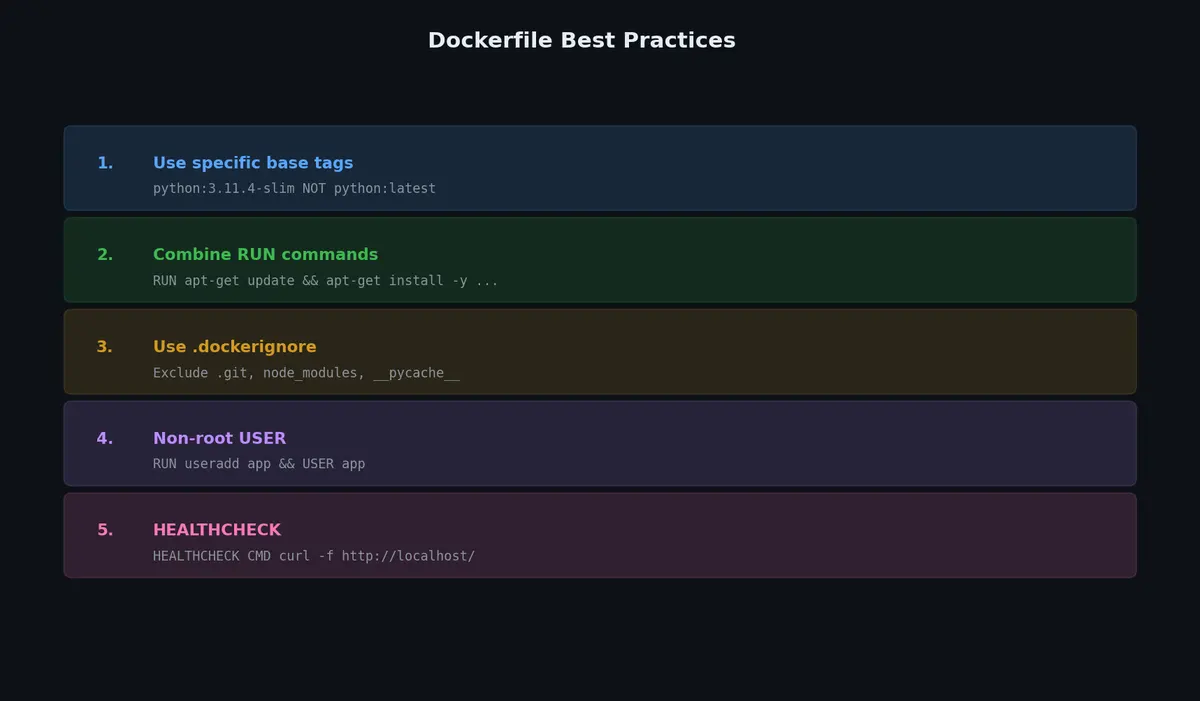
Dockerfile best practices

FROM — The Starting Point#

Every Dockerfile begins with FROM. It sets the base image that all subsequent instructions build upon.

 1
 2
 3
 4
 5
 6
 7
 8
 9
10
11
12
13
14
# Use a specific version (recommended)
FROM python:3.11-slim

# Use a minimal base
FROM alpine:3.18

# Use scratch (empty image) for statically compiled binaries
FROM scratch

# Multiple FROM statements = multi-stage build (covered later)
FROM golang:1.21 AS builder
# ...
FROM alpine:3.18
# ...

Best practice: Always pin a specific version. FROM python:latest will break when a new Python version is released and your code isn’t compatible.

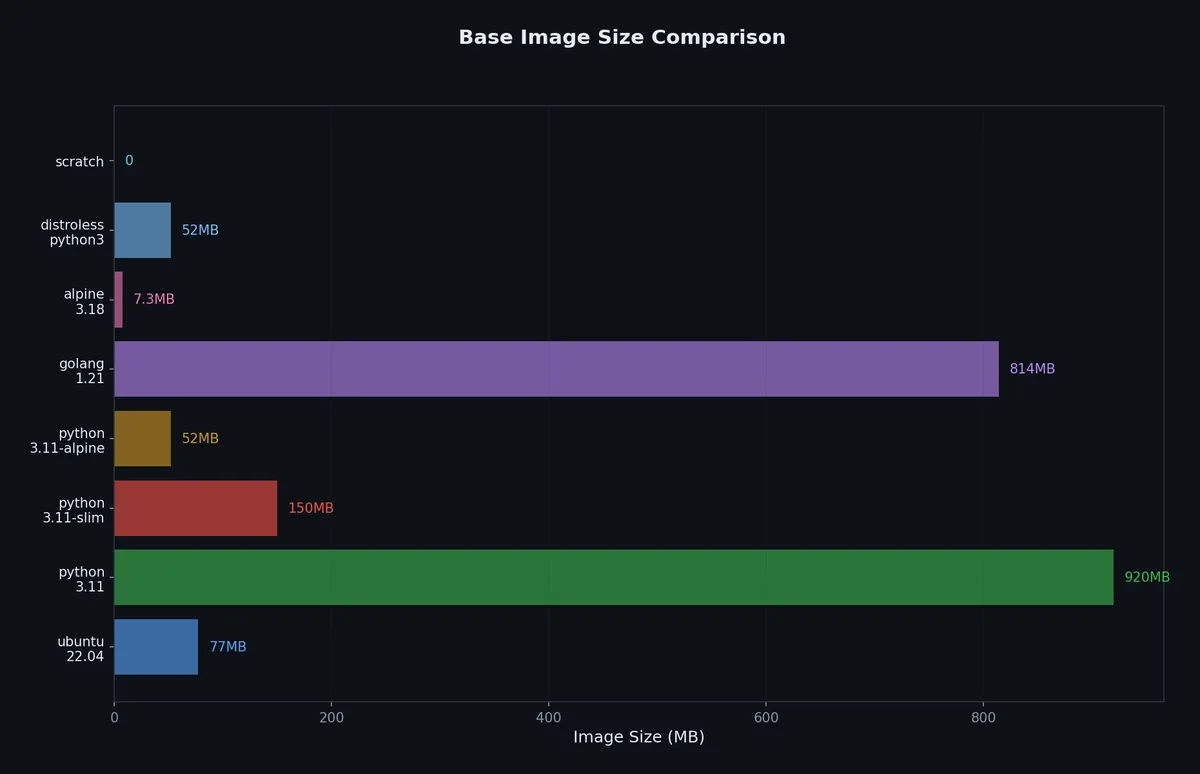
Base Image ChoiceSizeUse When
python:3.11~900 MBYou need build tools (gcc, etc.)
python:3.11-slim~150 MBStandard production images
python:3.11-alpine~50 MBSize-critical, but watch for musl compatibility
ubuntu:22.04~78 MBYou need apt and Ubuntu-specific packages
alpine:3.18~7 MBMinimal base, not language-specific
scratch0 MBStatically compiled Go, Rust binaries

RUN — Execute Commands#

RUN executes a command inside the image during the build process. Each RUN creates a new layer.

 1
 2
 3
 4
 5
 6
 7
 8
 9
10
11
12
13
# Shell form (runs in /bin/sh -c)
RUN apt-get update && apt-get install -y curl

# Exec form (no shell processing)
RUN ["apt-get", "update"]

# Multi-line with && to keep it in one layer
RUN apt-get update \
    && apt-get install -y --no-install-recommends \
        curl \
        ca-certificates \
        git \
    && rm -rf /var/lib/apt/lists/*

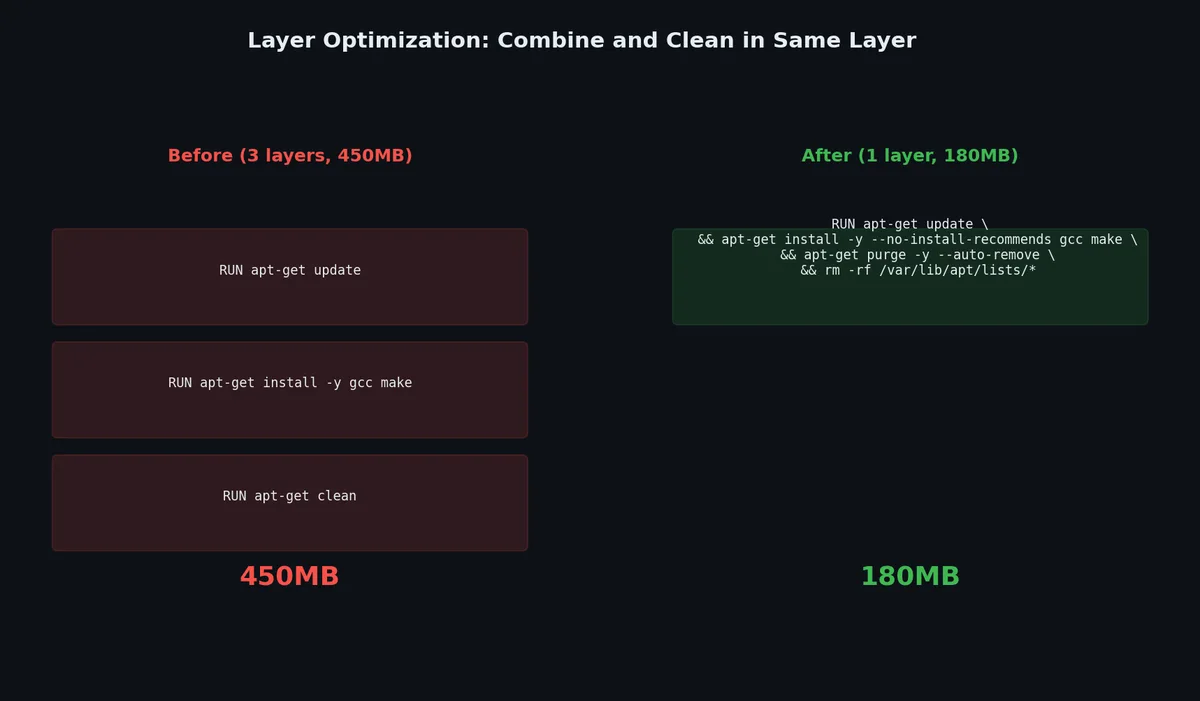
Critical pattern: Chain commands with && and clean up in the same RUN instruction. If you apt-get install in one RUN and rm -rf /var/lib/apt/lists/* in another, the package lists still exist in the first layer — layers are additive, never subtractive.

1
2
3
4
5
6
7
8
9
# BAD: 3 layers, cleanup doesn't help (lists persist in Layer 1)
RUN apt-get update
RUN apt-get install -y curl
RUN rm -rf /var/lib/apt/lists/*

# GOOD: 1 layer, lists are removed before the layer is committed
RUN apt-get update \
    && apt-get install -y --no-install-recommends curl \
    && rm -rf /var/lib/apt/lists/*

COPY and ADD — Bring Files Into the Image#

 1
 2
 3
 4
 5
 6
 7
 8
 9
10
11
# COPY: Copy files from build context into the image
COPY requirements.txt /app/requirements.txt
COPY . /app/

# COPY with --chown to set ownership
COPY --chown=appuser:appuser . /app/

# ADD: Like COPY, but also:
#   - Extracts tar archives automatically
#   - Supports URLs (but don't use this — use curl in RUN instead)
ADD archive.tar.gz /app/

Best practice: Use COPY unless you specifically need tar extraction. COPY is more explicit and predictable.

WORKDIR — Set Working Directory#

 1
 2
 3
 4
 5
 6
 7
 8
 9
10
11
# Sets the working directory for subsequent instructions
WORKDIR /app

# Equivalent to mkdir -p && cd (creates the directory if it doesn't exist)
WORKDIR /app/src

# These three lines:
RUN mkdir -p /app && cd /app && npm install
# Are better written as:
WORKDIR /app
RUN npm install

ENV and ARG — Variables#

 1
 2
 3
 4
 5
 6
 7
 8
 9
10
# ENV: Set environment variables (persist in the running container)
ENV NODE_ENV=production
ENV APP_PORT=8080

# ARG: Build-time variables (NOT available in the running container)
ARG PYTHON_VERSION=3.11
FROM python:${PYTHON_VERSION}-slim

# ARG values can be overridden at build time
# docker build --build-arg PYTHON_VERSION=3.12 .

Key differences:

FeatureENVARG
Available during buildYesYes
Available at runtimeYesNo
Visible in docker inspectYesNo (but cached in layers)
Can be overridden at buildNo (use ARG for that)Yes (--build-arg)
Persists across stagesYes (within a stage)No (reset at each FROM)

Security warning: Neither ENV nor ARG should contain secrets. Build arguments are stored in the image history (docker history). Use Docker secrets or mount secrets at build time with --secret instead.

EXPOSE — Document Ports#

1
2
3
4
5
# Documents which ports the container listens on
EXPOSE 80
EXPOSE 443
EXPOSE 8080/tcp
EXPOSE 8443/udp

EXPOSE does not publish the port. It’s documentation. You still need -p 8080:80 when running the container. Think of it as a comment that tooling can read.

CMD and ENTRYPOINT — What Runs#

These two instructions define what happens when the container starts. Understanding the difference is crucial.

1
2
3
4
5
6
7
8
9
# CMD: Default command (can be overridden entirely)
CMD ["python3", "app.py"]

# ENTRYPOINT: Fixed executable (arguments can be appended)
ENTRYPOINT ["python3", "app.py"]

# Combined: ENTRYPOINT is the executable, CMD provides default arguments
ENTRYPOINT ["python3"]
CMD ["app.py"]

Behavior with docker run:

Dockerfiledocker run imagedocker run image bash
CMD ["python3", "app.py"]Runs python3 app.pyRuns bash (CMD replaced)
ENTRYPOINT ["python3", "app.py"]Runs python3 app.pyRuns python3 app.py bash (appended)
ENTRYPOINT ["python3"] + CMD ["app.py"]Runs python3 app.pyRuns python3 bash (CMD replaced)

Shell form vs exec form:

1
2
3
4
5
6
# Exec form (preferred) — runs directly, receives signals properly
CMD ["python3", "app.py"]

# Shell form — runs as /bin/sh -c "python3 app.py"
# The shell wraps your process, so SIGTERM goes to sh, not your app
CMD python3 app.py

Always use exec form (["executable", "arg1", "arg2"]) for CMD and ENTRYPOINT. Shell form wraps your process in /bin/sh -c, which prevents proper signal handling and can cause issues with graceful shutdown.

USER — Run as Non-Root#

1
2
3
4
5
6
7
# Create a non-root user and switch to it
RUN groupadd -r appuser && useradd -r -g appuser appuser
USER appuser

# Or on Alpine
RUN addgroup -S appuser && adduser -S appuser -G appuser
USER appuser

We’ll cover why this matters for security in article 7.

HEALTHCHECK — Container Health#

1
2
3
4
5
6
# Check if the web server is responding
HEALTHCHECK --interval=30s --timeout=3s --start-period=5s --retries=3 \
    CMD curl -f http://localhost:8080/health || exit 1

# Disable healthcheck inherited from base image
HEALTHCHECK NONE
ParameterDefaultMeaning
--interval30sTime between checks
--timeout30sMax time for a single check
--start-period0sGrace period before first check
--retries3Consecutive failures before “unhealthy”

Docker marks the container as healthy, unhealthy, or starting based on the healthcheck results. Orchestrators (Docker Compose, Kubernetes) use this to decide whether to route traffic to the container.

Naive vs Optimized: A Real Example#

Let’s build a Flask application. Here’s the app:

Build context

 1
 2
 3
 4
 5
 6
 7
 8
 9
10
11
12
13
14
# app.py
from flask import Flask, jsonify
import redis

app = Flask(__name__)
cache = redis.Redis(host='redis', port=6379)

@app.route('/')
def hello():
    count = cache.incr('hits')
    return jsonify(message='Hello from Docker!', visits=count)

if __name__ == '__main__':
    app.run(host='0.0.0.0', port=5000)
1
2
3
4
# requirements.txt
flask==3.0.0
redis==5.0.1
gunicorn==21.2.0

The Naive Dockerfile#

1
2
3
4
5
6
7
8
9
FROM python:3.11

COPY . /app
WORKDIR /app

RUN pip install -r requirements.txt

EXPOSE 5000
CMD ["python", "app.py"]

Build and check size:

1
2
docker build -t flask-naive -f Dockerfile.naive .
docker images flask-naive
1
2
REPOSITORY    TAG       IMAGE ID       CREATED          SIZE
flask-naive   latest    a1b2c3d4e5f6   10 seconds ago   1.02GB

1.02 GB for a Flask app with 3 dependencies. The problems:

  1. Uses python:3.11 (full Debian with build tools) — 900+ MB
  2. Copies everything (including .git, __pycache__, .env, etc.)
  3. No .dockerignore
  4. Runs as root
  5. Uses development server (python app.py)
  6. No healthcheck
  7. pip install runs every time ANY file changes (cache-busting)

The Optimized Dockerfile#

Layer optimization

 1
 2
 3
 4
 5
 6
 7
 8
 9
10
11
12
13
14
15
16
17
18
19
20
21
22
23
24
25
26
27
28
FROM python:3.11-slim AS base

# Prevent Python from writing .pyc files and enable unbuffered output
ENV PYTHONDONTWRITEBYTECODE=1 \
    PYTHONUNBUFFERED=1

WORKDIR /app

# Install dependencies first (cached unless requirements.txt changes)
COPY requirements.txt .
RUN pip install --no-cache-dir -r requirements.txt

# Create non-root user
RUN groupadd -r appuser && useradd -r -g appuser -d /app appuser

# Copy application code
COPY --chown=appuser:appuser . .

# Switch to non-root user
USER appuser

EXPOSE 5000

# Use production WSGI server
HEALTHCHECK --interval=30s --timeout=3s --retries=3 \
    CMD python -c "import urllib.request; urllib.request.urlopen('http://localhost:5000/')" || exit 1

CMD ["gunicorn", "--bind", "0.0.0.0:5000", "--workers", "4", "app:app"]

And the .dockerignore:

 1
 2
 3
 4
 5
 6
 7
 8
 9
10
11
12
13
14
15
.git
.gitignore
__pycache__
*.pyc
*.pyo
.env
.venv
venv
*.md
.dockerignore
Dockerfile*
docker-compose*
.pytest_cache
.coverage
htmlcov

Build and compare:

1
2
docker build -t flask-optimized -f Dockerfile.optimized .
docker images | grep flask
1
2
3
REPOSITORY        TAG       IMAGE ID       CREATED          SIZE
flask-optimized   latest    f6e5d4c3b2a1   5 seconds ago    167MB
flask-naive       latest    a1b2c3d4e5f6   2 minutes ago    1.02GB
MetricNaiveOptimizedImprovement
Image size1.02 GB167 MB6x smaller
Runs as root?YesNoSecurity fix
Rebuild on code changeFull pip installOnly COPY layerMinutes saved
Production serverFlask dev serverGunicornProduction-ready
HealthcheckNoneYesOrchestrator-friendly
Files leaked.git, .env, etc.CleanNo secrets in image

The .dockerignore File#

Dockerfile optimization journey from bloated to slim contain

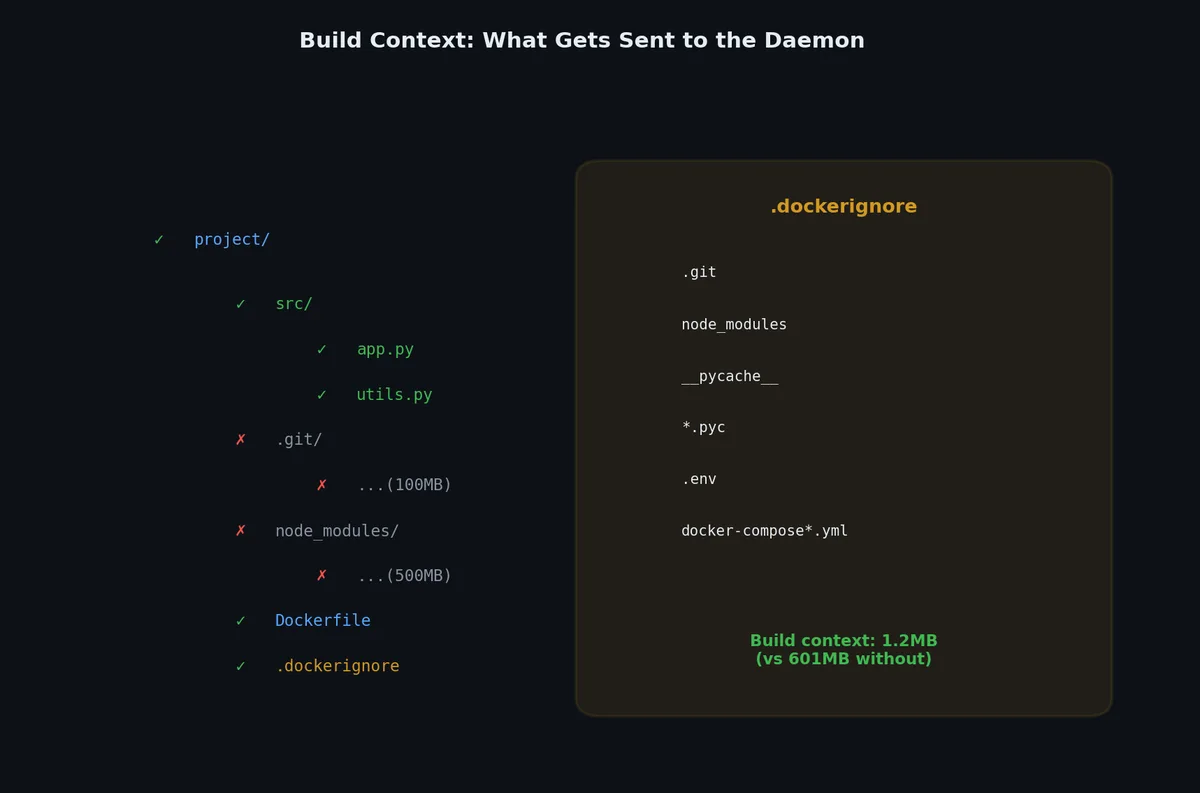
The .dockerignore file works like .gitignore but for the Docker build context. When you run docker build ., Docker sends the entire directory (the “build context”) to the daemon. Without .dockerignore, this includes everything.

 1
 2
 3
 4
 5
 6
 7
 8
 9
10
11
12
13
14
15
16
17
18
19
20
21
22
23
24
25
26
27
28
29
30
31
32
33
34
35
36
37
38
39
40
41
42
43
44
45
46
47
48
49
# .dockerignore

# Version control
.git
.gitignore

# Python artifacts
__pycache__
*.pyc
*.pyo
*.egg-info
dist
build
.eggs

# Virtual environments
.venv
venv
env

# IDE and editor files
.vscode
.idea
*.swp
*.swo
*~

# Environment and secrets
.env
.env.*
*.pem
*.key

# Docker files (prevent recursive context)
Dockerfile*
docker-compose*
.dockerignore

# Testing and CI
.pytest_cache
.coverage
htmlcov
.tox
.mypy_cache

# Documentation
*.md
docs/
LICENSE

Without a .dockerignore, a project with a 500 MB .git directory and a 200 MB node_modules sends 700 MB to the daemon on every build — even if none of those files are used in the image.

Layer Caching: Why Instruction Order Matters#

Docker caches each layer. If an instruction hasn’t changed (and all preceding layers are cached), Docker reuses the cached layer. But the moment one layer’s cache is invalidated, all subsequent layers must be rebuilt.

This is why instruction order is critical:

1
2
3
4
5
6
7
8
# BAD ORDER: Any code change invalidates pip install cache
COPY . /app
RUN pip install -r requirements.txt  # Rebuilds every time ANY file changes

# GOOD ORDER: pip install is cached unless requirements.txt changes
COPY requirements.txt /app/requirements.txt
RUN pip install -r requirements.txt  # Only rebuilds when dependencies change
COPY . /app                          # Code changes only rebuild this layer

The general rule: order instructions from least-frequently-changing to most-frequently-changing.

1
2
3
4
5
6
FROM python:3.11-slim          # Changes rarely (base image updates)
RUN apt-get update && ...      # Changes rarely (system packages)
COPY requirements.txt .        # Changes occasionally (dependencies)
RUN pip install -r ...         # Changes occasionally
COPY . .                       # Changes frequently (your code)
CMD [...]                      # Changes rarely

You can verify cache behavior in the build output:

1
2
# First build (no cache)
docker build -t myapp .
1
2
3
4
5
6
[+] Building 45.2s (10/10) FINISHED
 => [1/5] FROM python:3.11-slim                                      0.0s
 => [2/5] WORKDIR /app                                               0.0s
 => [3/5] COPY requirements.txt .                                    0.1s
 => [4/5] RUN pip install --no-cache-dir -r requirements.txt        42.3s
 => [5/5] COPY . .                                                   0.2s
1
2
# Second build after changing only app.py (cache hit on pip install)
docker build -t myapp .
1
2
3
4
5
6
[+] Building 1.8s (10/10) FINISHED
 => [1/5] FROM python:3.11-slim                                      0.0s
 => CACHED [2/5] WORKDIR /app                                        0.0s
 => CACHED [3/5] COPY requirements.txt .                              0.0s
 => CACHED [4/5] RUN pip install --no-cache-dir -r requirements.txt   0.0s
 => [5/5] COPY . .                                                   0.2s

42 seconds saved because requirements.txt didn’t change.

Multi-Stage Builds#

Multi-stage builds are one of Docker’s most powerful features. They let you use a large image for building (with compilers, build tools, etc.) and copy only the final artifact into a small runtime image.

Multi-stage build

Python Example#

 1
 2
 3
 4
 5
 6
 7
 8
 9
10
11
12
13
14
15
16
17
18
19
20
# Stage 1: Build dependencies in a full image
FROM python:3.11 AS builder

WORKDIR /app
COPY requirements.txt .
RUN pip install --user --no-cache-dir -r requirements.txt

# Stage 2: Runtime with only what's needed
FROM python:3.11-slim

WORKDIR /app

# Copy installed packages from builder
COPY --from=builder /root/.local /root/.local
ENV PATH=/root/.local/bin:$PATH

COPY . .

USER nobody
CMD ["gunicorn", "--bind", "0.0.0.0:5000", "app:app"]

Go Example (Extreme Size Reduction)#

Go compiles to static binaries, enabling the smallest possible images:

Base image size comparison

 1
 2
 3
 4
 5
 6
 7
 8
 9
10
11
12
13
14
15
16
17
# Stage 1: Build
FROM golang:1.21 AS builder

WORKDIR /app
COPY go.mod go.sum ./
RUN go mod download
COPY . .
RUN CGO_ENABLED=0 GOOS=linux go build -o server .

# Stage 2: Runtime (scratch = empty image)
FROM scratch

COPY --from=builder /app/server /server
COPY --from=builder /etc/ssl/certs/ca-certificates.crt /etc/ssl/certs/

EXPOSE 8080
ENTRYPOINT ["/server"]

Size comparison for a Go HTTP server:

1
docker images | grep go-server
1
2
3
REPOSITORY        TAG          IMAGE ID       CREATED          SIZE
go-server         single       a1b2c3d4e5f6   10 seconds ago   845MB
go-server         multistage   b2c3d4e5f6a7   5 seconds ago    12.4MB

845 MB vs 12.4 MB. The multi-stage build produces an image 68x smaller because it discards the entire Go toolchain — only the compiled binary and CA certificates make it to the final image. The same pattern works for Node.js (build with node:20-alpine, copy only node_modules and app code to the runtime stage) and any other language.

Build Arguments vs Environment Variables#

A common confusion point. Here’s a practical example:

 1
 2
 3
 4
 5
 6
 7
 8
 9
10
11
12
13
14
15
16
# Build-time configuration with ARG
ARG NODE_ENV=production
ARG APP_VERSION=unknown

# Build-time use (determines what gets installed)
RUN if [ "$NODE_ENV" = "development" ]; then \
        npm install; \
    else \
        npm ci --only=production; \
    fi

# Runtime configuration with ENV
ENV NODE_ENV=${NODE_ENV}
ENV APP_VERSION=${APP_VERSION}

# Now NODE_ENV is available both during build AND at runtime

Build with different arguments:

1
2
3
4
5
# Production build
docker build --build-arg NODE_ENV=production --build-arg APP_VERSION=v2.3.1 -t myapp:prod .

# Development build (includes devDependencies)
docker build --build-arg NODE_ENV=development -t myapp:dev .

Common Patterns and Anti-Patterns#

Multi stage build factory assembly line producing optimized

Pattern: Pin Package Versions#

 1
 2
 3
 4
 5
 6
 7
 8
 9
10
11
12
# BAD: Different results on different days
RUN apt-get install -y curl

# GOOD: Reproducible
RUN apt-get install -y curl=7.88.1-10+deb12u4

# GOOD for pip
RUN pip install flask==3.0.0 gunicorn==21.2.0

# GOOD for npm
COPY package-lock.json .
RUN npm ci  # Uses lockfile for exact versions

Pattern: Minimize Layer Count#

 1
 2
 3
 4
 5
 6
 7
 8
 9
10
11
12
13
# BAD: 4 layers for one logical operation
RUN apt-get update
RUN apt-get install -y curl
RUN apt-get install -y git
RUN apt-get clean

# GOOD: 1 layer
RUN apt-get update \
    && apt-get install -y --no-install-recommends \
        curl \
        git \
    && apt-get clean \
    && rm -rf /var/lib/apt/lists/*

Docker BuildKit supports --link which makes COPY independent of previous layers:

1
COPY --link requirements.txt .

Anti-Pattern: Secrets in Build Arguments#

1
2
3
4
5
6
7
# NEVER DO THIS — the password is stored in the image history
ARG DB_PASSWORD
RUN echo "password=$DB_PASSWORD" > /app/config

# Instead, use BuildKit secrets
RUN --mount=type=secret,id=db_password \
    cat /run/secrets/db_password > /app/config

Build with:

1
docker build --secret id=db_password,src=./db_password.txt -t myapp .

Building and Tagging#

 1
 2
 3
 4
 5
 6
 7
 8
 9
10
11
12
13
14
# Basic build
docker build -t myapp .

# Build with a specific Dockerfile
docker build -f Dockerfile.prod -t myapp:prod .

# Build with multiple tags
docker build -t myapp:v2.3.1 -t myapp:latest .

# Build for a specific platform
docker build --platform linux/amd64 -t myapp .

# Build with no cache (force rebuild)
docker build --no-cache -t myapp .

Quick Reference: Dockerfile Instruction Summary#

InstructionPurposeCreates Layer?
FROMSet base imageYes (base layer)
RUNExecute command during buildYes
COPYCopy files from build contextYes
ADDCopy files (with tar extraction)Yes
WORKDIRSet working directoryYes (if directory is created)
ENVSet environment variableNo (metadata)
ARGDefine build-time variableNo (metadata)
EXPOSEDocument portNo (metadata)
CMDDefault commandNo (metadata)
ENTRYPOINTFixed commandNo (metadata)
USERSet user for subsequent instructionsNo (metadata)
HEALTHCHECKDefine health checkNo (metadata)
LABELAdd metadata key-value pairNo (metadata)
VOLUMECreate mount pointNo (metadata)
STOPSIGNALSet stop signalNo (metadata)
SHELLSet default shellNo (metadata)

What’s Next#

You can now write Dockerfiles that produce small, secure, fast-building images. But a container in isolation isn’t very useful — it needs to communicate with the outside world and persist data. The next article covers Docker networking (how containers talk to each other and the host) and volumes (how data survives container restarts). These are the building blocks you’ll need before we tackle multi-container applications with Docker Compose.
In this series

Docker and Containers 8 parts

  1. 01 Docker and Containers (1): Why Containers — The Problem VMs Didn't Solve
  2. 02 Docker and Containers (2): Images and Layers — What docker pull Actually Downloads
  3. 03 Docker and Containers (3): Dockerfile Patterns — From Naive to Production you are here
  4. 04 Docker and Containers (4): Networking and Volumes — How Containers Talk and Persist
  5. 05 Docker and Containers (5): Docker Compose — Multi-Container Applications
  6. 06 Docker and Containers (6): Debugging and Logging — When Things Go Wrong Inside a Box
  7. 07 Docker and Containers (7): Security — Running Containers Without Giving Away the Keys
  8. 08 Docker and Containers (8): Beyond Docker — Kubernetes, Swarm, and What Comes Next

Liked this piece?

Follow on GitHub for the next one — usually one a week.

GitHub