Docker and Containers (4): Networking and Volumes — How Containers Talk and Persist
Containers are ephemeral by default — they lose data when deleted and run in isolated networks. Volumes and networks are the two mechanisms that connect containers to the persistent, communicating world.
Containers are deliberately isolated. That’s the point. But useful applications need to accept connections from the outside world, talk to databases, and store data that survives container restarts. Docker provides two mechanisms for this: networks (for communication) and volumes (for persistent storage). Getting these right makes the difference between a demo and a deployment.
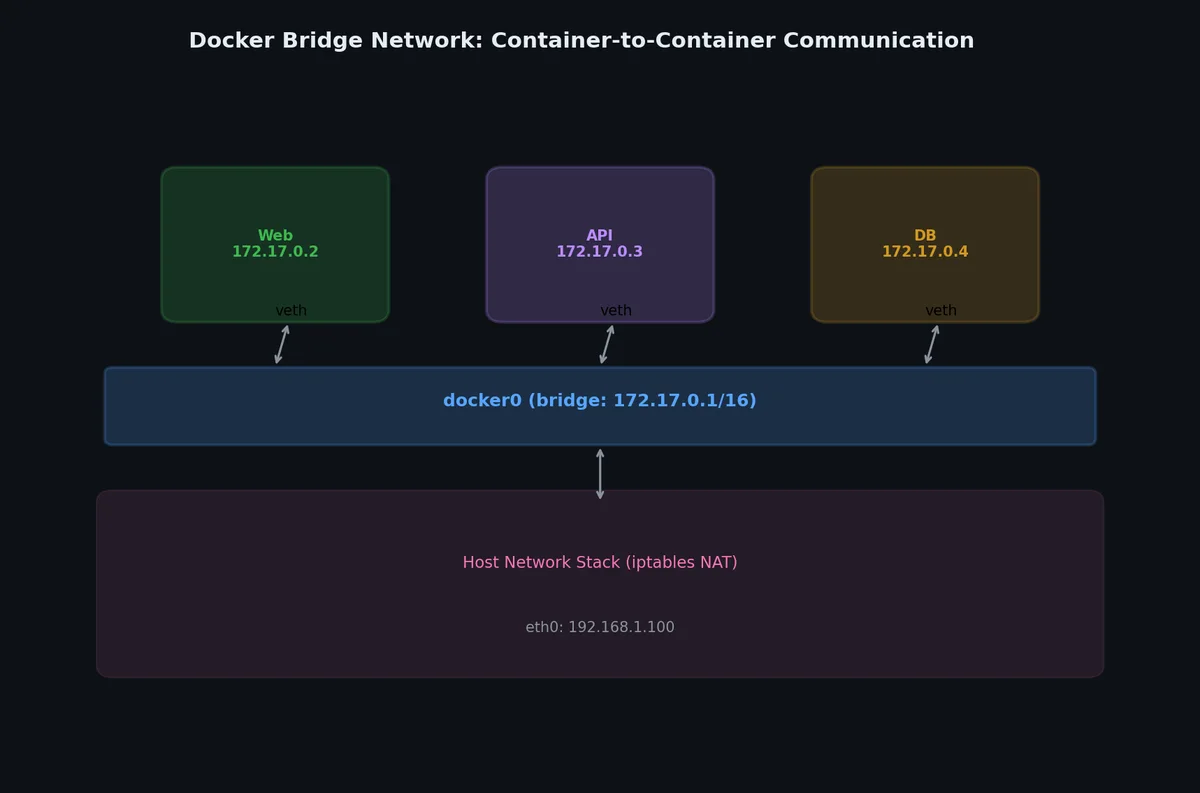
When Docker starts, it creates a virtual network infrastructure on the host. Each container gets its own network namespace (with its own IP address, routing table, and network interfaces), and Docker manages the traffic flow between containers and the outside world.
Every container that doesn’t specify a network joins the default bridge. Let’s see it in action:
1
2
3
4
5
6
7
8
9
10
11
12
13
# Run two containers on the default bridgedocker run -d --name container-a alpine sleep 3600docker run -d --name container-b alpine sleep 3600# Check their IP addressesdocker inspect container-a --format '{{.NetworkSettings.IPAddress}}'# Output: 172.17.0.2docker inspect container-b --format '{{.NetworkSettings.IPAddress}}'# Output: 172.17.0.3# They can reach each other by IPdocker exec container-a ping -c 2 172.17.0.3
1
2
3
PING 172.17.0.3 (172.17.0.3): 56 data bytes
64 bytes from 172.17.0.3: seq=0 ttl=64 time=0.108 ms
64 bytes from 172.17.0.3: seq=1 ttl=64 time=0.090 ms
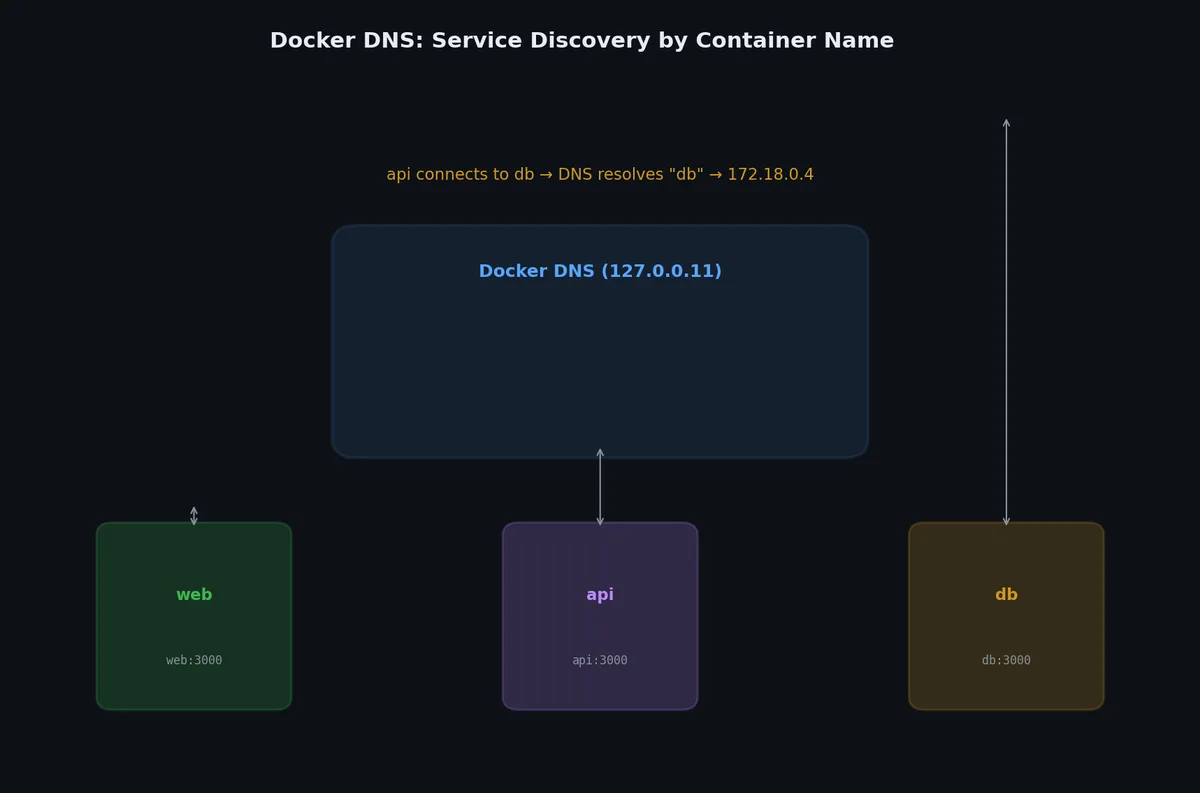
Custom bridge networks provide automatic DNS resolution between containers — this is what you should use for applications.
1
2
3
4
5
6
7
8
9
# Create a custom networkdocker network create my-app-network
# Run containers on itdocker run -d --name web --network my-app-network nginx
docker run -d --name api --network my-app-network alpine sleep 3600# DNS resolution worksdocker exec api ping -c 2 web
1
2
3
PING web (172.18.0.2): 56 data bytes
64 bytes from 172.18.0.2: seq=0 ttl=64 time=0.065 ms
64 bytes from 172.18.0.2: seq=1 ttl=64 time=0.078 ms
The container name web resolves to its IP address. This is Docker’s built-in DNS server at work. Docker runs an embedded DNS server at 127.0.0.11 inside each container on a custom network.
Custom networks also provide isolation — containers on different networks can’t communicate unless explicitly connected.
 1
 2
 3
 4
 5
 6
 7
 8
 9
10
11
12
13
# Create another networkdocker network create other-network
docker run -d --name isolated --network other-network alpine sleep 3600# This will fail — different networksdocker exec isolated ping -c 2 web
# Output: ping: bad address 'web'# Connect a container to multiple networksdocker network connect my-app-network isolated
# Now it worksdocker exec isolated ping -c 2 web
1
2
PING web (172.18.0.2): 56 data bytes
64 bytes from 172.18.0.2: seq=0 ttl=64 time=0.089 ms
1
2
3
# Clean updocker rm -f web api isolated
docker network rm my-app-network other-network
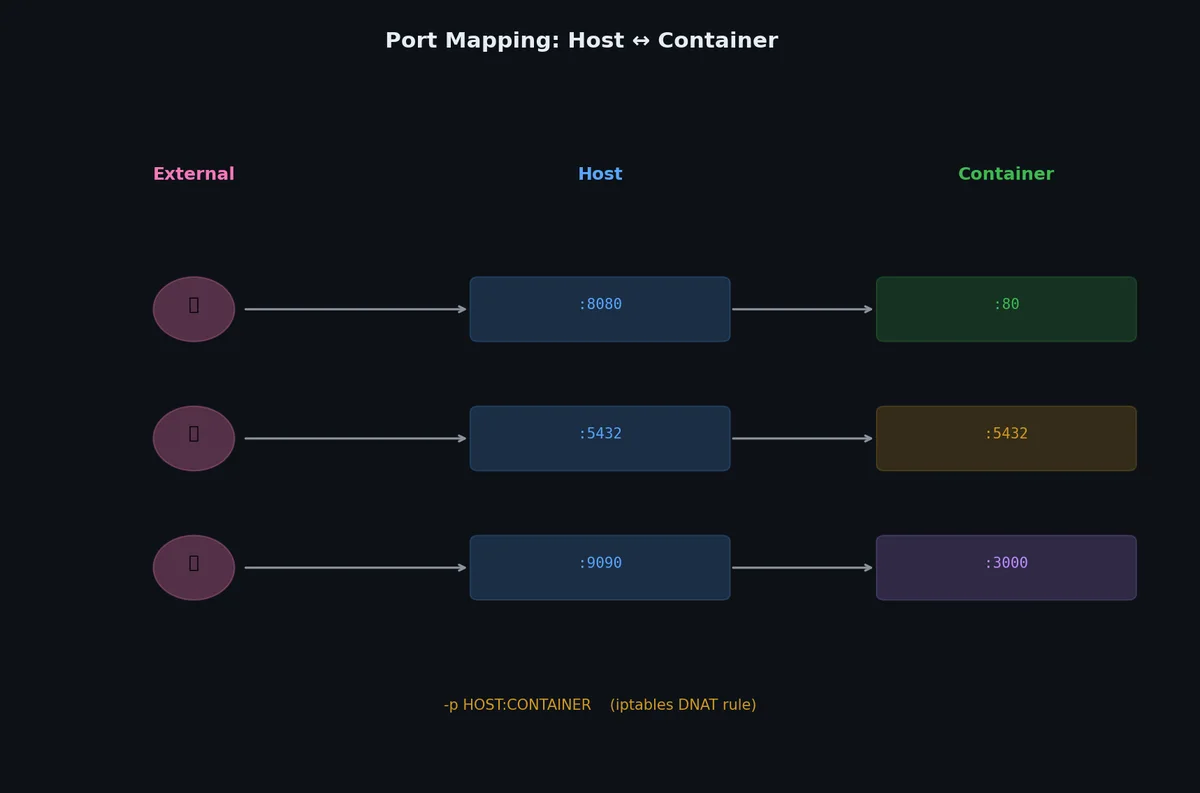
Containers have their own network namespace. To expose a container’s port to the host (and thus the outside world), you map ports.
1
2
3
4
5
6
7
8
9
10
11
12
13
14
15
16
17
18
# Map host port 8080 to container port 80docker run -d -p 8080:80 --name web nginx
# Map host port 3307 to container port 3306docker run -d -p 3307:3306 --name db mysql:8
# Map to a specific host interfacedocker run -d -p 127.0.0.1:8080:80 --name local-only nginx
# Map a range of portsdocker run -d -p 8000-8010:8000-8010 --name range-app myapp
# Let Docker choose a random host portdocker run -d -p 80 --name random-port nginx
# Check what port was assigneddocker port random-port
# Output: 80/tcp -> 0.0.0.0:32768
The format is always HOST:CONTAINER. Read it as “host port 8080 forwards to container port 80.”
The host network mode removes network isolation entirely — the container uses the host’s network stack directly:
1
2
3
4
docker run -d --network host --name web nginx
# nginx is now directly on port 80 of the host — no port mapping neededcurl http://localhost:80
This eliminates the overhead of port mapping and NAT, providing slightly better network performance. The tradeoff: you lose port isolation (two containers can’t both listen on port 80), and the container can see all host network interfaces.
Use host networking when:
You need maximum network performance
Your application binds to many ports dynamically
You’re running monitoring tools that need to see host network traffic
# List all networksdocker network ls
# Create a network with optionsdocker network create \
--driver bridge \
--subnet 172.20.0.0/16 \
--gateway 172.20.0.1 \
--ip-range 172.20.240.0/20 \
my-custom-net
# Inspect a network (see connected containers, configuration)docker network inspect my-custom-net
# Connect a running container to a networkdocker network connect my-custom-net my-container
# Disconnect a container from a networkdocker network disconnect my-custom-net my-container
# Remove a network (must have no connected containers)docker network rm my-custom-net
# Remove all unused networksdocker network prune
By default, all data written inside a container is stored in its writable layer. When the container is deleted, that data is gone. Volumes provide persistent storage that exists independently of the container lifecycle.
# Create a named volumedocker volume create app-data
# Run a container with the volumedocker run -d \
--name writer \
-v app-data:/data \
alpine sh -c "echo 'persistent data' > /data/message.txt && sleep 3600"# Verify the data existsdocker exec writer cat /data/message.txt
# Output: persistent data# Remove the containerdocker rm -f writer
# The data survives — run a new container with the same volumedocker run --rm \
-v app-data:/data \
alpine cat /data/message.txt
# Output: persistent data
Volume lifecycle commands:
1
2
# List all volumesdocker volume ls
1
2
3
4
DRIVER VOLUME NAME
local app-data
local postgres-data
local redis-data
# Remove a volume (must not be in use by any container)docker volume rm app-data
# Remove all unused volumes (DANGEROUS — irreversible)docker volume prune
Bind mounts map a specific host directory into the container. They’re essential for development workflows.
1
2
3
4
5
6
7
# Mount current directory into the containerdocker run -d \
--name dev-server \
-v $(pwd):/app \
-p 5000:5000 \
python:3.11-slim \
bash -c "cd /app && pip install flask && python app.py"
Any changes to files on the host are immediately visible in the container (and vice versa). This enables live development without rebuilding the image.
Bind mount vs named volume comparison:
1
2
3
4
5
6
7
8
# Named volume (Docker manages location)docker run -v mydata:/app/data myapp
# Bind mount (you specify the exact path)docker run -v /home/user/project/data:/app/data myapp
# Bind mount with read-only flagdocker run -v /home/user/config:/app/config:ro myapp
Feature
Named Volume
Bind Mount
Created by
docker volume create or auto-created
Pre-existing host directory
Location
/var/lib/docker/volumes/...
Anywhere on host
Managed by
Docker CLI (docker volume ...)
Host filesystem tools
Pre-populated
Yes (container contents copied to volume on first use)
No (host contents override container)
Permission
Docker handles ownership
Must manage manually
Performance on macOS
Better (uses gRPC FUSE/VirtioFS)
Can be slow for large trees
Backup
docker run --rm -v mydata:/data -v $(pwd):/backup alpine tar czf /backup/data.tar.gz /data
This example demonstrates why volumes matter. Without a volume, deleting the MySQL container destroys all your data.
1
2
3
4
5
6
7
8
9
10
11
12
13
14
15
16
17
18
# Create a network and volumedocker network create db-network
docker volume create mysql-data
# Run MySQL with persistent storagedocker run -d \
--name mysql-server \
--network db-network \
-v mysql-data:/var/lib/mysql \
-e MYSQL_ROOT_PASSWORD=rootpass \
-e MYSQL_DATABASE=myapp \
-e MYSQL_USER=appuser \
-e MYSQL_PASSWORD=apppass \
-p 3306:3306 \
mysql:8.0
# Wait for MySQL to start (check logs)docker logs -f mysql-server 2>&1| grep -m 1"ready for connections"
1
2023-09-22T10:05:23.456789Z 0 [System] [MY-010931] [Server] /usr/sbin/mysqld: ready for connections. Version: '8.0.34' socket: '/var/run/mysqld/mysqld.sock' port: 3306 MySQL Community Server - GPL.
1
2
3
4
5
6
# Connect and create some datadocker exec -it mysql-server mysql -u appuser -papppass myapp -e "
CREATE TABLE users (id INT AUTO_INCREMENT PRIMARY KEY, name VARCHAR(100));
INSERT INTO users (name) VALUES ('Alice'), ('Bob'), ('Charlie');
SELECT * FROM users;
"
1
2
3
4
5
6
7
+----+---------+
| id | name |
+----+---------+
| 1 | Alice |
| 2 | Bob |
| 3 | Charlie |
+----+---------+
Now, simulate a disaster — delete and recreate the container:
 1
 2
 3
 4
 5
 6
 7
 8
 9
10
11
12
13
14
# Remove the container (data lives in the volume, not the container)docker rm -f mysql-server
# Recreate with the same volumedocker run -d \
--name mysql-server \
--network db-network \
-v mysql-data:/var/lib/mysql \
-e MYSQL_ROOT_PASSWORD=rootpass \
-p 3306:3306 \
mysql:8.0
# Wait for startup, then check datadocker exec -it mysql-server mysql -u appuser -papppass myapp -e "SELECT * FROM users;"
1
2
3
4
5
6
7
+----+---------+
| id | name |
+----+---------+
| 1 | Alice |
| 2 | Bob |
| 3 | Charlie |
+----+---------+
Data survived. The volume (mysql-data) exists independently of the container. You can delete and recreate containers freely as long as you mount the same volume.
# Backup: run a temporary container that mounts the volume and creates a tardocker run --rm \
-v mysql-data:/source:ro \
-v $(pwd):/backup \
alpine tar czf /backup/mysql-backup-$(date +%Y%m%d).tar.gz -C /source .
# Check the backupls -lh mysql-backup-*.tar.gz
# Output: -rw-r--r-- 1 user user 45M Sep 22 11:00 mysql-backup-20230922.tar.gz# Restore: create a new volume and extract the backupdocker volume create mysql-restored
docker run --rm \
-v mysql-restored:/target \
-v $(pwd):/backup \
alpine tar xzf /backup/mysql-backup-20230922.tar.gz -C /target
A common source of frustration: the container process runs as a specific user, but the volume files are owned by a different user.
1
2
3
4
5
6
7
8
9
10
11
12
13
# Problem: Container runs as UID 1000, but volume files are owned by rootdocker run -v mydata:/data myapp
# Error: Permission denied writing to /data# Solution 1: Set ownership in DockerfileRUN mkdir /data && chown 1000:1000 /data
VOLUME /data
# Solution 2: Run with matching UIDdocker run --user 1000:1000 -v mydata:/data myapp
# Solution 3: Use an init script that fixes permissions# (common pattern in official database images)
# Create infrastructuredocker network create app-net
docker volume create redis-data
# Run Redis with persistencedocker run -d \
--name redis \
--network app-net \
-v redis-data:/data \
redis:7 \
redis-server --appendonly yes
# Run the appdocker run -d \
--name app \
--network app-net \
-p 8080:5000 \
-e REDIS_HOST=redis \
my-flask-app
# The app can reach Redis by name "redis" (DNS on custom network)# The outside world reaches the app on port 8080# Redis data survives container restarts
This manual setup works but is verbose and error-prone. Imagine managing 5 services this way. That’s exactly the problem Docker Compose solves.
You now know how to connect containers to each other and to the outside world with networks, and how to persist data with volumes. But running docker run with 10 flags for each of 5 services is tedious, error-prone, and impossible to share with teammates. The next article introduces Docker Compose — a declarative way to define and run multi-container applications with a single YAML file. Everything we covered in this article (networks, volumes, port mappings) gets expressed in a docker-compose.yml that serves as both documentation and executable infrastructure.