Docker and Containers (5): Docker Compose — Multi-Container Applications
Real applications aren't single containers. Docker Compose lets you define multi-service architectures in a single YAML file — networks, volumes, dependencies, and all.
The previous articles taught you how to run containers with docker run, pass port mappings with -p, create networks with docker network create, and mount volumes with -v. Now imagine doing that for a web server, an API backend, a database, a cache, and a task queue — every time you start your development environment. Docker Compose replaces those 20+ commands with a single file and a single command: docker compose up.
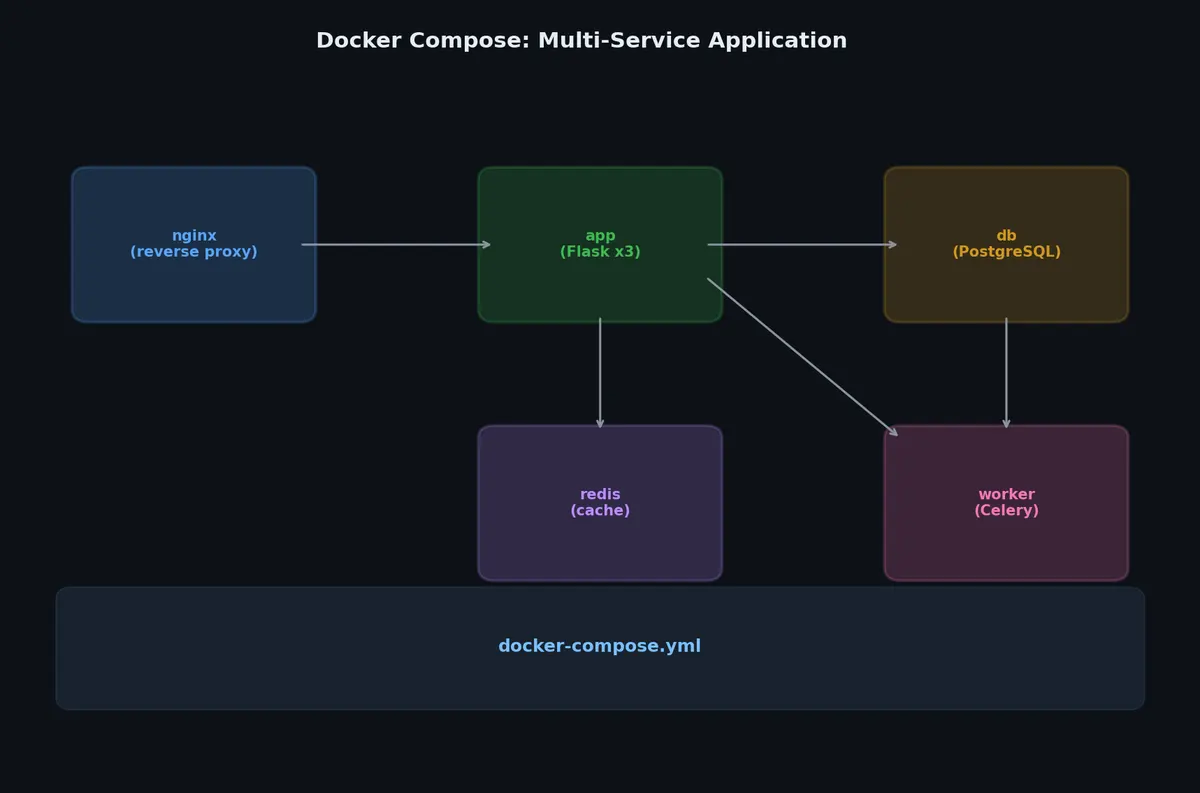
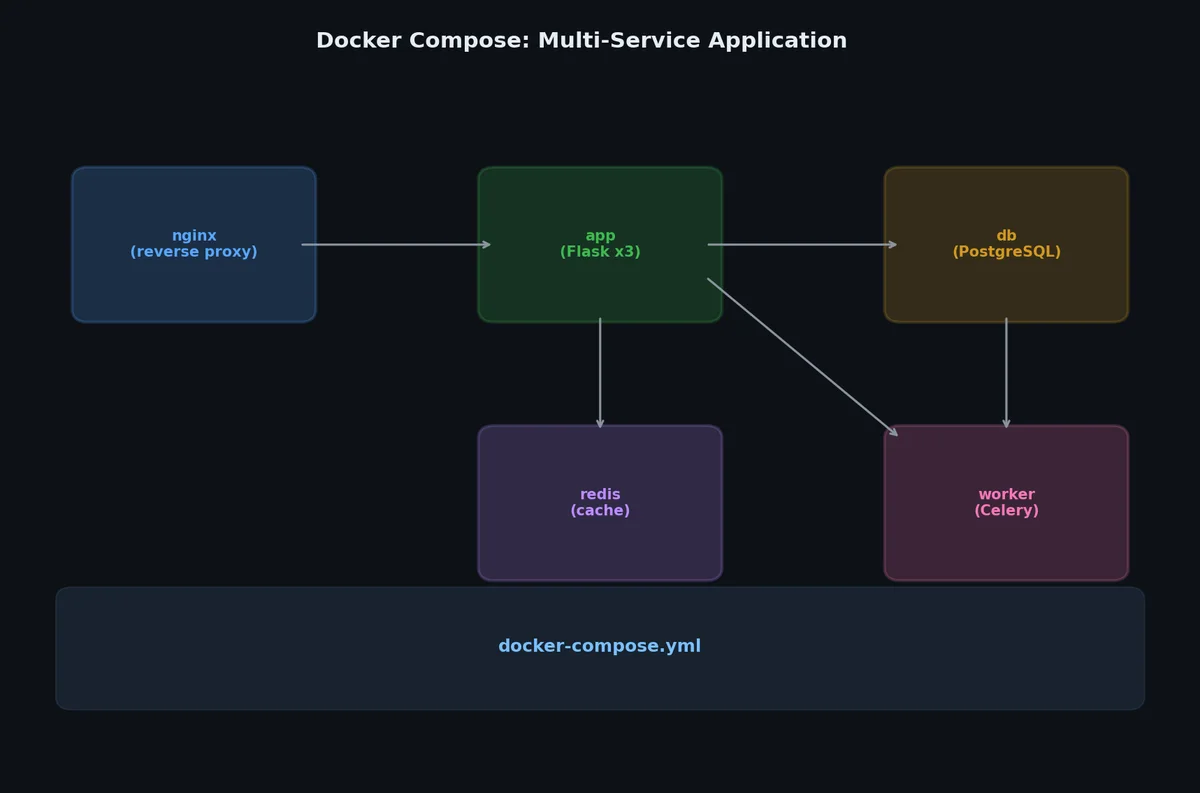
Each service is its own container. Without Compose, starting this stack means running docker network create, docker volume create, and a separate docker run with a dozen flags for each service — five or more commands, easy to get wrong, impossible to version control cleanly. Compose turns this into a declarative file.
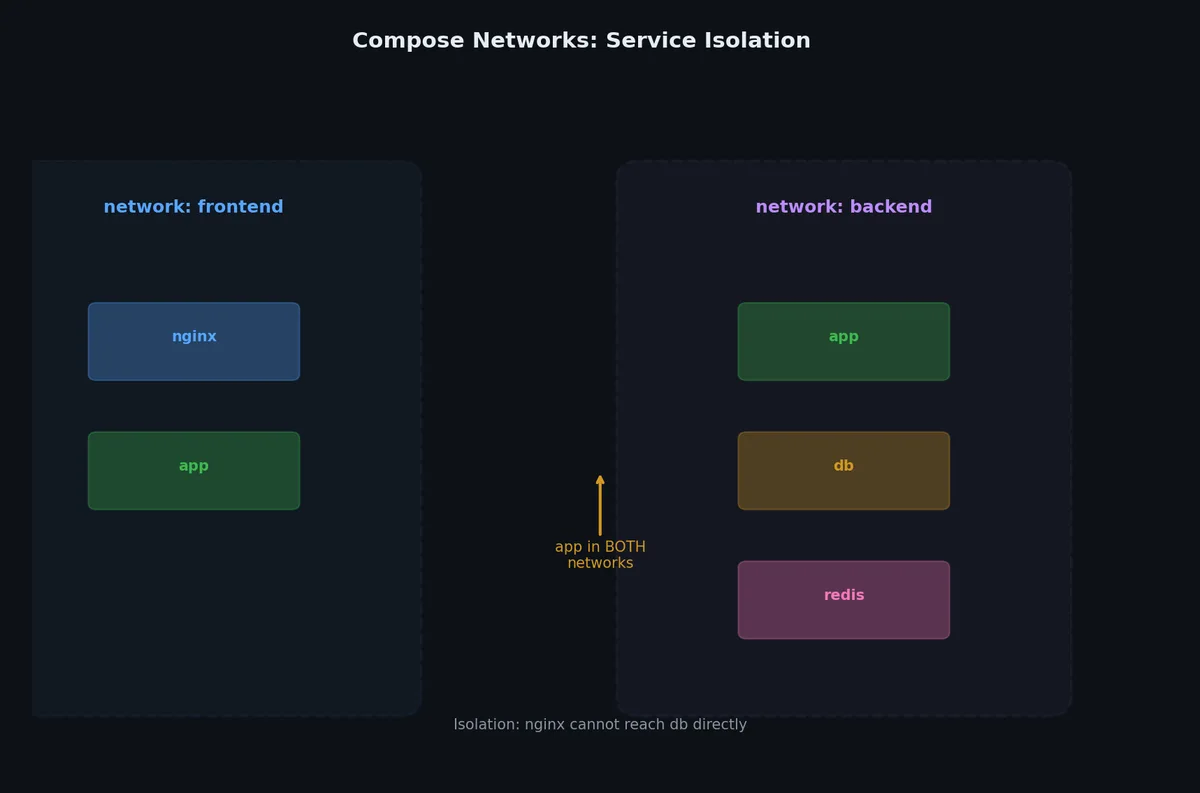
Creates a dedicated network (named <project>_default) for all services
Creates named volumes declared in the volumes: section
Builds images for services with build: directives
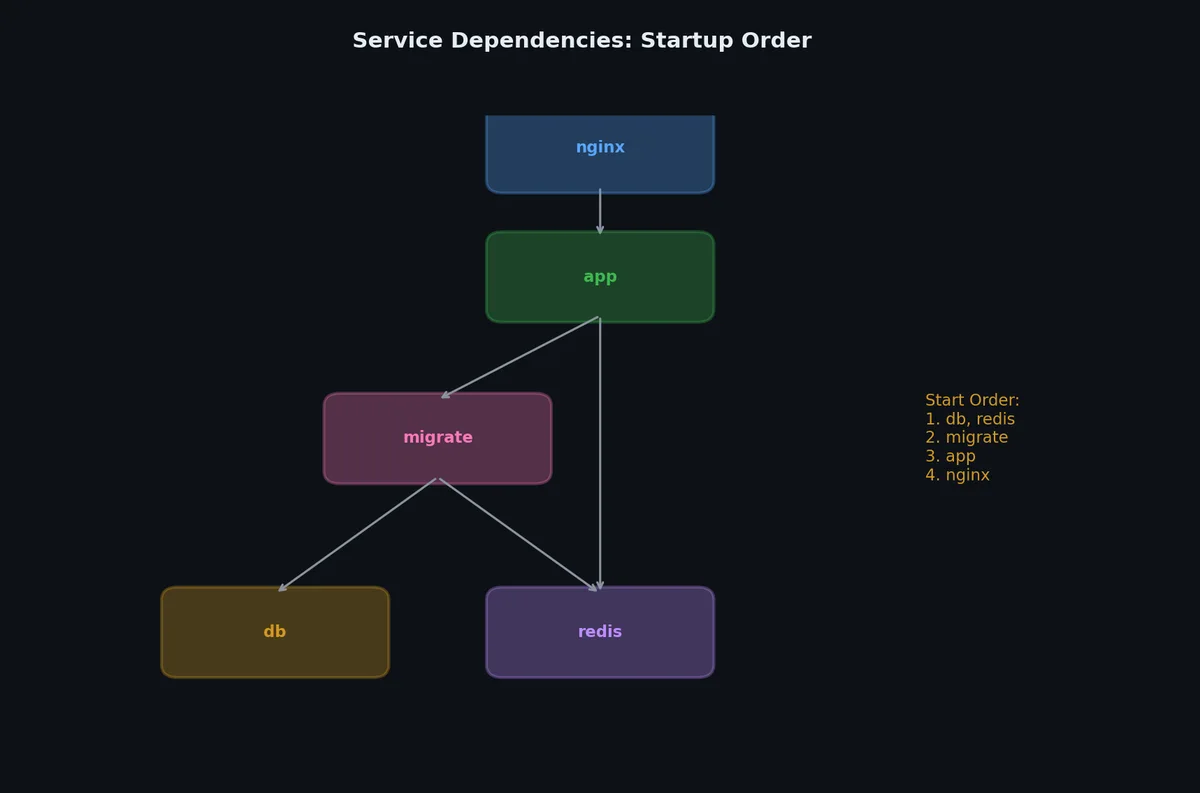
Starts containers in dependency order
Attaches service names as DNS hostnames (so api can reach postgres by name)
Streams all logs to your terminal (unless -d is used)
The project name defaults to the directory name. A project in ~/projects/myapp/ creates a network called myapp_default, containers named myapp-postgres-1, myapp-redis-1, etc.
services:# Container definitions (required)web:image:nginx# ...networks:# Custom networks (optional — a default is created)frontend:backend:volumes:# Named volumes (optional)db-data:cache-data:configs:# Configuration files (Swarm mode)my-config:file:./config.inisecrets:# Sensitive data (Swarm mode)db-password:file:./db_password.txt
Note: The version: key at the top of Compose files is deprecated since Docker Compose v2. You can omit it entirely. If you see version: "3.8" in old examples, it’s harmless but unnecessary.
services:myservice:# Image to use (mutually exclusive with build)image:python:3.11-slim# Build from a Dockerfile (mutually exclusive with image)build:context:./app # Build context directorydockerfile: Dockerfile # Dockerfile name (default:Dockerfile)args:# Build argumentsAPP_VERSION:"2.0"target:production # Multi-stage build target# Container name (default: <project>-<service>-<number>)container_name:my-custom-name# Override the default commandcommand:gunicorn --bind 0.0.0.0:8000 app:app# Override the entrypointentrypoint:/app/entrypoint.sh# Port mappingsports:- "8080:80"# host:container- "127.0.0.1:3000:3000"# bind to localhost only- "9090-9099:8080-8089"# port range# Volume mountsvolumes:- db-data:/var/lib/mysql # Named volume- ./src:/app/src # Bind mount (relative path)- /host/path:/container/path:ro # Read-only bind mount- type:tmpfs # tmpfs mounttarget:/tmp# Environment variablesenvironment:NODE_ENV:productionDB_HOST:postgres# Variable without value = pass from host shellAPI_KEY:# Environment fileenv_file:- .env- .env.production# Service dependenciesdepends_on:postgres:condition:service_healthyredis:condition:service_started# Networks to joinnetworks:- frontend- backend# Restart policyrestart:unless-stopped # always, on-failure, no# Resource limitsdeploy:resources:limits:cpus:'0.50'memory:512Mreservations:cpus:'0.25'memory:256M# Healthcheckhealthcheck:test:["CMD","curl","-f","http://localhost:8080/health"]interval:30stimeout:10sretries:3start_period:40s# Logginglogging:driver:json-fileoptions:max-size:"10m"max-file:"3"
Full Example: Python Web App + PostgreSQL + Redis#
Let’s build a complete application stack. The API accepts tasks via HTTP, stores them in PostgreSQL, and queues them in Redis. A worker processes tasks asynchronously. The project structure:
1
2
3
4
5
6
myapp/
  docker-compose.yml
  .env
  init.sql
  api/          # Flask app with Dockerfile
  worker/       # Background worker with Dockerfile
# .env (auto-loaded by Compose)DB_PASSWORD=supersecret
DB_NAME=myapp
The init.sql creates the tasks table on first start. PostgreSQL automatically runs scripts in /docker-entrypoint-initdb.d/ when the data volume is empty.
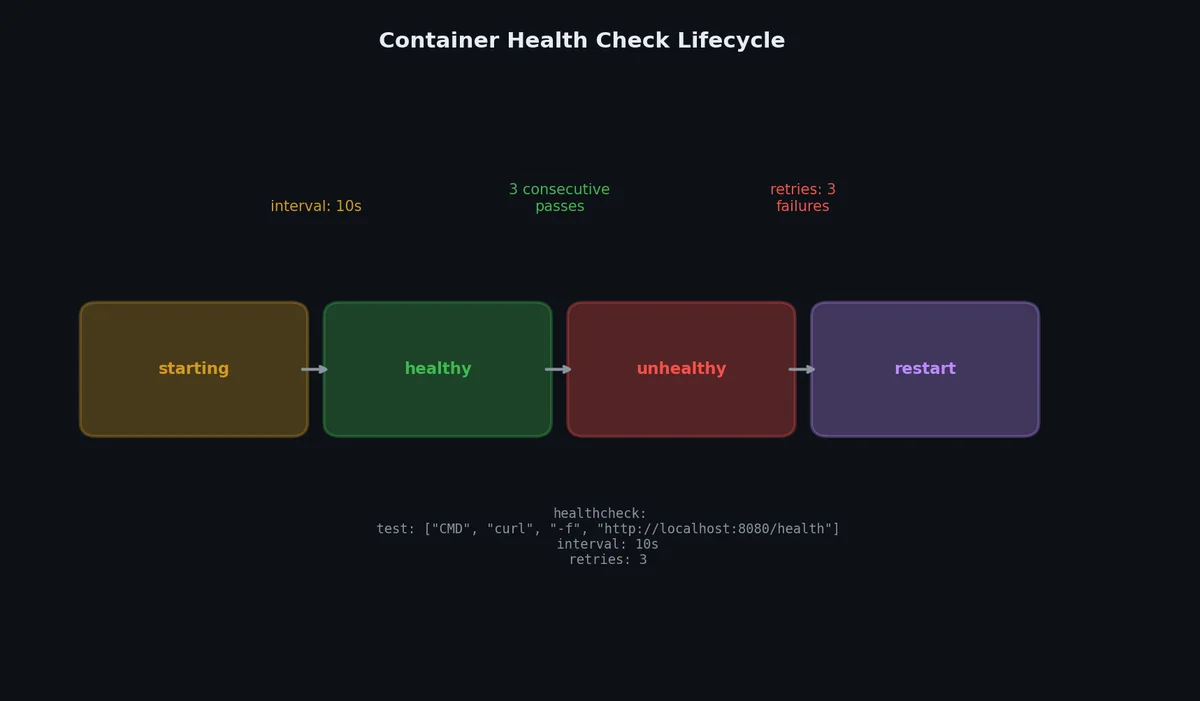
The depends_on key controls startup order. But there’s a crucial distinction between “started” and “ready”:
1
2
3
4
5
6
7
8
9
10
services:api:depends_on:# Simple form: wait for container to start (not necessarily ready)redis:condition:service_started# Healthcheck form: wait for container to be healthypostgres:condition:service_healthy
Without healthchecks, depends_on only ensures the container has started — it doesn’t wait for the service inside to be ready. PostgreSQL takes several seconds to initialize. If your API starts before PostgreSQL is accepting connections, it crashes.
Always combine depends_on with condition: service_healthy for databases and other services that have initialization time. This requires a healthcheck on the dependency.
services:api:environment:# Default value if not setLOG_LEVEL:${LOG_LEVEL:-info}# Error if not setAPI_KEY:${API_KEY:?API_KEY must be set}# Empty string if not setOPTIONAL:${OPTIONAL:-}
# Start all services (foreground — shows logs)docker compose up
# Start in detached mode (background)docker compose up -d
# Start specific services onlydocker compose up -d postgres redis
# Build images before startingdocker compose up -d --build
# View running servicesdocker compose ps
1
2
3
4
5
NAME IMAGE COMMAND SERVICE CREATED STATUS PORTS
myapp-api-1 myapp-api "gunicorn --bind 0.0…" api 2 minutes ago Up 2 minutes (healthy) 0.0.0.0:8000->8000/tcp
myapp-postgres-1 postgres:16-alpine "docker-entrypoint.s…" postgres 2 minutes ago Up 2 minutes (healthy) 0.0.0.0:5432->5432/tcp
myapp-redis-1 redis:7-alpine "docker-entrypoint.s…" redis 2 minutes ago Up 2 minutes (healthy) 0.0.0.0:6379->6379/tcp
myapp-worker-1 myapp-worker "python worker.py" worker 2 minutes ago Up 2 minutes
# View logs for a specific service (follow mode)docker compose logs -f api
# Execute a command in a running servicedocker compose exec postgres psql -U postgres -d myapp
# Run a one-off command (creates a new container)docker compose run --rm api python manage.py migrate
# Stop all services (containers stopped, not removed)docker compose stop
# Stop and remove containers, networksdocker compose down
# Stop, remove containers, networks, AND volumes (DESTRUCTIVE)docker compose down -v
# Rebuild a specific service's imagedocker compose build api
Compose supports override files that layer on top of the base file. By default, docker-compose.override.yml is automatically applied on top of docker-compose.yml:
 1
 2
 3
 4
 5
 6
 7
 8
 9
10
11
12
13
14
15
16
17
# docker-compose.yml — base configuration (production-like)services:api:build:./apiports:- "8000:8000"environment:NODE_ENV:productionrestart:alwayspostgres:image:postgres:16-alpinevolumes:- postgres-data:/var/lib/postgresql/datavolumes:postgres-data:
 1
 2
 3
 4
 5
 6
 7
 8
 9
10
11
12
13
14
15
16
17
18
# docker-compose.override.yml — development overrides (auto-loaded)services:api:build:context:./apitarget:development # Use dev stage of multi-stage buildvolumes:- ./api:/app # Live code reloadenvironment:NODE_ENV:developmentDEBUG:"true"restart:"no"# Don't restart on crash during devpostgres:ports:- "5432:5432"# Expose DB port for local toolsenvironment:POSTGRES_PASSWORD:devpassword
When you run docker compose up, both files are merged. The override values take precedence.
For explicit environment files, use -f:
1
2
3
4
5
6
7
8
# Development (default: docker-compose.yml + docker-compose.override.yml)docker compose up
# Production (explicit files, no override)docker compose -f docker-compose.yml -f docker-compose.prod.yml up -d
# Testingdocker compose -f docker-compose.yml -f docker-compose.test.yml up --abort-on-container-exit
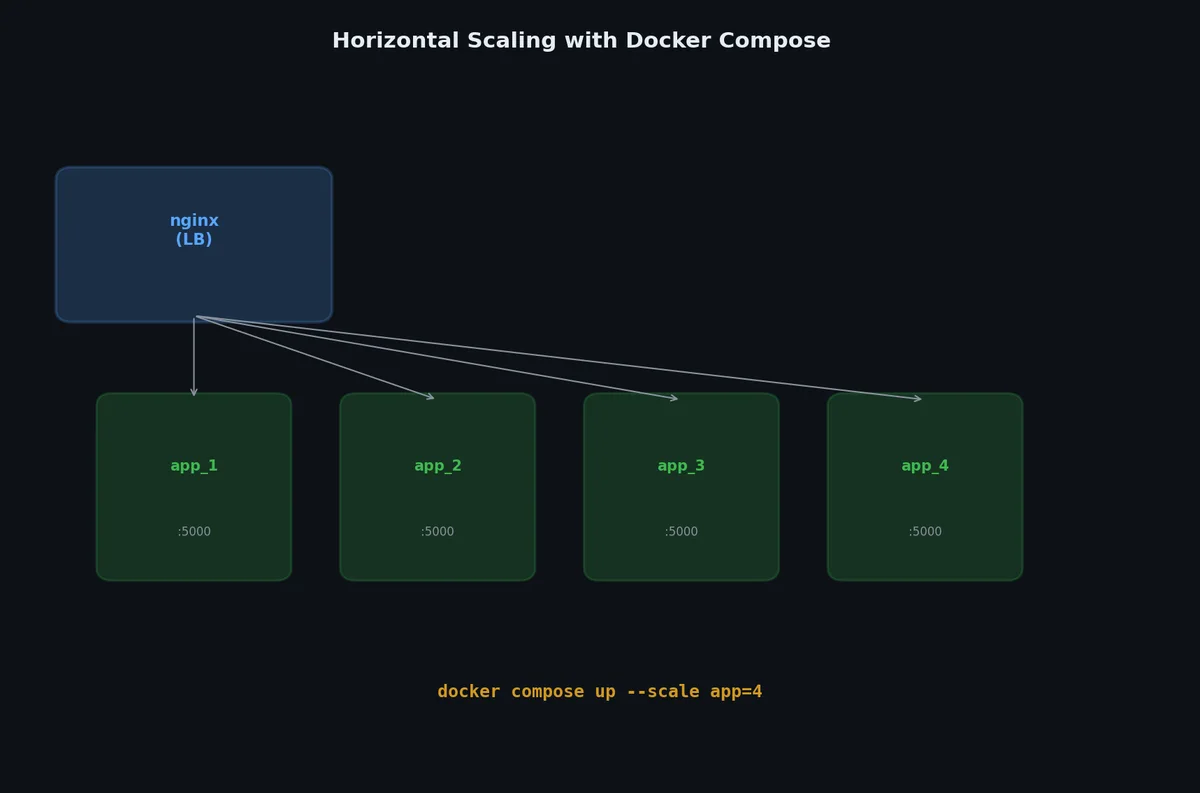
# Scale the worker service to 3 instancesdocker compose up -d --scale worker=3# Check the resultdocker compose ps
1
2
3
4
5
6
7
NAME IMAGE SERVICE STATUS PORTS
myapp-api-1 myapp-api api Up (healthy) 0.0.0.0:8000->8000/tcp
myapp-postgres-1 postgres:16-alpine postgres Up (healthy) 0.0.0.0:5432->5432/tcp
myapp-redis-1 redis:7-alpine redis Up (healthy) 0.0.0.0:6379->6379/tcp
myapp-worker-1 myapp-worker worker Up
myapp-worker-2 myapp-worker worker Up
myapp-worker-3 myapp-worker worker Up
Three worker containers, each pulling from the same Redis queue. This is basic horizontal scaling.
Scaling has limitations:
You can’t scale services with fixed port mappings (two containers can’t both bind to port 8000)
For services with ports, use a port range or a reverse proxy
1
2
3
4
5
6
7
8
9
10
11
12
# This works with scaling:services:worker:build:./worker# No port mapping — workers don't accept connectionsapi:build:./api# Don't do: ports: ["8000:8000"] (can't scale)# Instead, use a reverse proxy in frontexpose:- "8000"# Internal only — accessible within Docker network
Profiles let you define optional services that only start when explicitly activated:
 1
 2
 3
 4
 5
 6
 7
 8
 9
10
11
12
13
14
15
16
services:api:build:./api# No profile — always startsadminer:image:adminerports:- "8081:8080"profiles:- debug # Only starts with --profile debuggrafana:image:grafana/grafanaprofiles:- monitoring
1
2
3
4
5
6
7
8
# Start only core servicesdocker compose up -d
# Start core + debug toolsdocker compose --profile debug up -d
# Start everythingdocker compose --profile debug --profile monitoring up -d
Docker Compose Watch automatically syncs file changes to running containers:
1
2
3
4
5
6
7
8
9
10
services:api:build:./apidevelop:watch:- action:sync # Copy changed files into containerpath:./api/srctarget:/app/src- action:rebuild # Rebuild on dependency changespath:./api/requirements.txt
1
docker compose watch
The sync action copies files without rebuilding. The rebuild action triggers a full image rebuild when dependency files change. A third action, sync+restart, copies files and restarts the container (useful for configuration changes).
Docker Compose handles the happy path well — define services, start them, they work. But applications break. Containers crash silently, logs vanish into the ether, and that “works on my machine” problem returns when you can’t see inside the container. The next article covers debugging and logging: how to figure out what went wrong when a container refuses to cooperate.