Docker and Containers (6): Debugging and Logging — When Things Go Wrong Inside a Box
Containers hide their internals by design. When something breaks, you need specific tools and techniques to see inside the box without breaking the isolation that makes containers useful.
A container that works is invisible. A container that doesn’t work is a black box. The entire point of containerization is isolation — but that same isolation makes debugging harder. You can’t just ssh into a container or browse its filesystem from the host. Docker provides a specific set of tools for inspecting, diagnosing, and understanding what happens inside running (and crashed) containers.
# View all logs from a containerdocker logs my-container
# Follow logs in real time (like tail -f)docker logs -f my-container
# Show the last 100 linesdocker logs --tail 100 my-container
# Show logs since a specific timedocker logs --since 2023-09-30T10:00:00 my-container
# Show logs from the last 30 minutesdocker logs --since 30m my-container
# Show timestamps with each log linedocker logs -t my-container
Example output with timestamps:
 1
 2
 3
 4
 5
 6
 7
 8
 9
10
11
12
2023-09-30T10:15:23.456789012Z [INFO] Server starting on port 8080
2023-09-30T10:15:23.567890123Z [INFO] Connected to database at postgres:5432
2023-09-30T10:15:24.678901234Z [INFO] Loading configuration from /app/config.yaml
2023-09-30T10:15:24.789012345Z [WARNING] Cache directory /tmp/cache does not exist, creating
2023-09-30T10:15:25.890123456Z [INFO] Ready to accept connections
2023-09-30T10:16:01.234567890Z [ERROR] Failed to process request: connection refused
2023-09-30T10:16:01.345678901Z Traceback (most recent call last):
2023-09-30T10:16:01.345678901Z   File "/app/handler.py", line 45, in process_request
2023-09-30T10:16:01.345678901Z     response = requests.get(upstream_url, timeout=5)
2023-09-30T10:16:01.345678901Z   File "/usr/local/lib/python3.11/site-packages/requests/api.py", line 73
2023-09-30T10:16:01.345678901Z     return session.request(method=method, url=url, **kwargs)
2023-09-30T10:16:01.345678901Z ConnectionError: ('Connection aborted.', ConnectionRefusedError(111, 'Connection refused'))
This is critical: when a container crashes, it stops, but its logs are preserved until the container is removed.
1
2
# List stopped containersdocker ps -a --filter "status=exited"
1
2
CONTAINER ID   IMAGE       COMMAND            CREATED          STATUS                     NAMES
a1b2c3d4e5f6   myapp:v2    "python app.py"    10 minutes ago   Exited (1) 8 minutes ago   crashed-app
1
2
# View the crash logsdocker logs crashed-app
1
2
3
4
5
6
7
8
Traceback (most recent call last):
  File "/app/app.py", line 12, in <module>
    db = psycopg2.connect(os.environ['DATABASE_URL'])
  File "/usr/local/lib/python3.11/site-packages/psycopg2/__init__.py", line 122
    conn = _connect(dsn, connection_factory=connection_factory, **kwasync)
psycopg2.OperationalError: could not connect to server: Connection refused
    Is the server running on host "postgres" (172.18.0.2) and accepting
    TCP/IP connections on port 5432?
The container exited with code 1 (error). The logs show it couldn’t connect to PostgreSQL. This could be because the database wasn’t ready when the app started (a dependency ordering issue) or the hostname was wrong.
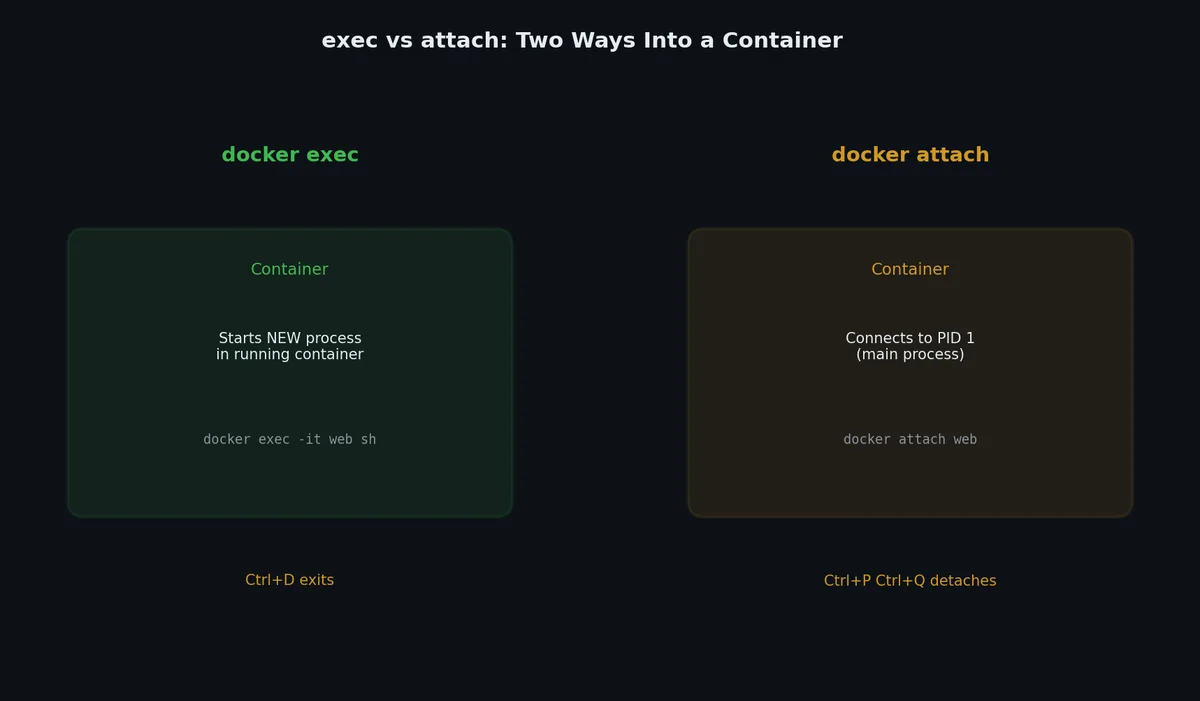
docker exec runs a command inside a running container. It’s the primary way to interactively debug:
1
2
3
4
5
6
7
8
9
10
11
12
13
14
# Open a shell inside a running containerdocker exec -it my-container bash
# If bash isn't available (Alpine, distroless)docker exec -it my-container sh
# Run a specific commanddocker exec my-container cat /app/config.yaml
# Run as a different userdocker exec -u root my-container apt-get update
# Set environment variables for the commanddocker exec -e DEBUG=true my-container python check.py
For distroless images, you can’t exec into them at all (no shell). Use a debug sidecar instead.
1
2
3
4
5
# Run a debug container that shares the network namespacedocker run -it --rm \
--network container:my-distroless-container \
nicolaka/netshoot \
bash
The nicolaka/netshoot image contains every network debugging tool you could want (curl, nslookup, tcpdump, iptables, etc.), and --network container:my-distroless-container makes it share the target container’s network namespace.
# Get container's IP addressdocker inspect -f '{{range.NetworkSettings.Networks}}{{.IPAddress}}{{end}}' my-container
# Get container's MAC addressdocker inspect -f '{{range.NetworkSettings.Networks}}{{.MacAddress}}{{end}}' my-container
# Get container's restart countdocker inspect -f '{{.RestartCount}}' my-container
# Get the image useddocker inspect -f '{{.Config.Image}}' my-container
# Get the command being rundocker inspect -f '{{json .Config.Cmd}}' my-container
# Check if container is runningdocker inspect -f '{{.State.Running}}' my-container
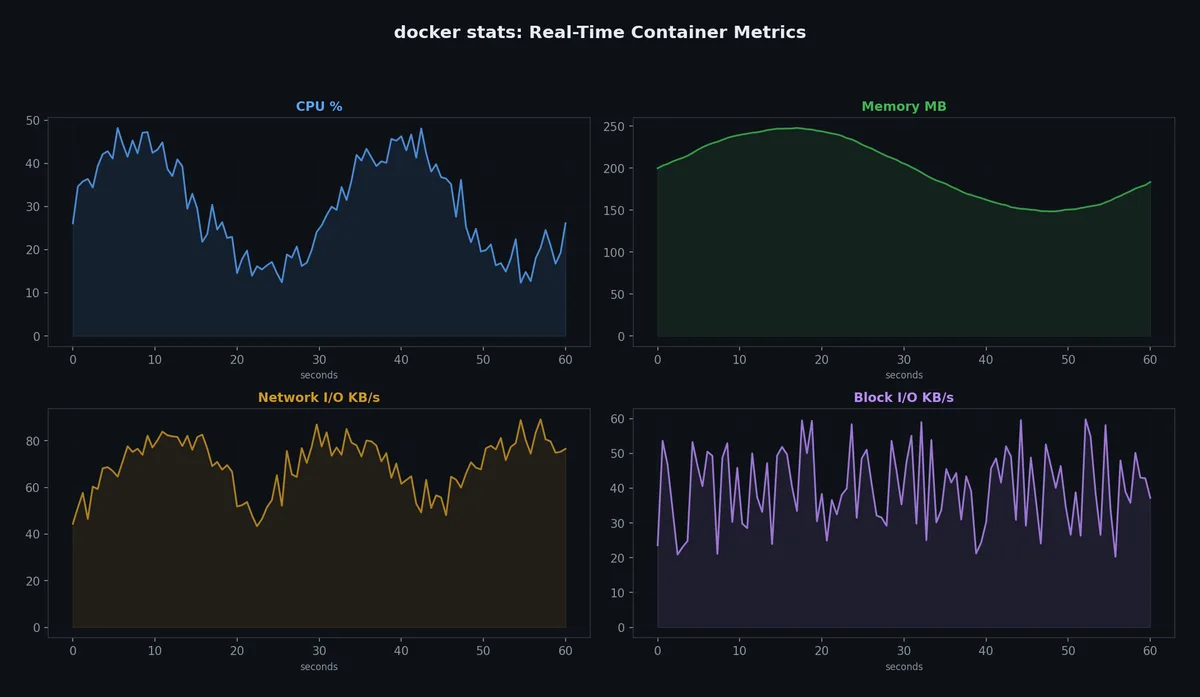
# Monitor a specific containerdocker stats my-container --no-stream
# Format outputdocker stats --format "table {{.Name}}\t{{.CPUPerc}}\t{{.MemUsage}}"
Notice the PID and PPID columns show host PIDs. Inside the container, the master process is PID 1, but on the host, it’s PID 12345. This is namespace mapping.
1
2
# Use ps-style formattingdocker top my-container -o pid,ppid,user,%cpu,%mem,comm
If the container crashes on startup, override the command to keep it running.
1
2
3
4
5
6
7
8
9
10
# Instead of the normal command, just sleepdocker run -it --name debug-container myapp:v2 bash
# Or override entrypoint entirelydocker run -it --entrypoint bash myapp:v2
# Now you're inside the container and can investigatels /app/
cat /app/config.yaml
python -c "import psycopg2; print('module found')"
Strategy 3: Copy files out of a stopped container#
Strategy 4: Commit a stopped container as an image#
1
2
3
4
5
6
7
8
# The container crashed but still existsdocker ps -a | grep crashed
# Save its state as a new imagedocker commit crashed-container debug-image:latest
# Now you can explore itdocker run -it debug-image:latest bash
Sometimes you need networking tools, strace, or other debugging utilities that aren’t in your application image. Run a separate debug container that shares the target’s network.
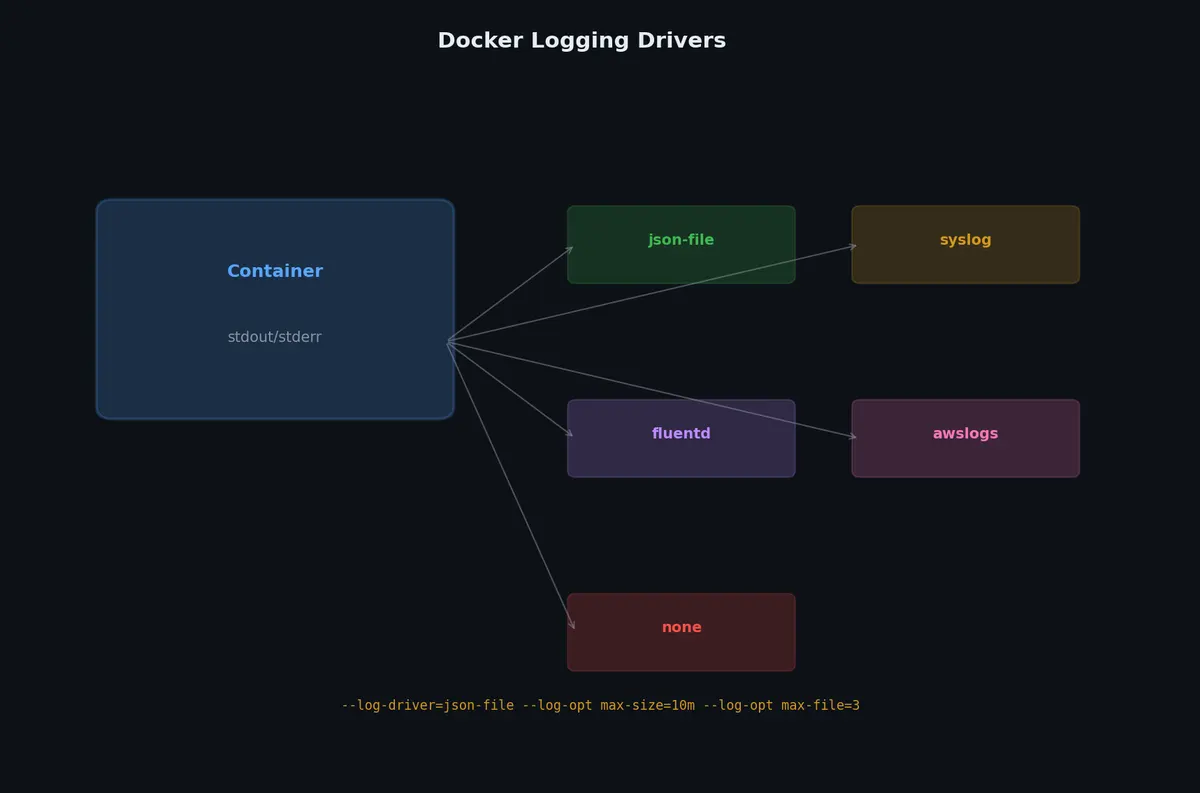
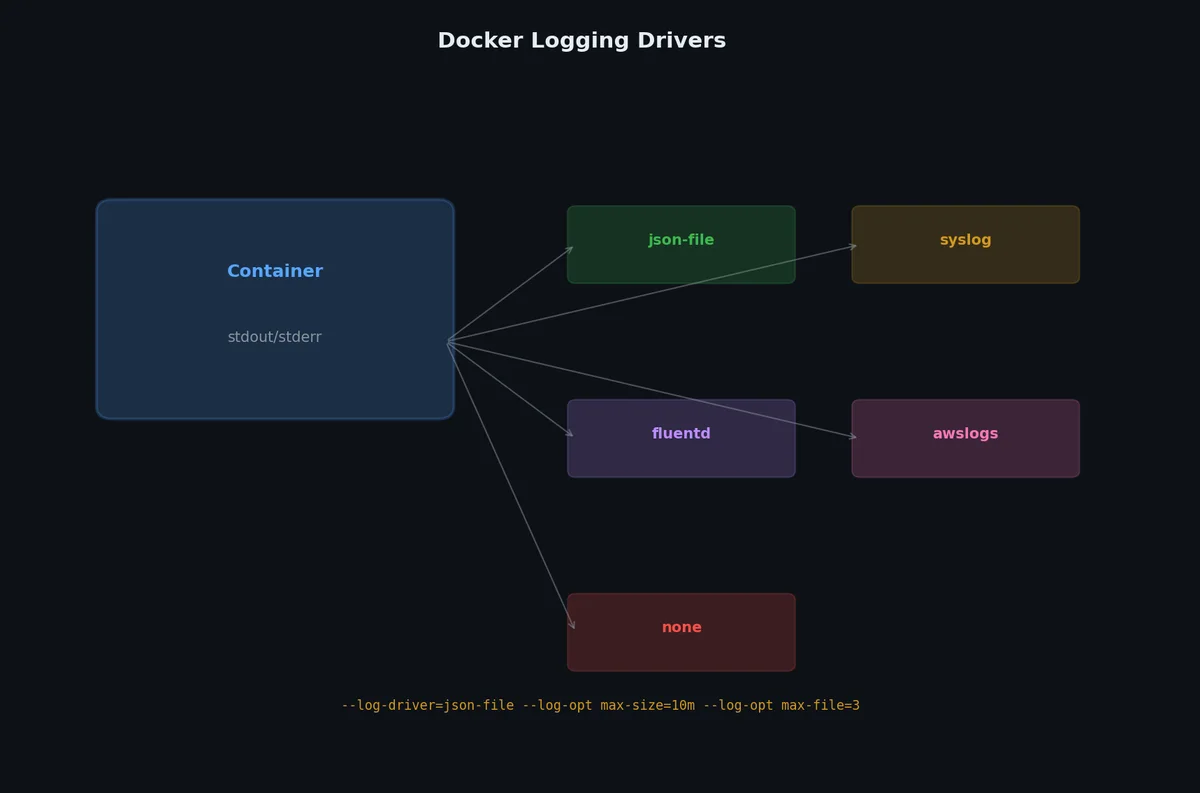
# Use a specific log driver for one containerdocker run -d \
--log-driver json-file \
--log-opt max-size=10m \
--log-opt max-file=3\
--name my-container \
myapp
Configuring log rotation (critical for production)#
Without log rotation, json-file logs grow unbounded and will eventually fill your disk:
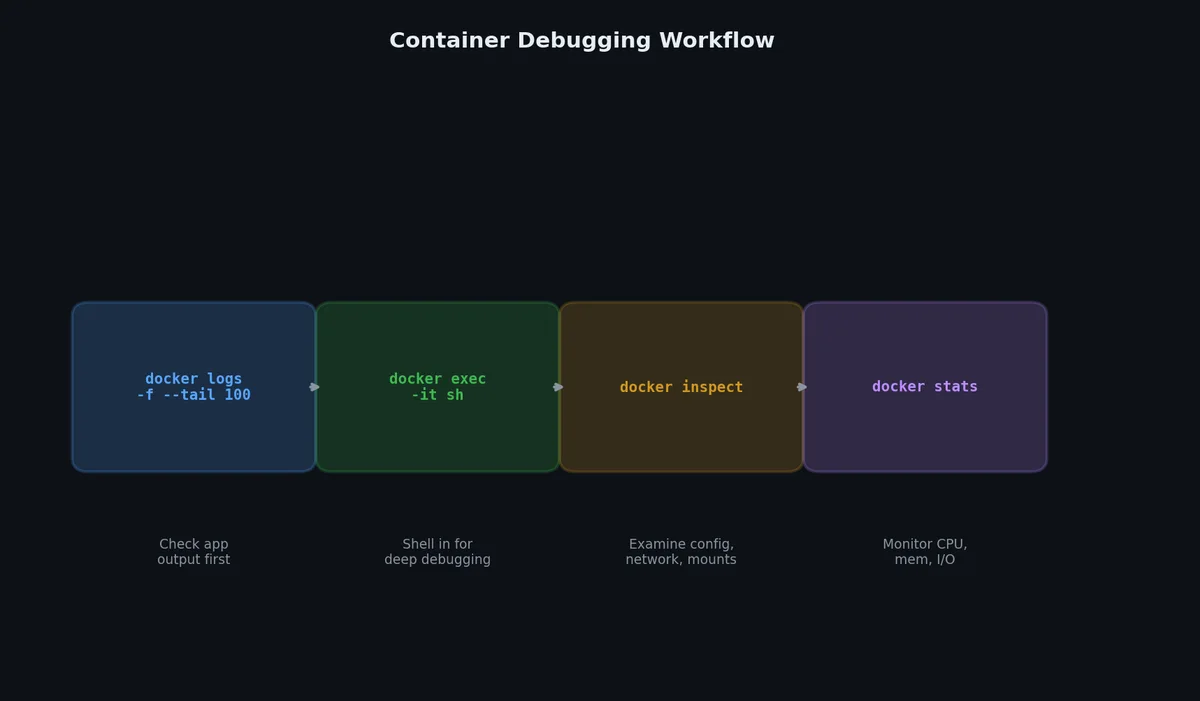
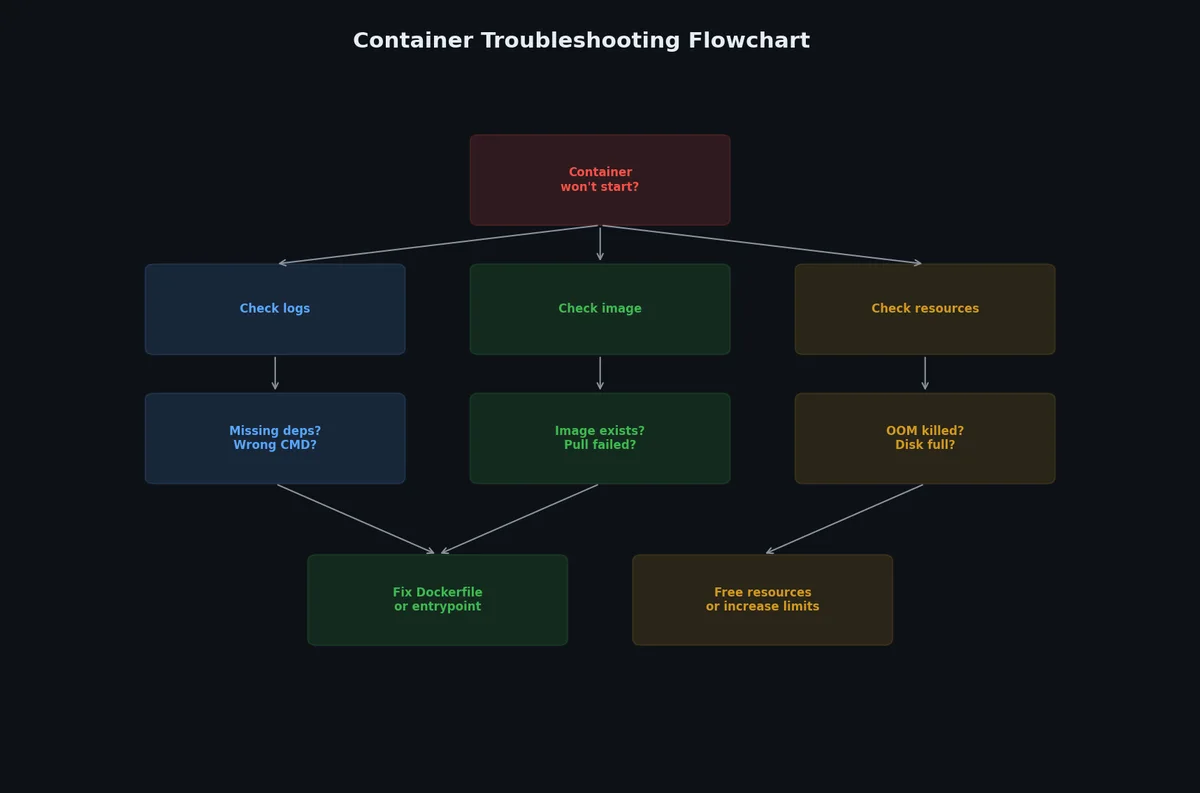
# 1. Is the container running?docker ps -a | grep my-container
# 2. What do the logs say?docker logs --tail 100 my-container
# 3. What's the exit code?docker inspect my-container --format '{{.State.ExitCode}} OOM:{{.State.OOMKilled}}'# 4. What's the resource usage?docker stats my-container --no-stream
# 5. Can I get inside?docker exec -it my-container bash # or sh# 6. What processes are running?docker top my-container
# 7. What changed in the filesystem?docker diff my-container
# 8. What's the full configuration?docker inspect my-container
# 9. Can the container reach its dependencies?docker exec my-container ping postgres
docker exec my-container curl -v http://api:8000/health
# 10. Is the network configured correctly?docker network inspect $(docker inspect my-container --format '{{range $k, $v := .NetworkSettings.Networks}}{{$k}}{{end}}')
This shows the container is in a restart loop (die → start → die). Filter events to reduce noise:
1
2
3
4
5
6
7
8
# Only container eventsdocker events --filter type=container
# Only events for a specific containerdocker events --filter container=my-container
# Only specific event typesdocker events --filter event=die --filter event=oom
Now you can find out what’s wrong when containers misbehave. But debugging is reactive — ideally, you prevent problems before they happen. The next article covers security: running containers as non-root, dropping capabilities, scanning for vulnerabilities, and following best practices that prevent the most common security mistakes in containerized applications.