Docker and Containers (7): Security — Running Containers Without Giving Away the Keys
Containers provide isolation, not security. Default Docker configurations run processes as root with full capabilities. This article shows how to lock containers down for production.
Docker’s default configuration prioritizes convenience over security. Containers run as root, have access to a broad set of Linux capabilities, and can write to their entire filesystem. This is fine for development but dangerous for production. A container escape vulnerability in a root-privileged container means an attacker can take over the host. Let’s fix that.
The Threat Model#
Before securing your setup, understand what you’re defending against:
- Vulnerable application code: Your app has a bug (RCE, path traversal, SSRF) and an attacker gets code execution inside the container
- Vulnerable dependencies: A library in your image has a known CVE
- Container escape: An attacker exploits a kernel or runtime vulnerability to break out of the container
- Supply chain attack: A malicious base image or package is used
- Secrets exposure: Credentials leak through environment variables, image history, or logs
- Lateral movement: An attacker in one container pivots to other containers or the host
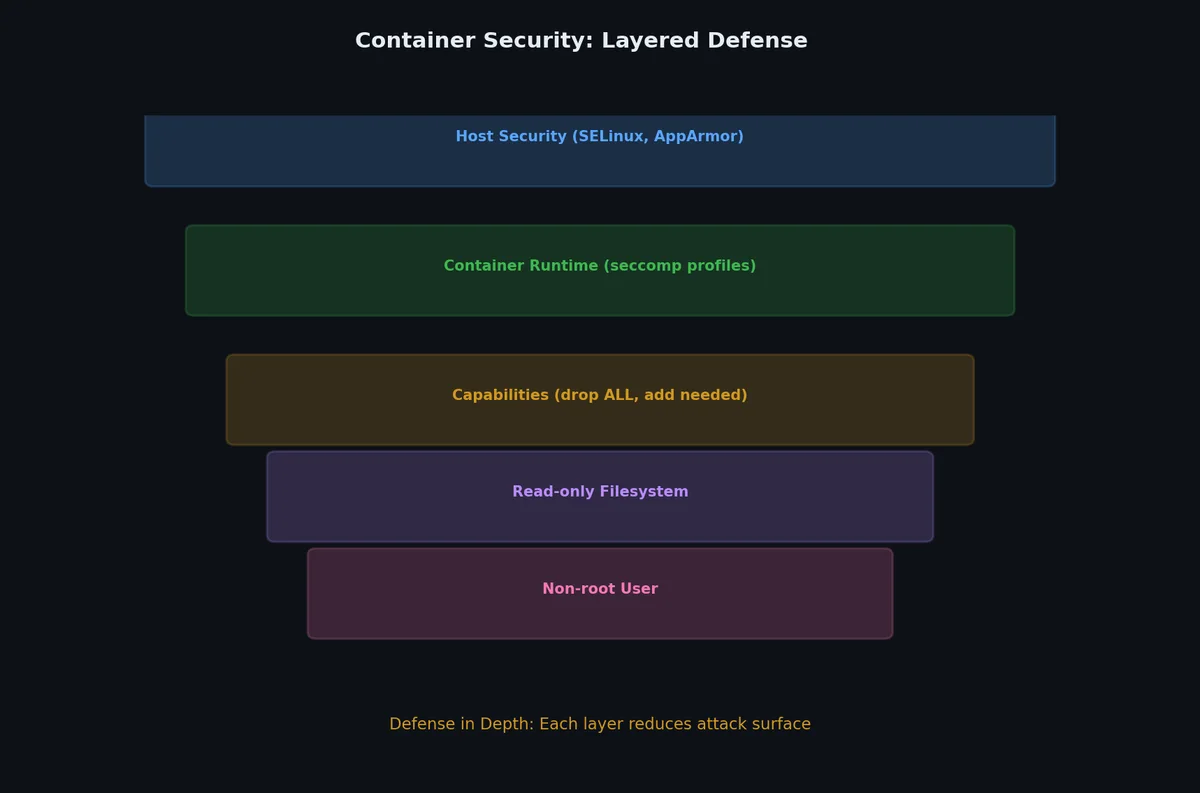
Each hardening technique addresses one or more of these threats. The goal is defense in depth: no single measure is sufficient, but layers of hardening make exploitation much harder.
Running as Non-Root#
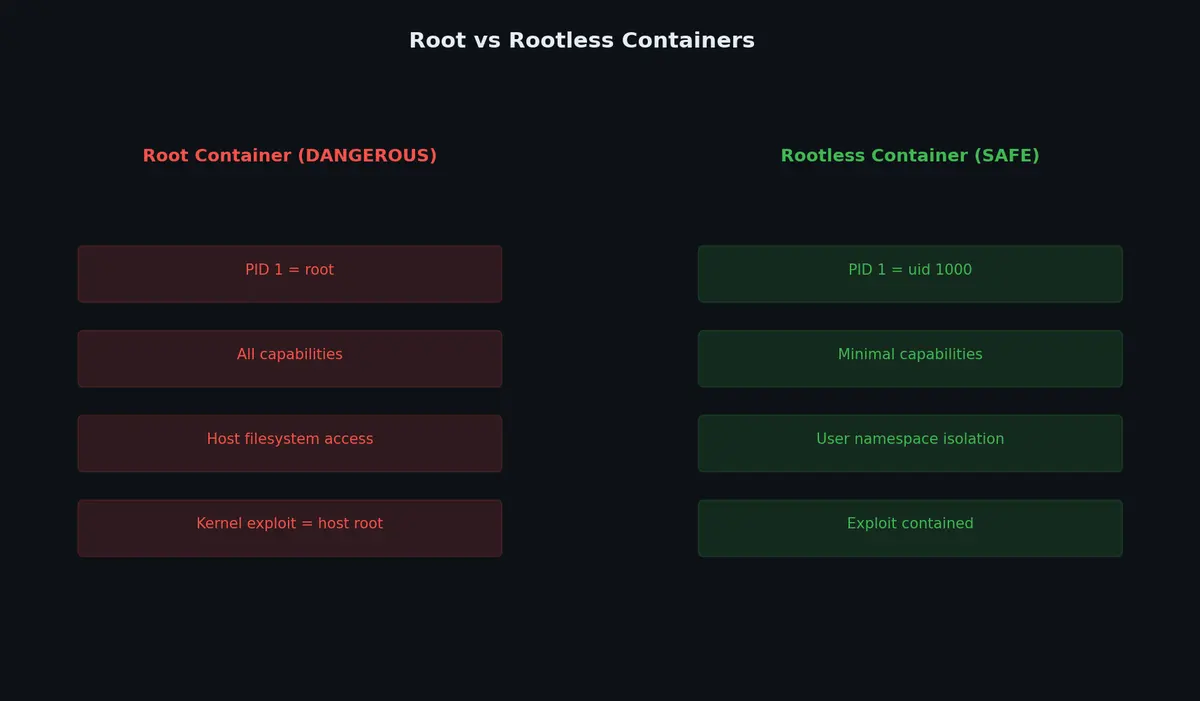
By default, the process inside a Docker container runs as root (UID 0). This root is the same as on the host (unless user namespaces are enabled). If an attacker escapes the container, they become root on the host.
In the Dockerfile#
| |
On Alpine-based images, the syntax is slightly different:
| |
At Runtime#
Even if the Dockerfile doesn’t set a user, you can override it at runtime:
| |
Verifying the user#
| |
Common non-root gotchas#
Running as a non-root user can break things that assume root access:
| Problem | Symptom | Solution |
|---|---|---|
| Can’t bind to ports < 1024 | Permission denied on port 80 | Use port 8080+ and map with -p 80:8080 |
| Can’t write to directories | Permission denied on /var/log | RUN mkdir -p /var/log/app && chown appuser /var/log/app |
| Can’t install packages at runtime | apt-get fails | Install everything in build stage before USER |
| Can’t read mounted files | Permission denied on volumes | Match UID/GID with host, or use named volumes |
| Package managers need root | npm/pip fail | Use --user flag for pip, or install before switching user |
Read-Only Filesystem#

A read-only root filesystem prevents attackers from modifying binaries, planting malware, or changing configuration files:
| |
Most applications need to write to some locations (temp files, caches, pid files). Use tmpfs for these writable areas:
| |
In Docker Compose:
| |
Test your application with --read-only in development. If it crashes, the error message will tell you which path it tried to write to — then add a tmpfs for that path.
| |
Linux Capabilities#
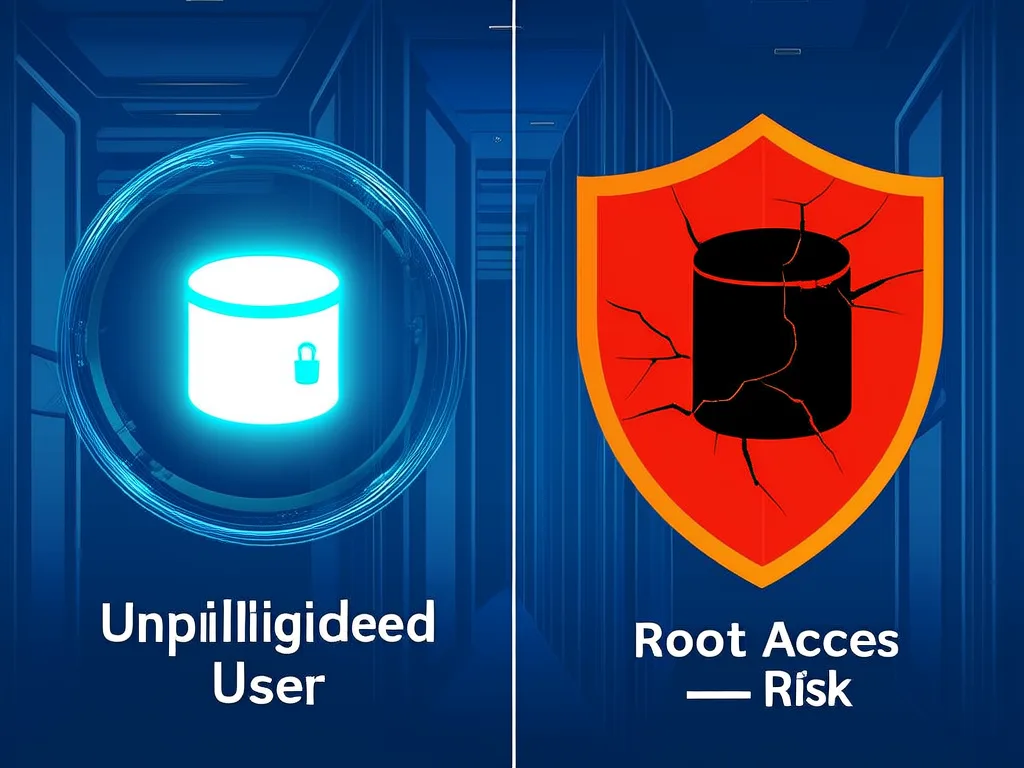
Linux capabilities divide root’s power into about 40 individual privileges. By default, Docker grants containers a subset of these, more than most applications need.
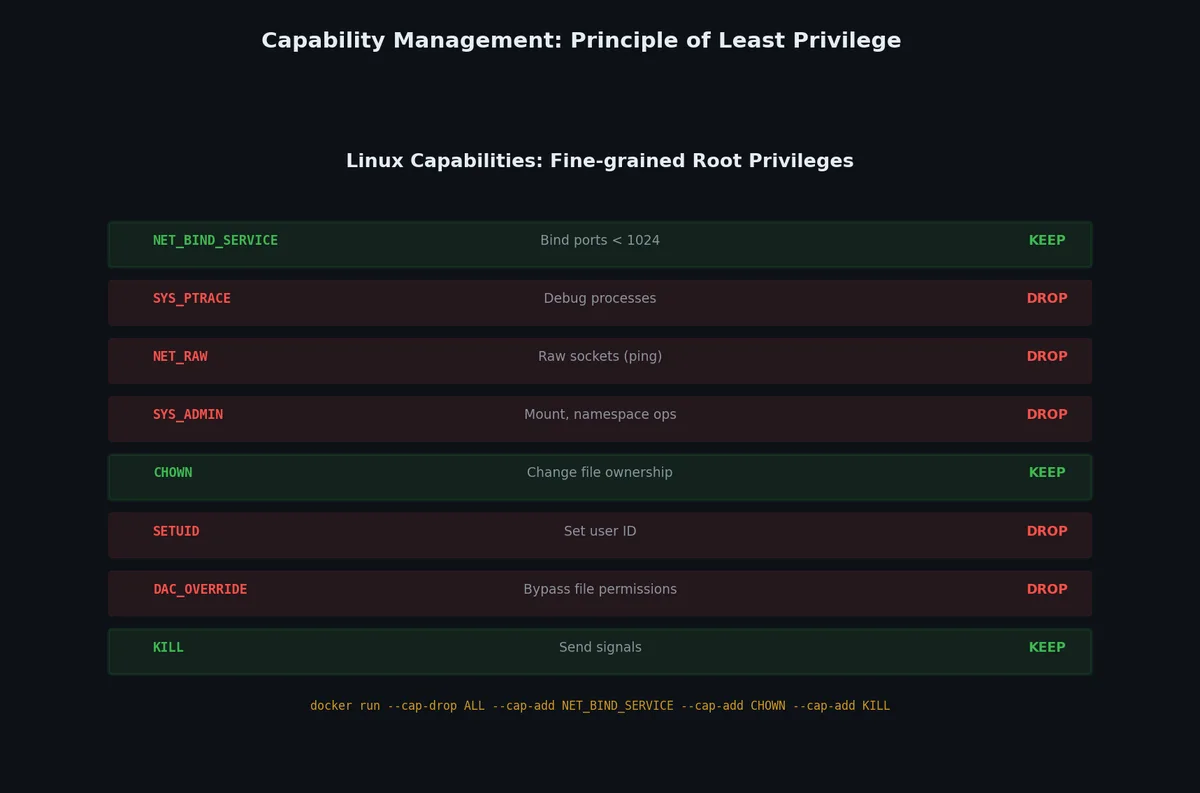
Default capabilities given to Docker containers:
| Capability | Permission | Needed? |
|---|---|---|
CHOWN | Change file ownership | Rarely |
DAC_OVERRIDE | Bypass file permission checks | Rarely |
FSETID | Set SUID/SGID bits | Almost never |
FOWNER | Bypass permission checks on file owner | Rarely |
MKNOD | Create special files | Almost never |
NET_RAW | Use raw sockets (ping, packet capture) | Sometimes |
SETGID | Set group ID | Sometimes (init scripts) |
SETUID | Set user ID | Sometimes (init scripts) |
SETFCAP | Set file capabilities | Almost never |
SETPCAP | Set process capabilities | Almost never |
NET_BIND_SERVICE | Bind to ports < 1024 | Only for port 80/443 |
SYS_CHROOT | Use chroot | Almost never |
KILL | Send signals to other processes | Sometimes |
AUDIT_WRITE | Write to kernel audit log | Rarely |
Follow the principle of least privilege: drop all capabilities and add back only what your application needs.
| |
In Docker Compose:
| |
Checking capabilities#
| |
Secrets Management#
Secrets (API keys, database passwords, TLS certificates) are among the most common security failures in containerized applications.
How NOT to handle secrets#
| |
All three of these are visible to anyone with access to the image:
| |
Environment variables (acceptable for many use cases)#
Environment variables at runtime (not in the Dockerfile) are the most common approach:
| |
Or with a file:
| |
The .env file should never be committed to version control (add it to .gitignore).
Risks of environment variables:
- Visible via
docker inspect - Available to all processes in the container (including child processes)
- Can be logged accidentally (
env | sortin debug output, error reporters) - Visible in
/proc/<pid>/environinside the container
Docker BuildKit secrets (for build-time secrets)#
BuildKit can mount secrets during the build without storing them in any layer:
| |
| |
The secret is available during the RUN instruction but is not stored in the image or any layer.
Docker Swarm secrets (for runtime secrets)#
If you use Docker Swarm, secrets are first-class:
| |
Inside the container, the secret is available as a file at /run/secrets/db_password. This is more secure than environment variables because:
- It’s a tmpfs mount (never written to disk)
- Only available to services that explicitly request it
- Can be rotated without restarting the service
Files mounted at runtime#
For non-Swarm deployments, you can achieve similar security with bind mounts:
| |
The :ro flag makes it read-only. Combine with --tmpfs /tmp and --read-only to prevent the secret from being copied elsewhere in the container.
Image Scanning with Trivy#
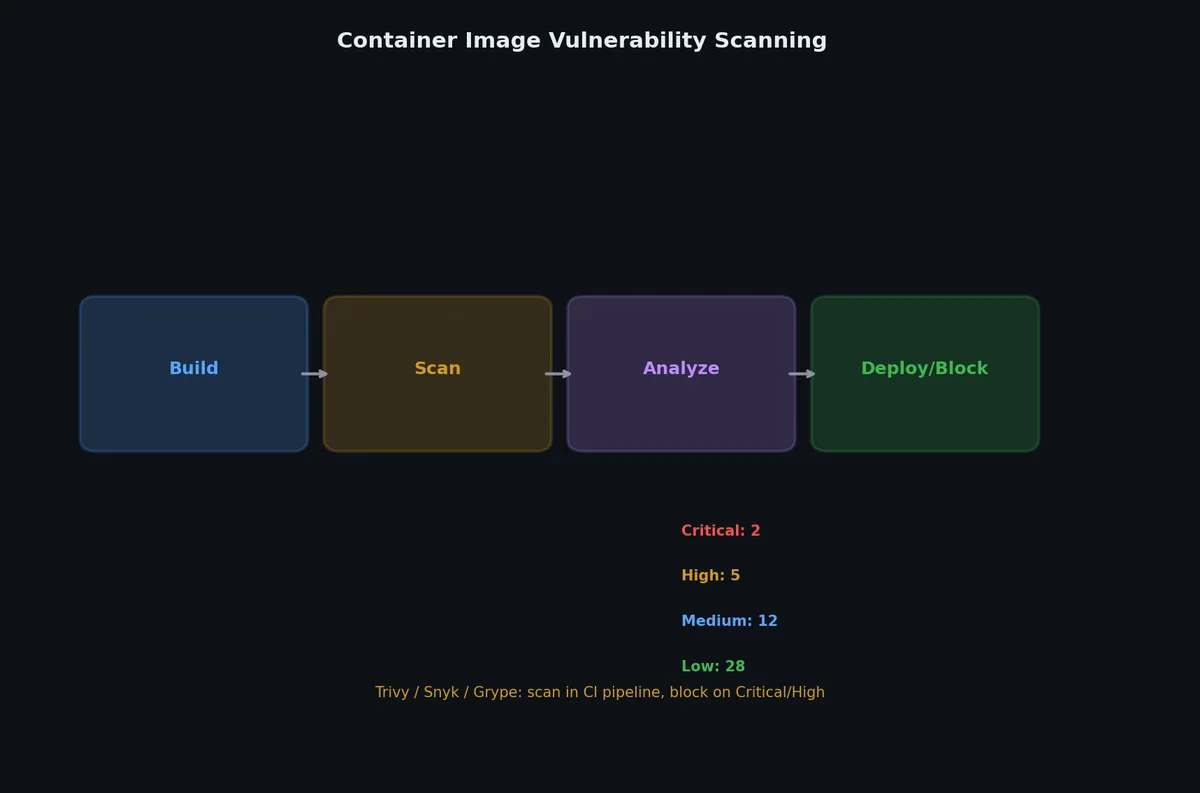
Trivy is a vulnerability scanner that checks container images against known CVE databases:
| |
| |
Trivy scans both OS packages and application dependencies (pip, npm, gem, etc.).
| |
Integrate Trivy in CI#
| |
Minimal Base Images#
The fewer files in your image, the smaller the attack surface. Compare these base images:
| Base Image | Size | Packages | Shell | Security Posture |
|---|---|---|---|---|
ubuntu:22.04 | 78 MB | ~100 | bash | Large attack surface |
debian:bookworm-slim | 75 MB | ~80 | bash | Slightly smaller |
alpine:3.18 | 7 MB | ~15 | sh | Small, uses musl libc |
distroless/base | 20 MB | ~5 | None | Minimal, no shell access |
distroless/static | 2 MB | ~2 | None | Only static binaries |
scratch | 0 MB | 0 | None | Absolute minimum |
Distroless Images#
Google’s distroless images contain only your application and its runtime dependencies — no shell, no package manager, no unnecessary utilities:
| |
Benefits:
- No shell means
docker exec bashdoesn’t work — attackers can’t get an interactive shell - No package manager means attackers can’t install tools
- Fewer files means fewer potential CVEs
Drawback: debugging is harder. You can’t exec into the container. Use the ephemeral debug container technique from the previous article.
Scratch Images (Go, Rust)#
For statically compiled languages, you can use scratch (literally empty):
| |
The final image contains exactly one file (plus CA certificates). Attack surface: almost zero.
Docker Content Trust#
Docker Content Trust (DCT) uses digital signatures to verify image authenticity:
| |
DCT uses The Update Framework (TUF) to manage keys and signatures. When enabled:
docker pullverifies that the image was signed by a trusted publisherdocker pushsigns the image with your key- Unsigned images are rejected
This prevents supply chain attacks where a registry is compromised and images are replaced with malicious ones.
Resource Limits#
Without resource limits, a container can consume unlimited CPU, memory, and disk I/O — starving other containers and the host:
| |
In Docker Compose:
| |
| Resource | Flag | Effect |
|---|---|---|
| Memory | --memory 512m | Hard limit, OOM-killed if exceeded |
| Memory + Swap | --memory-swap 1g | Total memory+swap limit |
| CPU | --cpus 0.5 | Hard limit: 50% of one core |
| CPU shares | --cpu-shares 512 | Relative weight (soft limit) |
| PIDs | --pids-limit 100 | Max number of processes (prevents fork bombs) |
| Disk I/O | --device-read-bps /dev/sda:1mb | Disk bandwidth limit |
The --pids-limit flag is often overlooked but prevents fork bomb attacks:
| |
Security Options#
Seccomp Profiles#
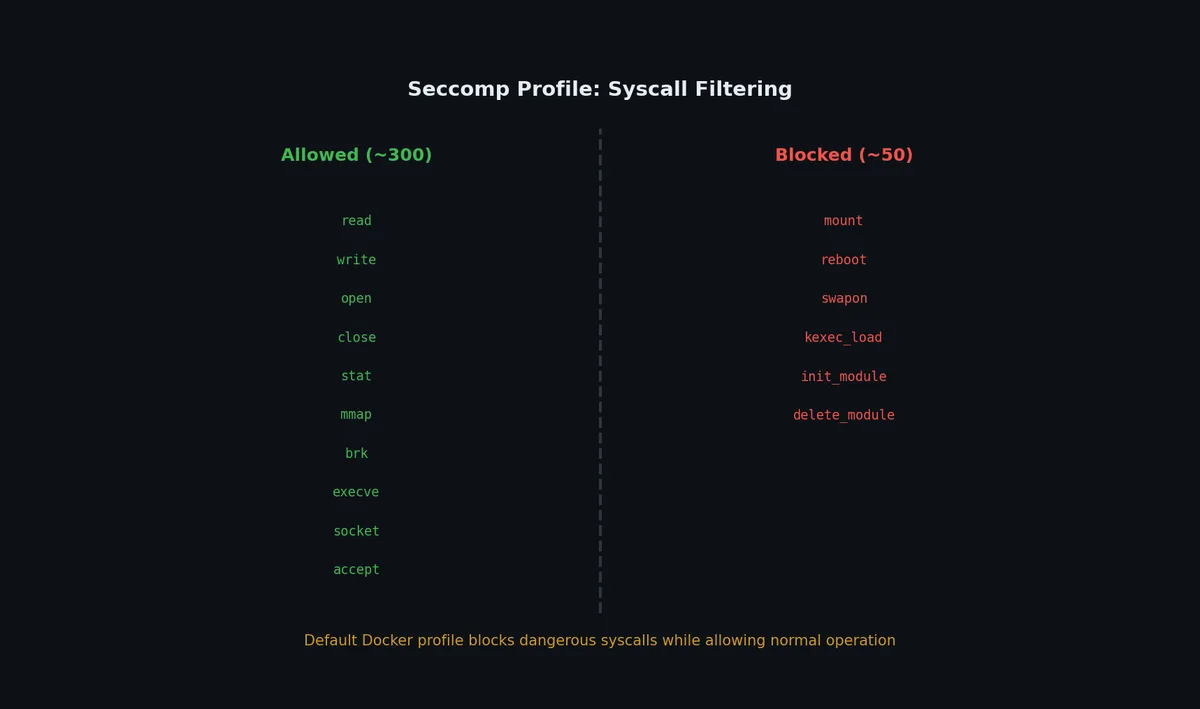
Seccomp (Secure Computing Mode) filters which system calls a container can make. Docker’s default seccomp profile blocks ~60 dangerous syscalls:
| |
AppArmor and SELinux#
Docker automatically applies AppArmor (Ubuntu/Debian) or SELinux (RHEL/CentOS) profiles:
| |
No New Privileges#
Prevents processes inside the container from gaining new privileges (through setuid binaries, for example):
| |
In Docker Compose:
| |
Security Best Practices Checklist#
| Practice | Priority | Implementation |
|---|---|---|
| Run as non-root user | Critical | USER appuser in Dockerfile |
| Use specific image tags | Critical | FROM python:3.11.5-slim, never latest |
| Scan images for CVEs | Critical | trivy image myapp in CI pipeline |
| Drop all capabilities | High | --cap-drop ALL --cap-add <needed> |
| Use read-only filesystem | High | --read-only --tmpfs /tmp |
| Set memory limits | High | --memory 512m |
| Use .dockerignore | High | Exclude .git, .env, secrets |
| No secrets in images | Critical | Use runtime env vars, mounted files, or Docker secrets |
| Use multi-stage builds | High | Build tools stay out of production image |
| Enable no-new-privileges | Medium | --security-opt no-new-privileges:true |
| Use minimal base images | Medium | Alpine, distroless, or scratch |
| Pin dependency versions | Medium | Lockfiles, exact version pins |
| Set PID limits | Medium | --pids-limit 100 |
| Enable content trust | Medium | DOCKER_CONTENT_TRUST=1 |
| Use health checks | Medium | HEALTHCHECK CMD curl -f http://localhost/health |
| Limit network exposure | Medium | Use custom networks, don’t expose unnecessary ports |
| Audit image history | Low | docker history --no-trunc myapp |
| Use read-only volumes | Low | -v config:/app/config:ro |
A Hardened Docker Compose Example#
Putting it all together:
| |
Notice backend is an internal: true network — containers on this network cannot reach the internet, limiting the blast radius if the database container is compromised.
What’s Next#
You now know how to secure individual containers: non-root users, minimal capabilities, read-only filesystems, image scanning, and resource limits. But security is one challenge — scaling is another. What happens when a single host isn’t enough? When you need automatic failover, rolling updates, and service discovery across multiple machines? The final article previews container orchestration: Docker Swarm for simplicity and Kubernetes for scale, and when you might not need either.
Docker and Containers 8 parts
- 01 Docker and Containers (1): Why Containers — The Problem VMs Didn't Solve
- 02 Docker and Containers (2): Images and Layers — What docker pull Actually Downloads
- 03 Docker and Containers (3): Dockerfile Patterns — From Naive to Production
- 04 Docker and Containers (4): Networking and Volumes — How Containers Talk and Persist
- 05 Docker and Containers (5): Docker Compose — Multi-Container Applications
- 06 Docker and Containers (6): Debugging and Logging — When Things Go Wrong Inside a Box
- 07 Docker and Containers (7): Security — Running Containers Without Giving Away the Keys you are here
- 08 Docker and Containers (8): Beyond Docker — Kubernetes, Swarm, and What Comes Next