Linux (8): Pipelines and File Operations — Composing Tools into Data Flows
A deep walk-through of the Unix pipeline model: stdin/stdout/stderr and file descriptors, every common redirection form, the grep/awk/sed/cut/sort/uniq/xargs toolchain, named pipes, and process substitution -- with one-liners you can actually use on logs.

The biggest productivity boost on Linux isn’t memorizing more commands. It’s learning to compose small tools into clean data flows. The pipe operator | is the embodiment of the Unix philosophy: each tool does one thing and does it well (grep only filters, awk only extracts fields, sort only sorts), and you chain them into a pipeline that is readable, debuggable, and obvious to maintain. This article starts from the data-flow model — stdin, stdout, stderr and the file descriptors behind them — then walks through every common redirection form (>, >>, <, 2>, 2>&1, &>), builds up the text-processing toolchain (grep, awk, sed, cut, tr, sort, uniq, xargs, tee), and ends with two patterns most introductions skip: named pipes (FIFOs) and process substitution. By the end you should be able to replace many “I need to write a script” tasks with one or two readable command lines, and read other people’s one-liners without squinting.
The Data-Flow Model: stdin, stdout, stderr#

Every Linux process starts with three open file descriptors. Understanding them is key to grasping the rest of this article.
| Stream | FD | Default destination | Typical use |
|---|---|---|---|
| stdin | 0 | Terminal keyboard | Where the process reads input from |
| stdout | 1 | Terminal screen | Where normal results go |
| stderr | 2 | Terminal screen | Where diagnostics, warnings and errors go |
The non-obvious thing is the separation between stdout and stderr. Both default to the terminal, so when you run a command interactively they look interchangeable — but the kernel keeps them on two distinct file descriptors. That separation is what makes pipelines safe:
- The pipe operator
|only carries fd 1 (stdout). Errors written to fd 2 do not pollute the data flowing into the next stage. - You can save normal output to a file while still seeing errors live on the terminal — or vice versa.
- A script can succeed silently and only speak up via stderr when something goes wrong.
A tiny demonstration:
| |
Only stdout was captured into out.txt; stderr went straight to the terminal because we did not redirect it.
File descriptors are just integers#
A file descriptor is the kernel’s handle for an open file. In a process, fd 0/1/2 are reserved for the three standard streams; anything you open() after that gets fd 3, 4, 5 and so on. You can inspect a live process’s open fds via /proc:
| |
Every redirection and pipe you write in the shell ultimately boils down to rewiring those small integers before the program starts. > means “before exec, replace fd 1 with this file”; | means “before exec, replace the producer’s fd 1 and the consumer’s fd 0 with the two ends of an in-kernel pipe”.
Redirection: Wiring the File Descriptors#

The figure summarises the six forms you will reach for daily. The full set is below.
stdout: > and >>#
| |
> is destructive — it truncates the target before the command starts running. If the command then fails, you have already lost the previous contents. When you are not sure, use >> and clean up later, or save to a temporary path first.
stderr: 2> and 2>>#
| |
A common pattern is “discard normal noise, keep only errors”:
| |
Both streams together#
There are two correct forms and one popular wrong one.
| |
The traditional form has an order trap that bites everybody once:
| |
Read it left to right and remember that 2>&1 means “make fd 2 point wherever fd 1 currently points” — not “merge fd 2 into fd 1”.
Discarding output: /dev/null#
/dev/null is the kernel’s bit bucket. Anything written to it is discarded, and reads return EOF immediately.
| |
Typical use cases: cron jobs (you only want mail when something fails), feature probes (command -v jq > /dev/null), and “did this command exit zero?” checks where you genuinely do not care about the output.
stdin: <, here-doc, here-string#
| |
Here-docs are how you embed configuration files inside scripts, send multi-line SQL into psql, or build small templates without a separate file. Variable expansion happens by default; quote the delimiter (<<'EOF') if you want the body to be literal.
The Pipe Operator: Composition#
The pipe is the simplest IPC primitive in Unix and the reason the rest of this article works. producer | consumer does three things at once:
- Asks the kernel for an anonymous pipe — a small in-memory ring buffer with a read end and a write end.
- Forks the producer and dup2’s its fd 1 onto the write end.
- Forks the consumer and dup2’s its fd 0 onto the read end.
The two processes then run concurrently: the producer writes, the consumer reads, and the kernel blocks one or the other when the buffer is full or empty. No temporary files are created on disk.
A canonical example:
| |
cat access.log— streams the log file to its stdoutgrep "404"— reads from stdin, keeps only matching lineswc -l— reads from stdin, prints a line count
Three reasons this style wins:
- No intermediate files. Data flows in memory; nothing to clean up.
- Streaming. Output starts appearing as soon as the producer writes its first line; you do not wait for the whole file.
- Composable. Each stage is independently testable and substitutable.
Useless use of cat (UUOC)#
The example above can be written more directly:
| |
Most filtering tools accept a filename argument and will be slightly faster — and clearer — when you skip the cat. Use cat file | only when you genuinely need a stream (for example, to chain with multiple files or to make the pipeline read top-to-bottom for teaching).
Debugging pipelines with tee#
tee is a T-junction: it writes its input to one or more files and to stdout, so the next pipeline stage still sees the data.
| |
You now have the matching lines saved to 404.log for inspection while still getting the count. When a pipeline misbehaves, drop a tee /tmp/stage-N.txt between stages, run it, then head /tmp/stage-N.txt to see exactly what was flowing where.
tee -a appends instead of truncating. tee also works as a way to write to a file as root from a user shell:
| |
(Plain sudo echo ... >> /etc/hosts does not work, because the redirection is performed by your shell, which is not root.)
The Text-Processing Toolchain#
Six tools cover the vast majority of log-and-text work. Learn what each one is for and you stop reaching for Python every time.
grep — filter lines#
grep keeps lines that match a pattern. The flags worth knowing:
| Flag | Meaning |
|---|---|
-i | Case-insensitive |
-v | Invert match (keep lines that do not match) |
-n | Print line numbers |
-E | Extended regex (` |
-F | Fixed string (no regex — much faster for plain text) |
-r / -R | Recurse into directories |
-l | Only print filenames that contain a match |
-c | Count matching lines |
-A N / -B N / -C N | Show N lines after / before / around each hit |
-o | Print only the matching part, one per line |
Real-world combinations:
| |
-F is worth singling out: when you are searching for a literal string with regex metacharacters in it (a path, an IP address, a stack trace fragment), grep -F is both safer and faster than escaping.
awk — columns and aggregation#
awk is a tiny programming language built around “for each line, split into fields and run an action”. It is the right tool whenever your data has columns and you want to project, filter on, or aggregate by them.
The mental model:
- Default field separator is “any whitespace”, configurable with
-F. $1,$2, … are field references;$0is the whole line;NFis the number of fields,NRthe line number.- A program is a sequence of
pattern { action }blocks; either part is optional. BEGIN { ... }runs once before any input;END { ... }runs once after all input.
| |
The aggregation idiom count[$key]++ ... END { for (k in count) print count[k], k } is the workhorse: any time you are about to write a Python script to “count things by some field”, check whether one line of awk does it.
sed — stream editing#
sed is a non-interactive editor. The two operations you will use 95% of the time are substitution and deletion.
| |
Two notes that save real time:
- The substitution delimiter does not have to be
/. When the pattern contains slashes,sed 's|a/b|c/d|'reads much better thansed 's/a\/b/c\/d/'. sed -idiffers between GNU sed and BSD sed (macOS).sed -i.bak '...'works on both — it always writes a backup with the given suffix and is a habit worth forming.
cut, tr — when you don’t need awk or sed#
| |
Reach for cut when the delimiter is fixed and you only need to project columns — it is faster to type than awk for the simple case. Reach for tr for character-level work (case folding, splitting on a delimiter, stripping a class).
sort, uniq — ordering and grouping#
| |
The single most important thing about uniq: it only collapses adjacent duplicates. Almost always you want sort | uniq -c | sort -nr to get a frequency-ranked report. The first sort makes duplicates adjacent; uniq -c counts them; the second sort -nr ranks the counts numerically and in reverse.
Worked Example: Nginx Log Triage#
A few lines that everybody on call should know by heart. Assume access.log is in the standard combined format (column 1 is client IP, 7 is path, 9 is status code).
| |

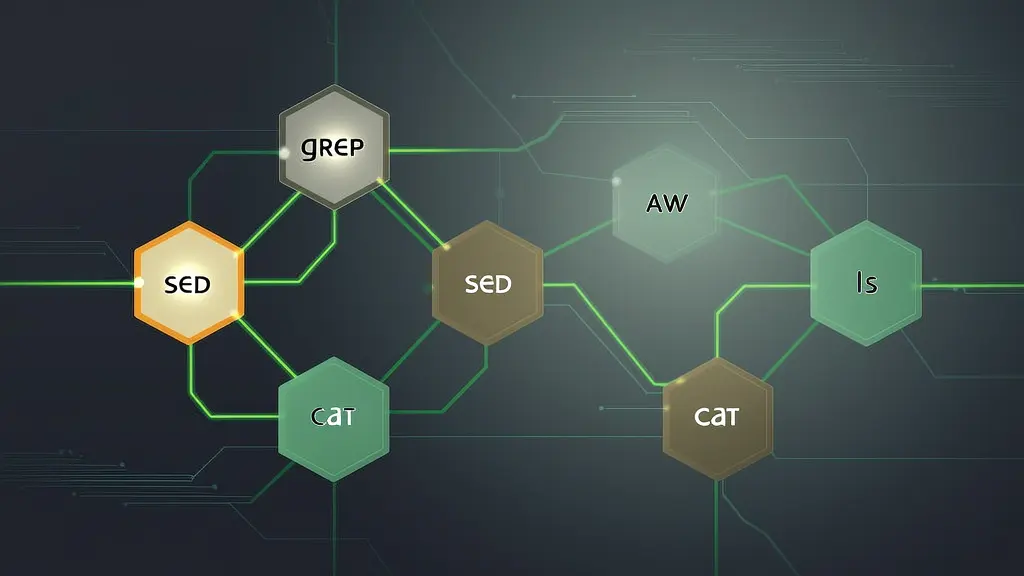
The figure traces the third example: each stage narrows or aggregates the data. By the time you reach the right-hand side you have ranked counts that fit on a screen, and at any point you can drop a tee to inspect the intermediate shape.
xargs: When the Next Tool Wants Arguments, Not Stdin#
The pipe carries data on stdin. But many of the tools you most want to chain with — rm, cp, mv, chmod, git checkout — take arguments, not stdin. xargs is the bridge.
| |
Without xargs, find ... | rm does nothing useful: rm does not look at stdin.
The space-and-newline trap#
Naive find | xargs breaks the moment a filename contains a space or a newline (yes, newlines in filenames are legal). xargs splits on whitespace by default, so my file.txt becomes two arguments. Always pair find -print0 with xargs -0:
| |
-print0 separates output with NUL bytes; -0 tells xargs to split on NUL. NUL is the one byte that cannot appear in a filename, so this is robust.
The shorter alternative — often the cleanest — is to skip xargs entirely and let find invoke the command itself:
| |
-exec ... {} + batches arguments into as few rm calls as the command line allows; -exec ... {} \; runs once per file (slower, but useful when each invocation should be independent).
Useful flags#
| |
-P is the thing that turns “find every JSON file and validate it” from a 30-second wait into a 4-second one on an 8-core box. Combine with -n 1 so each invocation gets one file (otherwise a single slow file blocks a whole batch).
Named Pipes (FIFOs)#

The pipes you create with | are anonymous — they exist in kernel memory, have no name on the filesystem, and disappear when the producer and consumer exit. Both ends have to be on the same shell command line.
A named pipe (FIFO) is a pipe with a name on the filesystem. You create one with mkfifo, and any two processes — on different terminals, started at different times — can connect to it.
| |
Two semantic facts catch people out the first time:
- A
readon a FIFO blocks until somebody writes. Likewise awriteblocks until somebody reads (the kernel pipe buffer is small — usually 64 KiB). - Closing all readers while a writer is still active gives the writer
SIGPIPE. Closing all writers makes the next read return EOF.
That blocking behaviour is the feature: a FIFO is a tiny zero-config job queue or signalling channel. Real-world uses include simple inter-script signalling, decoupling a long-running consumer from a fast burst of producers, and writing logs from many short-lived processes into one rotator.
Clean up with rm /tmp/jobs when you are done — a FIFO is just a file.
Process Substitution: <(cmd) and >(cmd)#

Process substitution is the answer to the question, “what if I want to feed a command’s output to a tool that only accepts filename arguments?”
| |
Bash arranges things so that <(sort file1) expands to a path — typically /dev/fd/63 — that, when read, yields the stdout of the inner command. diff opens it like any other file; it has no idea a process is on the other end.
The mechanically equivalent rewrite using temp files makes the value clear:
| |
Bash does the bookkeeping for you, and the inner command runs concurrently rather than serially, so both producers and the consumer overlap.
The output form >(cmd) exists too — the path expands to something that, when written to, becomes stdin of the inner command. It is much rarer in practice, but it does enable patterns like:
| |
Process substitution is a bash/zsh/ksh feature — it does not exist in plain POSIX sh. If you need a portable script, fall back to a temp file and trap "rm -f $tmp" EXIT.
Worked Example: Batch File Operations#
A few patterns that come up constantly in ops work.
| |
The -- after mv is a small habit worth forming: it tells the command “no more options coming”, so a filename that happens to start with - cannot be mistaken for a flag.
Safety and Best Practices#
A few rules that prevent the most common pipeline accidents.
1. Never parse ls output. ls is for humans; its output is not a stable interchange format. Spaces, newlines, glob characters and locale-dependent date formats all break naive parsing.
| |
2. Preview destructive commands. Replace -delete with -print (or rm with echo rm) until you are happy with the file list:
| |
3. Quote all variable expansions. This is the single biggest source of “the script worked on my machine” bugs:
| |
4. Use set -euo pipefail in scripts.
| |
Without pipefail, a pipeline’s exit code is the exit code of the last stage. A silent failure in the middle (grep finds nothing, sort runs out of disk) is invisible. With pipefail, the first non-zero exit propagates.
5. Never eval or feed user input into a shell command unsanitised. If a value comes from outside the script, validate it (a regex like [[ "$x" =~ ^[A-Za-z0-9._-]+$ ]]) or pass it as an argument to a tool that does not invoke a shell.
Summary#
You should now have a coherent picture rather than a pile of commands:
- The data-flow model. Three streams (stdin/stdout/stderr) on three file descriptors (0/1/2). Pipes carry stdout only.
- Redirection.
>>><2>2>&1&><<<<<— six forms cover everything, and you understand why2>&1 >fileis wrong. - The toolchain.
grepfilters,awkprojects and aggregates,sededits,cut/trdo the simple cases,sort | uniq -c | sort -nrranks frequencies. - Argument plumbing.
xargs(andfind -exec ... {} +) bridge stdin-style and argv-style tools, with NUL-delimited handling for spaces in filenames. - Two patterns most articles skip. Named pipes for cross-process rendezvous; process substitution for “I need a filename, but I have a command”.
- Safety. Quote variables, preview before delete, never parse
ls, and putset -euo pipefailat the top of every script.
Further reading
- The Art of Command Line — a curated cheat sheet of the most useful idioms.
man bash, especially the REDIRECTION, Pipelines and Process Substitution sections.info coreutils— the canonical reference forgrep,sort,cut,tr,uniq, etc.
This is the last article in the Linux series. With the previous seven posts you have the model — processes, files, permissions, disks, services, packages, users — and with this one you have the glue. Real ops work is mostly applying the glue: turning “I need to know X” into a one-liner, turning “do this for every file in here” into one safe find ... -exec, and treating the shell as the most general programmable tool you have.
Linux 9 parts
- 01 Linux (1): Basics — Core Concepts and Essential Commands
- 02 Linux (2): File Permissions — rwx, chmod, chown, and Beyond
- 03 Linux (3): Disk Management — Partitions, Filesystems, LVM, and the Mount Stack
- 04 Linux (4): Package Management — apt, dnf, pacman, and Building from Source
- 05 Linux (5): User Management — Users, Groups, sudo, and Security
- 06 Linux (6): Service Management — systemd, systemctl, and journald
- 07 Linux (7): Process and Resource Management: From `top` to cgroups
- 08 Linux (8): Pipelines and File Operations — Composing Tools into Data Flows you are here
- 09 Linux (9): Vim Essentials