Linux (6): Service Management — systemd, systemctl, and journald
A working model of systemd: PID 1, units and targets, the service lifecycle, writing your own unit files, journalctl filtering, timers as a cron replacement, and a disciplined troubleshooting workflow.

A “service” on Linux is a long-running background process whose job is to be there when something needs it: synchronise the clock, listen for SSH connections, accept HTTP requests, run a backup at 3 AM. You almost never start one of these by hand. Something has to start them at boot, restart them when they crash, capture their logs, decide what depends on what, and shut everything down cleanly when the machine powers off. On every modern distribution that something is systemd.
This article is the working model I wish someone had handed me when I
first got dropped into a production server. We start from why a
dedicated service manager exists at all, build up the unit/target
mental model, walk through the systemctl commands you actually use
day to day, dissect a unit file line by line, and then cover the
adjacent surfaces: journalctl for logs, .timer units as the modern
cron, and a step-by-step playbook for “the service won’t start.”
Why a service manager exists#
The problem before systemd#
A bare Linux kernel knows how to load drivers, mount the root
filesystem, and execute exactly one program (PID 1). Everything else
is somebody else’s problem. Historically that “somebody” was
SysV init: a small program that read scripts out of /etc/init.d/
and ran them, in alphabetical order, one after another. Each script
was a hand-rolled shell program responsible for forking the daemon
into the background, writing a PID file, and pretending to know
whether the service was actually up.
That approach worked, but it accumulated three structural problems:
- Serial startup is slow. Running 80 init scripts sequentially on a modern server wastes most of a multi-core CPU just waiting on I/O.
- Dependencies live in the scripts themselves. If
nginxneeds the network up first, you encode that by hoping the alphabet cooperates (S20networkbeforeS80nginx) and by sprinklingsleepcalls through the scripts. It is exactly as fragile as it sounds. - There is no shared concept of state. Each daemon decides for itself how to background, where to write its PID, how to log, how to restart on crash. The init system has no way to ask “is sshd actually running?” beyond “did this script exit 0?”
systemd replaces all of that with a uniform supervisor that knows the difference between “the start command returned” and “the service is ready,” parallelises whatever it can, and keeps a structured log of everything that happens.
The systemd model in one picture#
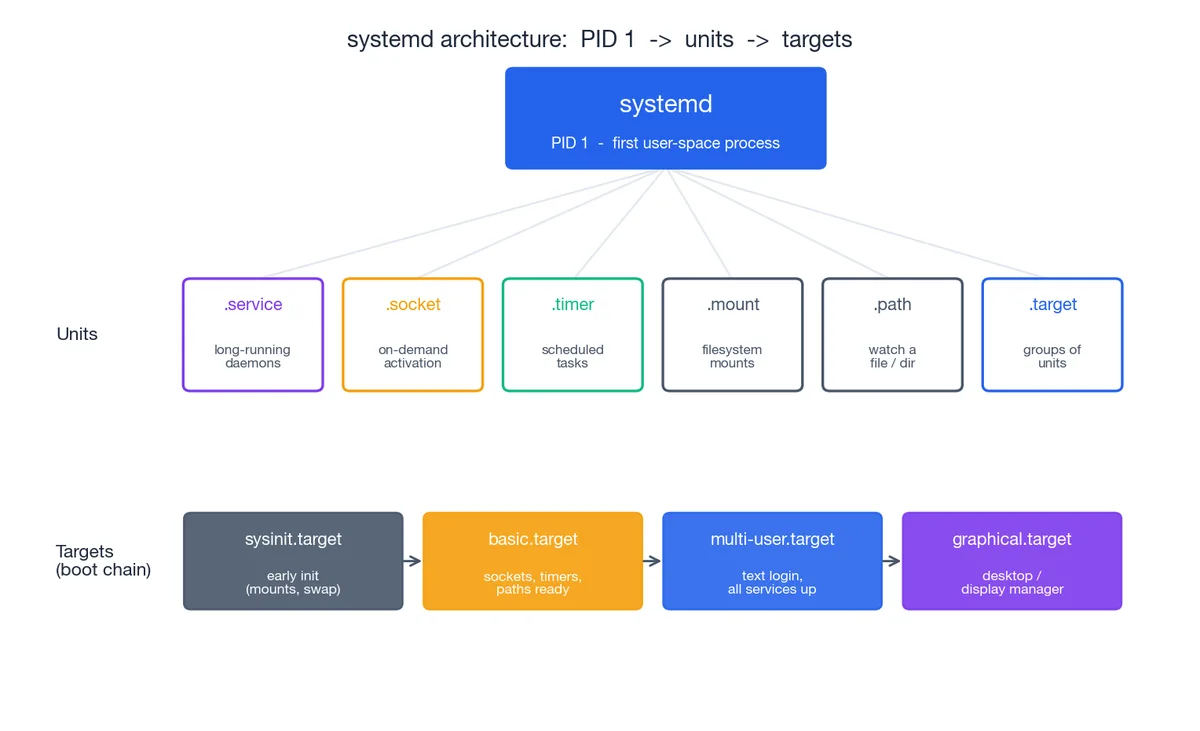
Three layers, top to bottom:
- PID 1 —
systemditself, started by the kernel as the first user-space process. It never exits while the system is running. - Units — every manageable thing on the system is a unit: a
daemon (
.service), a socket waiting for connections (.socket), a scheduled job (.timer), a mount point (.mount), and so on. systemd reads unit files, tracks each unit’s state, and drives it between states. - Targets — synchronisation points that group units together.
multi-user.targetis the classic “the box is up and serving” state;graphical.targetadds a desktop on top of it. Targets replace the SysVrunlevelconcept with something more flexible (any unit can pull in any target).
Concretely, when you type systemctl restart nginx you are asking
PID 1 to drive the nginx.service unit through its state machine —
stop the current process group, wait for it to exit, run ExecStart
again, watch for readiness, update the cached state. Every other
command in this article is a variation on that theme.
Unit types worth knowing#
| Unit type | What it manages | Example |
|---|---|---|
.service | A long-running process (the 90% case) | sshd.service, nginx.service |
.socket | A listening socket; starts a service on first connection | sshd.socket, docker.socket |
.target | A named group of units (a synchronisation point) | multi-user.target, network-online.target |
.timer | A scheduled trigger for another unit (cron replacement) | logrotate.timer, apt-daily.timer |
.mount | A filesystem mount, derived from /etc/fstab or a unit file | home.mount, var-log.mount |
.path | Watches a file or directory; activates a unit on change | systemd-tmpfiles-clean.path |
.slice | A cgroup container used to apply resource limits to a group of units | system.slice, user.slice |
For most of this article “service” means a .service unit. The other
types share the same lifecycle and the same management commands, so
once you understand services the rest comes for free.
systemctl: the day-to-day commands#
systemctl is your one entry point. It is worth memorising the
common subcommands until they become muscle memory — you will type
them dozens of times a day on a busy server.
Start, stop, restart, reload#
| |
The split between restart and reload matters in production.
restart always works but tears down whatever the service was doing
mid-flight. reload is graceful — for nginx it spawns new workers
with the new config and lets the old ones drain — but only the
service author can implement it. systemctl cat nginx.service tells
you whether ExecReload= is defined.
Boot-time enablement#
| |
enable and start are independent. A freshly installed package is
usually started but not enabled — it will run until the next reboot
and then disappear. The --now flag fuses the two so you don’t
forget.
A subtle one: mask is “stronger than disable.” It points the
unit at /dev/null, which makes it impossible to start even by
accident or as a dependency of something else. Use it when you really
want a service gone (sudo systemctl mask firewalld); reverse with
unmask.
Listing and inspecting#
| |
Two are particularly underused. systemctl cat is how you read a
unit file correctly — it concatenates the base file in
/usr/lib/systemd/system/ with any drop-in overrides under
/etc/systemd/system/<unit>.d/, which is exactly what systemd itself
sees. And systemctl list-dependencies makes the ordering graph
visible, which is invaluable when something refuses to start because
something else hasn’t.
The service lifecycle#
Once you have started a service, it lives inside a small state
machine. Every line systemctl status prints is just a label on one
of these states.

- inactive — the unit exists but no process is running for it.
- activating —
ExecStart=is in flight. ForType=simplethis state is essentially instantaneous; forType=notifythe service stays here until it callssd_notify(READY=1). - active — the service is running. For most services this means
the main process is alive; for
oneshotunits it means the command succeeded. - deactivating —
ExecStop=is in flight, or systemd is sending signals (SIGTERM, then SIGKILL afterTimeoutStopSec). - failed — the service exited non-zero, was killed by a signal,
or its watchdog tripped. The unit stays in this state until you
restart or reset it (
systemctl reset-failed).
The crucial transition is the dashed loop on the diagram:
failed → activating. With Restart=on-failure (or Restart=always)
systemd treats failed as transient, waits RestartSec seconds, and
runs ExecStart= again. This is the entire reason you don’t need
something like Monit on top of systemd — the supervisor is already
there.
Writing your own service#
The path from “I have a script” to “it survives reboots and crashes”
is a single unit file. Suppose you have an HTTP server at
/usr/local/bin/myapp and you want it to behave like a real service.
A minimal unit file#
Create /etc/systemd/system/myapp.service:
| |
Then make systemd notice it, start it, and enable it:
| |
That’s it. The service now restarts automatically on crash, comes back
after reboot, runs as a non-root user, and its stdout/stderr land in
the journal where you can query them with journalctl -u myapp.
Anatomy of the unit file#

The file has three sections, and each one answers a different question.
[Unit] — what is this thing and what depends on what#
| |
The pair to understand here is ordering vs requirement.
After= and Before= only say when — they don’t pull anything in.
Wants= and Requires= only say what needs to also be running —
they don’t say in which order. You almost always want both:
Wants=network-online.target and After=network-online.target,
otherwise systemd may correctly start your service “after” a target
that wasn’t requested and therefore was never started.
[Service] — how to actually run the process#
| |
The Type= knob is worth spelling out:
| Type | When systemd considers the service “started” | Use it for |
|---|---|---|
simple (default) | Immediately after ExecStart= runs. | Foreground processes — most modern daemons, scripts, anything you’d run in a container. |
exec | After the binary has been exec()’d but before any code runs. | Like simple, slightly stricter readiness. |
forking | After the parent process exits and a child remains. | Old-school daemons that double-fork. |
oneshot | When ExecStart= returns 0. The unit can be active without any process running. | Setup tasks, mount helpers, idempotent scripts. Often paired with RemainAfterExit=yes. |
notify | When the service calls sd_notify(READY=1). | Anything that wants accurate readiness — DBs, schedulers, anything else that depends on it. |
[Install] — when to enable it#
| |
[Install] is read only by systemctl enable / disable. It tells
systemd which target should pull this unit in when it’s enabled — for
99% of server services that’s multi-user.target. Without an
[Install] section the unit is “static” and enable will refuse to
do anything.
Editing units the right way#
Distribution packages ship unit files under /usr/lib/systemd/system/.
Don’t edit those. Instead, create a drop-in:
| |
This opens an empty file at
/etc/systemd/system/nginx.service.d/override.conf. Anything you put
there is merged on top of the vendor unit. To completely replace the
vendor unit (rare), use systemctl edit --full. After any edit:
| |
daemon-reload only re-reads unit files; it does not restart anything.
Forgetting it is the single most common reason “my edit had no effect.”
journalctl: the logs are already there#
systemd ships with journald, a logging daemon that captures stdout/stderr from every service plus everything written to syslog. Nothing extra to configure — your service prints to stdout, the journal records it.

The filters you need#
| |
Two of these are load-bearing in incident response. journalctl -u <svc> -p err -b (“errors from this unit, this boot”) is usually the
first command I run when investigating a failure. journalctl -b -1
is how you find out what happened just before a reboot you didn’t
expect — those messages would otherwise be gone.
The priority levels are the syslog ones, numbered 0 (most severe) to
7 (debug): emerg, alert, crit, err, warning, notice,
info, debug. -p err means “level err and worse” — i.e.
levels 0 through 3.
Persisting the journal across reboots#
By default many distributions store the journal in /run/log/journal/
— in a tmpfs, which is wiped on reboot. That is fine until you
need the logs from before the crash. Make it persistent:
| |
You can also cap the disk it uses by editing
/etc/systemd/journald.conf (SystemMaxUse=2G, MaxRetentionSec=30day,
etc.) and reloading systemd-journald.
Cleaning up#
| |
Timers: the modern cron#
cron still works on every Linux system. But on a systemd box,
.timer units are usually a better choice — they share the journal
with everything else, run as proper units (so they get restart
policies, resource limits, dependencies) and they survive missed
runs (Persistent=true).
A timer is always a pair: a .timer that fires on a schedule, and a
.service that does the work.
/etc/systemd/system/backup.service:
| |
/etc/systemd/system/backup.timer:
| |
Enable the timer, not the service:
| |
OnCalendar= syntax is rich — Mon..Fri 09:00, hourly, weekly,
*-*-1 04:00:00 for the first of every month, and so on.
systemd-analyze calendar 'Mon..Fri 09:00' will tell you exactly
when an expression resolves to.
Compared to cron, the wins are: failures show up in
systemctl --failed and in the journal next to the rest of the
service’s logs; the job inherits all of [Service]’s
hardening/limit knobs; and Persistent=true solves the laptop
problem (the cron job that “should have run at 03:00” while the
laptop was asleep simply doesn’t, ever).
The boot timeline#
Knowing roughly what happens between power-on and your login prompt makes “why did boot take 90 seconds” tractable.
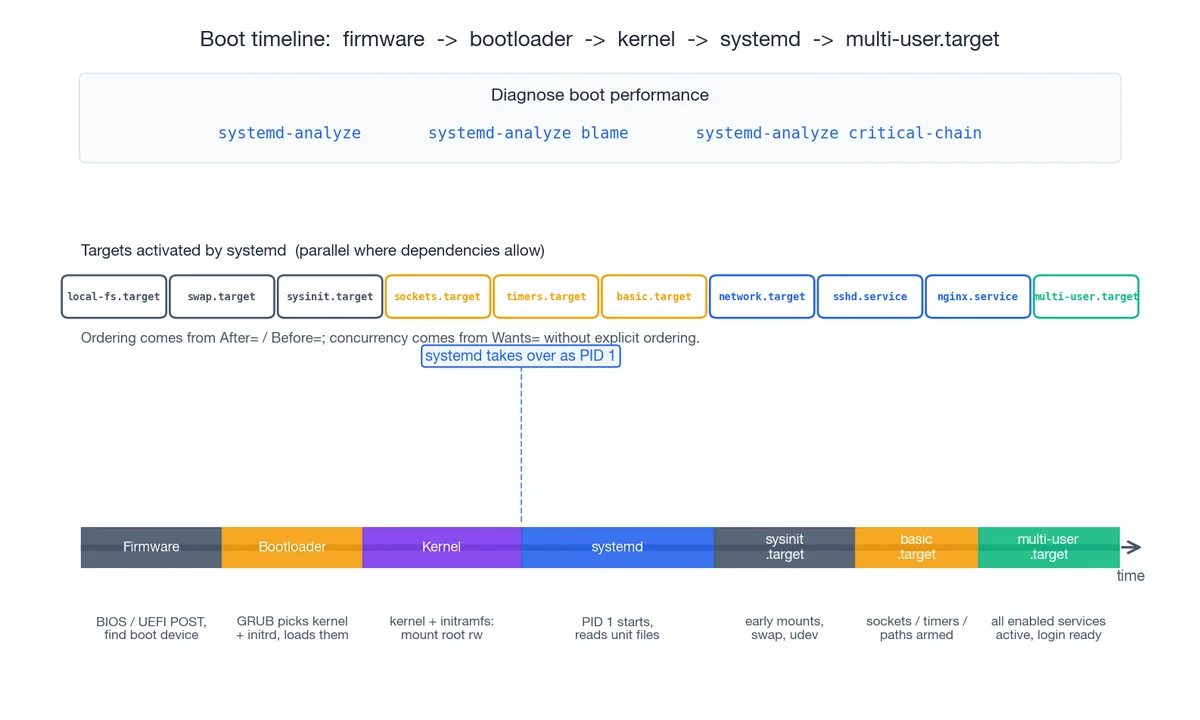
- Firmware (BIOS/UEFI) runs POST and picks a boot device.
- Bootloader (typically GRUB) loads the kernel and the
initramfsinto memory, hands control to the kernel. - Kernel initialises hardware, mounts the root filesystem
read-only, then starts
/sbin/init— which is a symlink to systemd. From here on, PID 1 is in charge. - systemd parses unit files and starts walking the dependency graph, in parallel wherever it can.
- Targets activate in order:
sysinit.target(early mounts, swap, udev) →basic.target(sockets, timers, paths armed) →multi-user.target(every enabled service is up, login prompt ready). On a desktop,graphical.targetfollows.
Three diagnostic commands earn their keep here:
| |
blame is misleading on its own — a service can take 5 seconds to
start without delaying boot at all, if nothing was waiting on it.
critical-chain is what tells you which slow service is actually on
the critical path. Optimise that one first.
Common services in 60 seconds#
This section is a reference card for the four services you will touch most often.
Time synchronisation#
Time skew breaks everything sooner or later — TLS handshakes, log correlation, Kerberos, distributed-database replication. On a systemd box the simplest answer is the built-in client:
| |
timedatectl enables systemd-timesyncd, which is a small SNTP
client adequate for clients and most servers. If you need a real NTP
implementation (high-accuracy clusters, serving time to other hosts),
install chrony and disable timesyncd.
Avoid ntpdate. It steps the clock instantly, which can break
anything that assumed time only moves forwards (cron, journald
ordering, replication). Real NTP clients slew the clock smoothly.
Firewall (firewalld)#
| |
Without --permanent the rule lasts until the next reload; with
--permanent but without --reload it lasts until the next reload
but doesn’t apply now. In practice you use both.
Zones (public, work, home, internal, dmz, trusted,
drop, block) are firewalld’s way of saying “depending on which
network this interface is on, apply this ruleset.” On a single-homed
server you usually leave everything in public and just open ports
there.
SSH hardening#
The defaults in /etc/ssh/sshd_config are conservative on Debian and
Ubuntu, less so elsewhere. The high-value changes:
| |
Always validate before reloading — a bad config file can lock you out of a remote machine:
| |
Add fail2ban if your SSH port is on the public internet and you
want IP-level rate limiting; otherwise key-only auth is already
enough to make brute force pointless.
Cron (when timers aren’t an option)#
If you’re on a system that isn’t fully systemd, or you’re maintaining existing cron jobs:
| |
Edit per-user crontabs with crontab -e, list with crontab -l.
Always use absolute paths inside the command — cron runs with a
near-empty PATH. Capture both streams (>> /var/log/myjob.log 2>&1)
or you’ll never know why the job stopped working.
Troubleshooting playbook: the service won’t start#
When a service refuses to come up, work the list in order. Most of the time you find the answer in the first two steps.
1. Read what systemctl is telling you.
| |
Focus on Active: (the state and how long), Main PID: (zero means
the process is gone), the Process: line (what command actually ran
and what it exited with), and the last 10 log lines reproduced at the
bottom. 80% of the time the answer is right there.
2. Get the full log for this boot.
| |
-x adds the explanation catalog when systemd has one; -e jumps to
the end. If the service was restarted by Restart=on-failure, scroll
back through the previous attempts — they often differ.
3. Validate the config before blaming the service.
Most daemons ship a config-check mode:
| |
For a custom service, run the ExecStart= command by hand as the
target user:
| |
4. Look for port conflicts.
| |
A common failure mode: the service crashed earlier, was restarted, and the new process can’t bind because the old one is somehow still holding the port (or because something completely different took it).
5. Look for permission and path problems.
| |
If the service runs as myapp but its working directory is owned by
root with mode 700, it will fail to start in a way that often looks
mysterious. namei -l makes the search-permission chain visible.
6. Consider the security layer.
On RHEL-family systems SELinux can block a service even when permissions look fine; on Ubuntu, AppArmor can do the same.
| |
If switching to permissive makes the problem disappear, the fix is a proper SELinux policy or AppArmor profile, not leaving enforcement off.
7. Walk the dependency graph.
| |
If something the unit Requires= is itself failed, the symptom moves
upstream. Fix that first.
What’s Next#
You now have, I hope, a working model: PID 1 supervises units, units
move through a state machine, unit files describe the supervision
contract, journald records everything, and systemctl /
journalctl are the two windows you look through. From here:
man systemd.serviceandman systemd.unitare the authoritative reference — short, dense, and worth reading once.man systemd.execdocuments every sandboxing/limit knob available in[Service]. Most of them are free hardening.- freedesktop.org/wiki/Software/systemd/ — official docs and the excellent “systemd for Administrators” series by Lennart Poettering.
systemd-analyze security <unit>scores each running service on its sandboxing posture and tells you which knobs would tighten it.
The next articles in this series cover package management (installing the daemons you’ll then turn into services) and process and resource management (looking at what those services are actually doing once they’re up). The mental model from this article — services as supervised units, with explicit dependencies and a structured log — carries straight through.
Linux 9 parts
- 01 Linux (1): Basics — Core Concepts and Essential Commands
- 02 Linux (2): File Permissions — rwx, chmod, chown, and Beyond
- 03 Linux (3): Disk Management — Partitions, Filesystems, LVM, and the Mount Stack
- 04 Linux (4): Package Management — apt, dnf, pacman, and Building from Source
- 05 Linux (5): User Management — Users, Groups, sudo, and Security
- 06 Linux (6): Service Management — systemd, systemctl, and journald you are here
- 07 Linux (7): Process and Resource Management: From `top` to cgroups
- 08 Linux (8): Pipelines and File Operations — Composing Tools into Data Flows
- 09 Linux (9): Vim Essentials