每个项目都始于单个文件。你写下 main.py,它能运行;接着不断添加功能,直到某天猛然发现:这个文件已经膨胀到 1500 行,函数层层嵌套,彼此调用,而它们依赖的全局变量却定义在 800 行开外。代码虽然能跑,但没人(包括未来的你)看得懂。
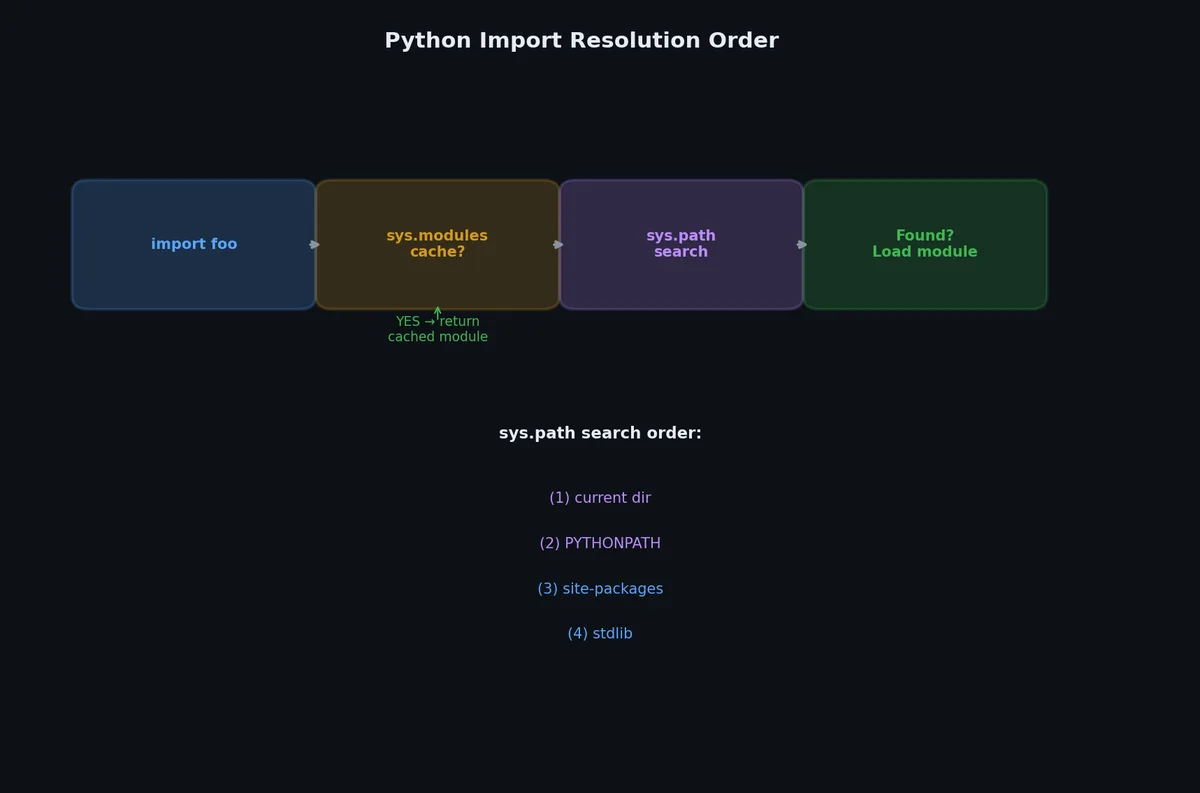
从脚本跃迁为包,是 Python 项目中第一个真正的工程决策 。如果早期就做对,测试、打包和部署都会变得轻松;一旦搞错,可能得花上几周时间解开循环导入(circular imports)的死结。
单文件何时不再够用?# 单文件脚本适用于以下场景:
代码少于 300 行 逻辑清晰,自上而下线性执行 只有你自己会读它 是一次性脚本,而非长期维护的工具 而当你遇到以下情况时,就该考虑转向包(package)结构了:
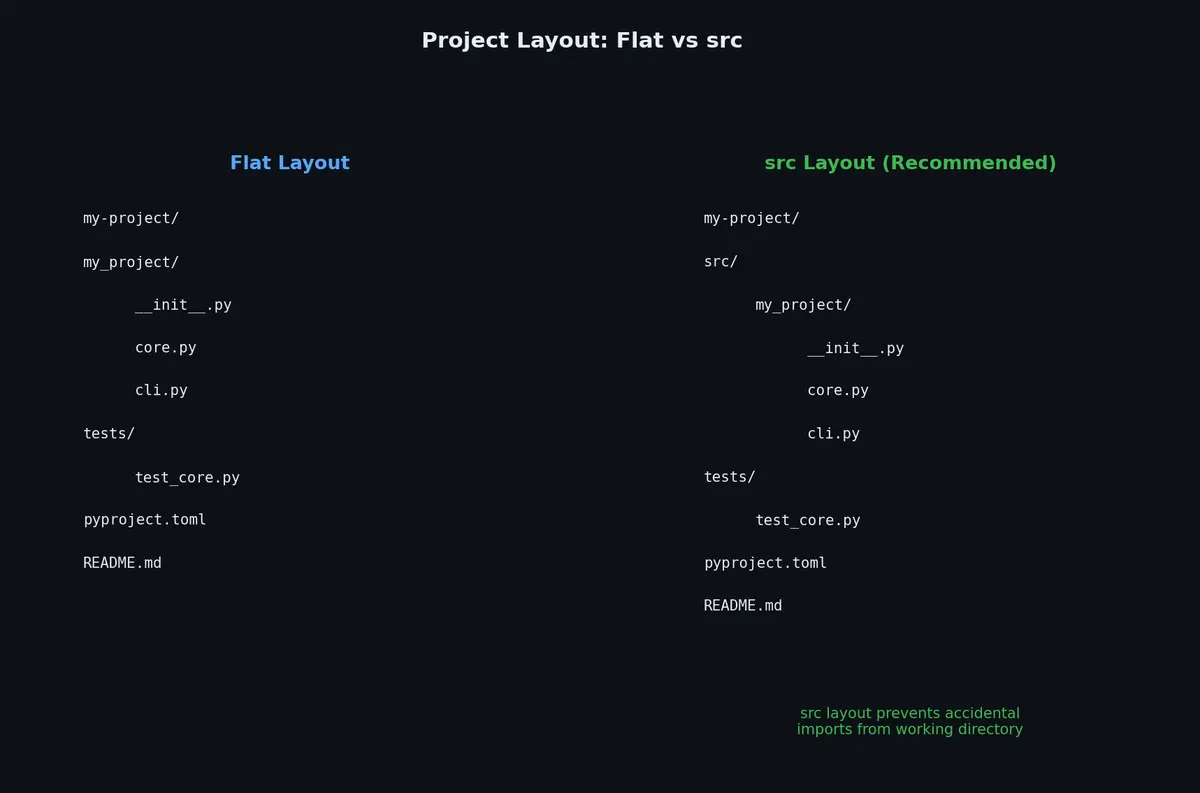
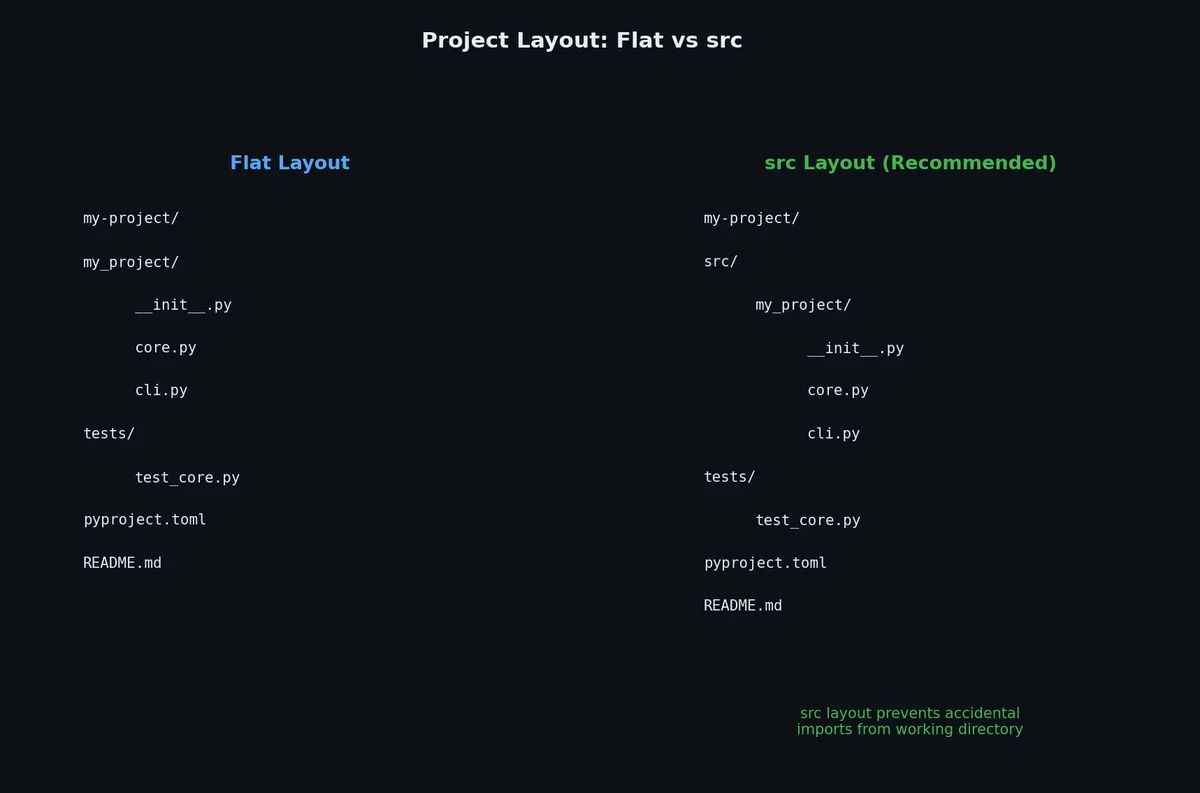
多人协作开发 需要对独立组件进行单元测试 需要在多个脚本间复用函数 代码已有明显的逻辑分层(如 config、data、logic、CLI) 计划将工具分发出去(例如支持 pip install) 平铺布局(Flat Layout)vs src 布局# Python 生态中有两种主流的项目结构。
平铺布局(Flat Layout)# 1
2
3
4
5
6
7
8
9
10
11
my_tool/
my_tool/
__init__.py
core.py
cli.py
utils.py
tests/
test_core.py
test_cli.py
pyproject.toml
README.md
包目录直接放在项目根目录下。这种结构更简单,Flask 和 Requests 等知名项目都采用这种方式。
src 布局# 1
2
3
4
5
6
7
8
9
10
11
12
my_tool/
src/
my_tool/
__init__.py
core.py
cli.py
utils.py
tests/
test_core.py
test_cli.py
pyproject.toml
README.md
包目录被放在 src/ 子目录中。该布局被 Python 打包权威机构(PyPA)推荐,其关键优势在于:强制你在测试前先安装自己的包 。这样可以在发布前就暴露打包问题,比如遗漏文件或导入失败。
在平铺布局中,即使你的包根本无法正确安装,import my_tool 仍会成功——因为它直接指向本地目录。而在 src 布局下,除非你先运行 pip install -e .,否则 Python 根本找不到 my_tool。这并非缺陷,而是一项安全机制。
如何选择?# 判定维度 平铺布局 src 布局简洁性 更简洁 目录嵌套略深 测试准确性 可能掩盖打包缺陷 提前捕获缺陷 典型案例 Flask、Requests、FastAPI pytest、pip、setuptools PyPA 推荐程度 可接受 推荐 导入安全性 可能意外导入未安装的本地版本 必须先安装才能导入
✅ 如果你打算发布一个库(library),请使用 src 布局 。如果你开发的是部署环境完全可控的应用(application),可选用平铺布局 。src 布局。
__init__.py:包的标识符#
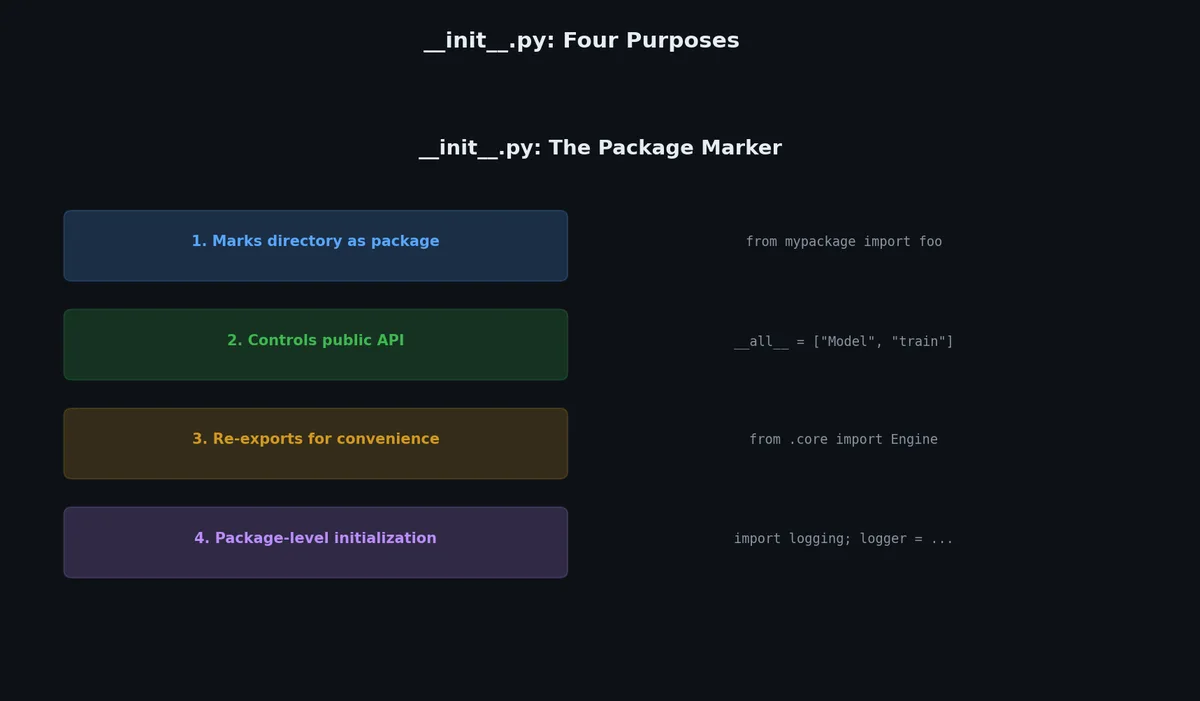
当一个目录包含 __init__.py 文件时,它就成为一个 Python 包。这个文件可以为空,也可以包含初始化代码。
1
2
3
4
5
# src/my_tool/__init__.py
"""My Tool — a file downloader CLI."""
__version__ = "0.1.0"
__init__.py 的作用# 标记目录为包 ,使 Python 能从中导入模块在导入时自动执行 ——当用户执行 import my_tool 时,其中的代码就会运行控制公共 API ,通过 __all__ 显式声明哪些内容对外暴露1
2
3
4
5
6
# src/my_tool/__init__.py
from my_tool.core import download_file , validate_url
from my_tool.utils import format_size
__all__ = [ "download_file" , "validate_url" , "format_size" ]
这样一来,用户就可以写 from my_tool import download_file,而不必写 from my_tool.core import download_file。
何时让 __init__.py 保持为空?# 建议在以下情况保持 __init__.py 为空:
包内有多个职责清晰的子模块 你希望用户显式地从具体子模块导入(如 from my_tool.core import X) 子模块之间存在循环依赖风险 举个例子:import numpy 的 __init__.py 非常庞大,负责整合所有功能;而 import sqlalchemy 的 __init__.py 则极简,用户通常需要写 from sqlalchemy.orm import Session。
命名空间包(Namespace Packages,无 __init__.py)# 自 Python 3.3 起,不含 __init__.py 的目录可作为命名空间包(namespace package),允许多个物理路径共同构成一个逻辑包。除非你在构建插件系统,否则务必保留 __init__.py。
相对导入 vs 绝对导入# 1
2
3
4
5
6
7
8
# 绝对导入 —— 永远有效,语义清晰
from my_tool.core import download_file
from my_tool.utils import format_size
# 相对导入 —— 仅在包内部有效
from .core import download_file
from .utils import format_size
from ..other_module import something # 父包
实践建议# 场景 推荐方式 同一包内模块互相导入 相对导入(.module) 导入标准库或第三方包 绝对导入(import os, import requests) 在 __init__.py 中 二者皆可,但需全包统一风格 在直接运行的脚本中(python script.py) 仅限绝对导入 在测试文件中 绝对导入
⚠️ 注意:相对导入在直接运行模块时会失败(例如 python src/my_tool/core.py),因为 Python 无法确定包的上下文。此时应改用 python -m my_tool.core。
循环导入(Circular Imports)# 当模块 A 导入模块 B,而模块 B 又导入模块 A 时,就会发生循环导入:
1
2
3
4
5
# core.py
from my_tool.utils import format_size # utils imports from core!
# utils.py
from my_tool.core import DEFAULT_TIMEOUT # core imports from utils!
解决方案包括:
将共享常量提取到独立模块 (如 constants.py 或 config.py)延迟导入 :把导入语句放到函数内部,而不是模块顶层(推迟实际导入时机)重构模块 :如果两个模块高度耦合,也许它们本该合并成一个pyproject.toml:包元数据配置# 完整的 pyproject.toml 示例:
 1
 2
 3
 4
 5
 6
 7
 8
 9
10
11
12
13
14
15
16
17
18
19
20
21
22
23
24
25
26
27
28
29
30
31
32
33
34
35
36
37
38
39
40
41
42
43
44
45
[ build-system ]
requires = [ "setuptools>=68.0" , "wheel" ]
build-backend = "setuptools.backends._legacy:_Backend"
[ project ]
name = "my-tool"
version = "0.1.0"
description = "A CLI file downloader"
readme = "README.md"
requires-python = ">=3.10"
license = { text = "MIT" }
authors = [
{ name = "Your Name" , email = "you@example.com" },
]
keywords = [ "download" , "cli" , "tool" ]
classifiers = [
"Development Status :: 3 - Alpha" ,
"Programming Language :: Python :: 3" ,
"Programming Language :: Python :: 3.10" ,
"Programming Language :: Python :: 3.11" ,
"Programming Language :: Python :: 3.12" ,
]
dependencies = [
"requests>=2.28" ,
"click>=8.0" ,
"rich>=13.0" ,
]
[ project . optional-dependencies ]
dev = [
"pytest>=7.0" ,
"pytest-cov" ,
"ruff" ,
]
[ project . scripts ]
my-tool = "my_tool.cli:main"
[ project . urls ]
Homepage = "https://github.com/you/my-tool"
Repository = "https://github.com/you/my-tool"
Issues = "https://github.com/you/my-tool/issues"
[ tool . setuptools . packages . find ]
where = [ "src" ]
入口点(Entry Points)与控制台脚本(Console Scripts)# pyproject.toml 中的 [project.scripts] 节定义了包安装后生成的可执行命令:
1
2
[ project . scripts ]
my-tool = "my_tool.cli:main"
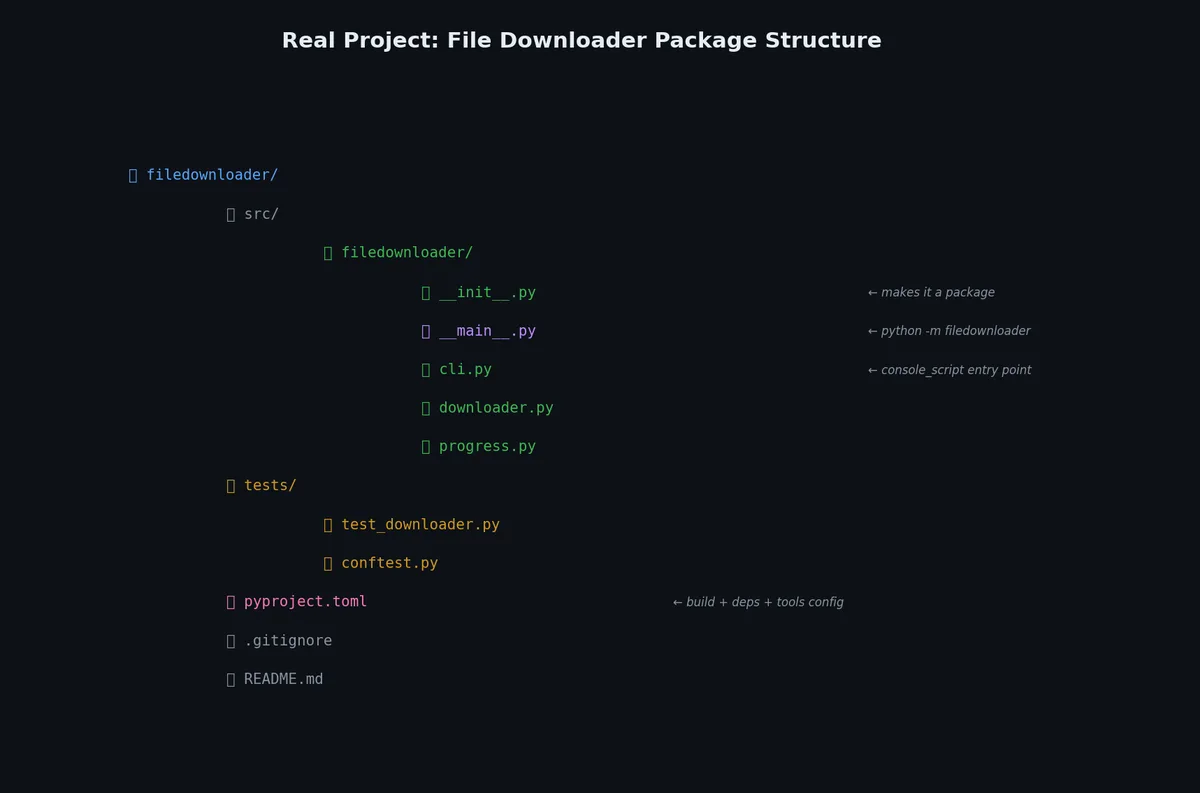
执行 pip install . 后,你就可以在任意位置运行 my-tool,它会调用 my_tool/cli.py 中的 main() 函数。
这就是 black、ruff、pytest、flask 等 CLI 工具的工作原理:你 pip install flask 之后,flask 命令就自动出现在你的 PATH 中。
内部实现原理# pip install 会在虚拟环境的 bin/ 目录下生成一个轻量级包装脚本:
1
2
3
4
5
6
7
8
9
$ cat .venv/bin/my-tool
#!/home/user/project/.venv/bin/python
# -*- coding: utf-8 -*-
import re
import sys
from my_tool.cli import main
if __name__ == '__main__' :
sys.argv[ 0] = re.sub( r'(-script\.pyw|\.exe)?$' , '' , sys.argv[ 0])
sys.exit( main())
__main__.py:让包可直接运行# __main__.py 允许你通过 python -m 直接运行整个包:
Python 会查找 my_tool/__main__.py 并执行其中的代码。
1
2
3
4
5
6
7
8
# src/my_tool/__main__.py
"""Allow running as: python -m my_tool"""
from my_tool.cli import main
if __name__ == "__main__" :
main ()
这一机制在开发阶段(尚未安装包时)特别有用,也适用于那些既需要被导入、又需要直接运行的模块。
使用 argparse 构建 CLI#
标准库中的 argparse 是构建命令行接口的基础方案:
 1
 2
 3
 4
 5
 6
 7
 8
 9
10
11
12
13
14
15
16
17
18
19
20
21
22
23
24
25
26
27
28
29
30
31
32
33
34
35
36
37
38
39
40
41
42
43
44
45
46
47
48
49
50
# src/my_tool/cli.py
import argparse
import sys
from my_tool.core import download_file
def parse_args ( argv : list [ str ] | None = None ) -> argparse . Namespace :
parser = argparse . ArgumentParser (
prog = "my-tool" ,
description = "Download files from URLs" ,
)
parser . add_argument (
"url" ,
help = "URL to download" ,
)
parser . add_argument (
"-o" , "--output" ,
help = "Output file path (default: derive from URL)" ,
)
parser . add_argument (
"-q" , "--quiet" ,
action = "store_true" ,
help = "Suppress progress output" ,
)
parser . add_argument (
"--timeout" ,
type = int ,
default = 30 ,
help = "Request timeout in seconds (default: 30)" ,
)
return parser . parse_args ( argv )
def main ( argv : list [ str ] | None = None ) -> int :
args = parse_args ( argv )
try :
path = download_file (
url = args . url ,
output = args . output ,
quiet = args . quiet ,
timeout = args . timeout ,
)
if not args . quiet :
print ( f "Downloaded: { path } " )
return 0
except Exception as e :
print ( f "Error: { e } " , file = sys . stderr )
return 1
使用示例:
1
2
3
4
5
6
7
8
9
10
11
12
13
14
15
16
17
18
$ my-tool https://example.com/data.csv -o data.csv --timeout 60
Downloading: data.csv [============================] 100% 2.4MB
Downloaded: data.csv
$ my-tool --help
usage: my-tool [ -h] [ -o OUTPUT] [ -q] [ --timeout TIMEOUT] url
Download files from URLs
positional arguments:
url URL to download
options:
-h, --help show this help message and exit
-o OUTPUT, --output OUTPUT
Output file path ( default: derive from URL)
-q, --quiet Suppress progress output
--timeout TIMEOUT Request timeout in seconds ( default: 30)
parse_args 和 main 函数中的 argv 参数让测试变得非常简单:
1
2
3
4
def test_parse_args ():
args = parse_args ([ "https://example.com/file.txt" , "-o" , "out.txt" ])
assert args . url == "https://example.com/file.txt"
assert args . output == "out.txt"
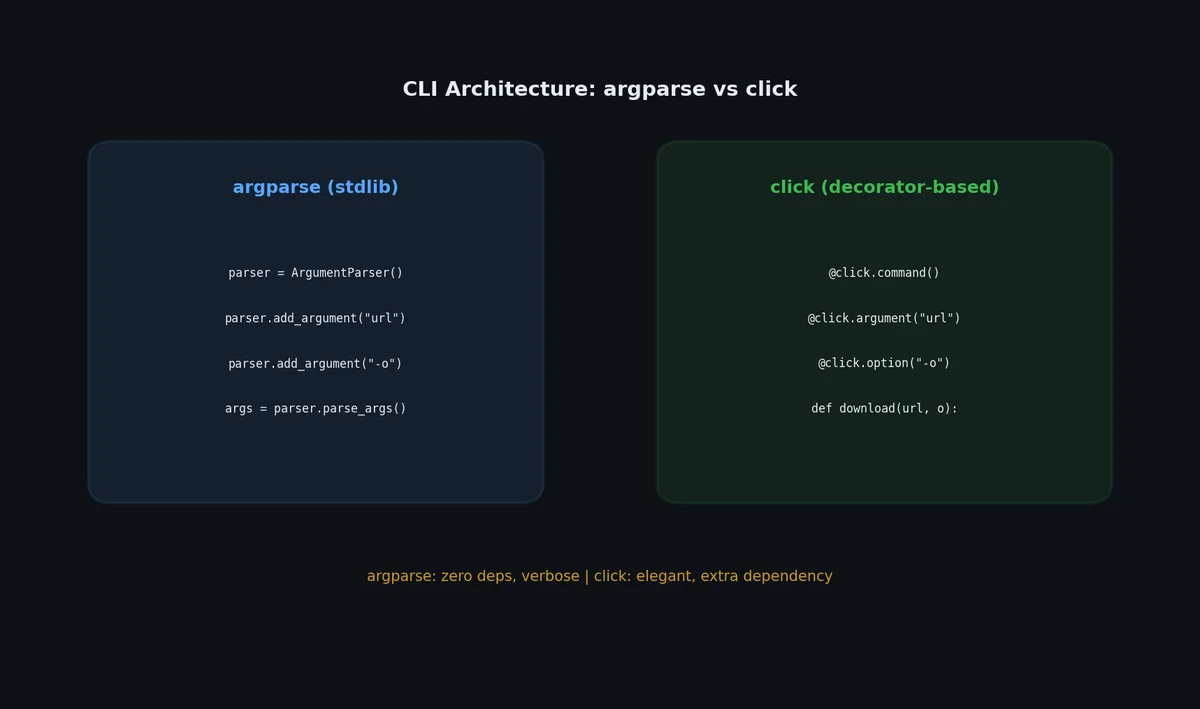
使用 click 构建 CLI# 对于更复杂的 CLI,click 是事实上的标准。它使用装饰器(decorator)而非命令式代码来构建解析器:
1
2
3
4
5
6
7
8
9
10
11
12
13
14
15
16
17
18
19
20
21
# src/my_tool/cli.py
import click
from my_tool.core import download_file
@click.command ()
@click.argument ( "url" )
@click.option ( "-o" , "--output" , default = None , help = "Output file path" )
@click.option ( "-q" , "--quiet" , is_flag = True , help = "Suppress progress output" )
@click.option ( "--timeout" , default = 30 , type = int , help = "Timeout in seconds" )
def main ( url : str , output : str | None , quiet : bool , timeout : int ) -> None :
"""Download files from URLs."""
try :
path = download_file ( url = url , output = output , quiet = quiet , timeout = timeout )
if not quiet :
click . echo ( f "Downloaded: { path } " )
except Exception as e :
click . echo ( f "Error: { e } " , err = True )
raise SystemExit ( 1 )
click 相比 argparse 的核心优势:
特性 argparseclick子命令(Subcommands) 支持但冗长 @click.group() 简洁优雅类型校验 基础支持 可扩展的 click.Path、click.Choice 测试 需手动构造 argv 内置 CliRunner 彩色输出 需手动实现 click.style()、click.echo()交互式提示 需手动实现 click.prompt()、click.confirm()进度条 不内置 click.progressbar()
click 子命令实战# 1
2
3
4
5
6
7
8
9
10
11
12
13
14
15
16
17
18
19
20
21
22
23
@click.group ()
@click.version_option ()
def cli ():
"""My Tool — file downloader and converter."""
pass
@cli.command ()
@click.argument ( "url" )
@click.option ( "-o" , "--output" , default = None )
def download ( url : str , output : str | None ) -> None :
"""Download a file from a URL."""
path = download_file ( url = url , output = output )
click . echo ( f "Downloaded: { path } " )
@cli.command ()
@click.argument ( "input_file" , type = click . Path ( exists = True ))
@click.argument ( "output_format" , type = click . Choice ([ "csv" , "json" , "parquet" ]))
def convert ( input_file : str , output_format : str ) -> None :
"""Convert a file to another format."""
result = convert_file ( input_file , output_format )
click . echo ( f "Converted: { result } " )
使用方式:
1
2
3
$ my-tool download https://example.com/data.csv
$ my-tool convert data.csv json
$ my-tool --help
实战:构建一个文件下载器# 下面我们搭建一个完整的下载器项目结构。
项目布局# 1
2
3
4
5
6
7
8
9
10
11
12
13
14
15
16
17
18
19
20
my-downloader/
src/
my_downloader/
__init__.py # 包版本号、公共 API
__main__.py # 支持 python -m my_downloader
cli.py # Click CLI 接口
core.py # 下载核心逻辑
utils.py # 工具函数
config.py # 常量与默认值
tests/
__init__.py
conftest.py # 共享 fixture
test_core.py
test_cli.py
test_utils.py
pyproject.toml
requirements.txt
.python-version
.gitignore
README.md
config.py —— 常量定义# 1
2
3
4
5
6
7
8
# src/my_downloader/config.py
"""Application constants and defaults."""
DEFAULT_TIMEOUT = 30
DEFAULT_CHUNK_SIZE = 8192
MAX_RETRIES = 3
USER_AGENT = "my-downloader/0.1.0"
utils.py —— 工具函数# 1
2
3
4
5
6
7
8
9
10
11
12
13
14
15
16
17
18
19
20
21
22
23
24
25
26
27
28
29
30
31
32
33
34
35
36
37
# src/my_downloader/utils.py
"""Utility functions for file operations and formatting."""
from pathlib import Path
from urllib.parse import urlparse
def format_size ( size_bytes : int ) -> str :
"""Format byte count as human-readable string.
Args:
size_bytes: Number of bytes.
Returns:
Formatted string like '2.4 MB'.
"""
for unit in ( "B" , "KB" , "MB" , "GB" , "TB" ):
if abs ( size_bytes ) < 1024 :
return f " { size_bytes : .1f } { unit } "
size_bytes /= 1024 # type: ignore[assignment]
return f " { size_bytes : .1f } PB"
def filename_from_url ( url : str ) -> str :
"""Extract filename from a URL.
Args:
url: The URL to parse.
Returns:
The filename portion of the URL path,
or 'download' if none can be determined.
"""
parsed = urlparse ( url )
name = Path ( parsed . path ) . name
return name if name else "download"
core.py —— 业务逻辑# 1
2
3
4
5
6
7
8
9
10
11
12
13
14
15
16
17
18
19
20
21
22
23
24
25
26
27
28
29
30
31
32
33
34
35
36
37
38
39
40
41
42
43
44
45
46
47
48
49
50
51
52
53
54
55
56
57
# src/my_downloader/core.py
"""Core download logic."""
from pathlib import Path
import requests
from my_downloader.config import DEFAULT_CHUNK_SIZE , DEFAULT_TIMEOUT , USER_AGENT
from my_downloader.utils import filename_from_url , format_size
def download_file (
url : str ,
output : str | None = None ,
quiet : bool = False ,
timeout : int = DEFAULT_TIMEOUT ,
) -> Path :
"""Download a file from a URL.
Args:
url: The URL to download from.
output: Output file path. Derived from URL if None.
quiet: If True, suppress progress output.
timeout: Request timeout in seconds.
Returns:
Path to the downloaded file.
Raises:
requests.HTTPError: If the request fails.
"""
headers = { "User-Agent" : USER_AGENT }
response = requests . get ( url , headers = headers , stream = True , timeout = timeout )
response . raise_for_status ()
dest = Path ( output ) if output else Path ( filename_from_url ( url ))
total = int ( response . headers . get ( "content-length" , 0 ))
downloaded = 0
with open ( dest , "wb" ) as f :
for chunk in response . iter_content ( chunk_size = DEFAULT_CHUNK_SIZE ):
f . write ( chunk )
downloaded += len ( chunk )
if not quiet and total > 0 :
pct = downloaded / total * 100
print (
f " \r Downloading: { dest . name } "
f "[ { pct : 5.1f } %] { format_size ( downloaded ) } " ,
end = "" ,
flush = True ,
)
if not quiet :
print () # newline after progress
return dest
开发模式安装# 1
2
3
4
$ cd my-downloader
$ python -m venv .venv
$ source .venv/bin/activate
( .venv) $ pip install -e ".[dev]"
-e 标志启用“可编辑安装”(editable mode),代码修改后立即生效,无需重新安装。
安装完成后,my-downloader 命令即可全局使用:
1
2
3
( .venv) $ my-downloader https://example.com/data.csv
Downloading: data.csv [ 100.0%] 1.2 KB
Downloaded: data.csv
同时,python -m my_downloader 也能运行,这得益于 __main__.py 的存在。
Monorepo:一个仓库管理多个包# 项目壮大后,往往会衍生出多个相关包:核心库、CLI 工具、Web API、公共工具集。Monorepo 将它们放在一起,共享 CI 并同步发版。
Monorepo 布局# 1
2
3
4
5
6
7
8
9
10
11
12
13
14
15
16
17
18
19
20
21
22
23
24
25
my-platform/
packages/
core/
src/core/
__init__.py
models.py
database.py
pyproject.toml
tests/
api/
src/api/
__init__.py
routes.py
middleware.py
pyproject.toml
tests/
cli/
src/cli/
__init__.py
commands.py
pyproject.toml
tests/
pyproject.toml # 工作区根配置(uv/hatch)
uv.lock # 所有包共用一个锁文件
.python-version
uv 工作区# uv 原生支持工作区。根 pyproject.toml 声明成员包:
1
2
3
# 根 pyproject.toml
[ tool . uv . workspace ]
members = [ "packages/*" ]
每个成员有自己的 pyproject.toml,可交叉引用兄弟包:
1
2
3
4
5
6
7
8
9
10
11
# packages/api/pyproject.toml
[ project ]
name = "my-platform-api"
version = "0.1.0"
dependencies = [
"my-platform-core" , # 引用兄弟包
"fastapi>=0.100" ,
]
[ tool . uv . sources ]
my-platform-core = { workspace = true }
命令在工作区层级运作:
1
2
3
4
5
6
7
8
# 安装工作区所有包
$ uv sync
# 为指定包运行测试
$ uv run --package my-platform-api pytest
# 为指定包添加依赖
$ uv add --package my-platform-cli typer
何时选择 Monorepo vs 独立仓库# 因素 Monorepo 独立仓库 团队规模 中小型(1-10 人) 大型(多个独立团队) 发版节奏 各包同步发版 独立发版周期 共享代码 大量跨包引用 耦合度低 CI 复杂度 一条流水线测试全部 各仓独立 CI,单个更简单 版本管理 同步版本号 独立语义化版本 依赖管理 单一锁文件 各仓独立锁文件
命名空间包# 命名空间包允许多个独立发行版共享同一导入路径。常见于插件系统和大型组织。
隐式命名空间包(PEP 420)# Python 3.3 起,任何没有 __init__.py 的目录即为命名空间包:
1
2
3
4
5
6
7
8
9
10
11
12
13
14
15
# 包 A(可独立安装)
company-auth/
src/
company/ # 没有 __init__.py
auth/
__init__.py
login.py
# 包 B(可独立安装)
company-billing/
src/
company/ # 没有 __init__.py
billing/
__init__.py
invoice.py
两个包都安装后:
1
2
from company.auth import login
from company.billing import invoice
company 命名空间是共享的,无需任何一方"拥有"它。
命名空间包规则# 共享目录(company/)不能 有 __init__.py 子包(auth/、billing/)必须 有 __init__.py 各发行版独立安装到同一命名空间 使用 find_namespace_packages() 或配置 [tool.setuptools.packages.find]: 1
2
3
# company-auth 的 pyproject.toml
[ tool . setuptools . packages . find ]
where = [ "src" ]
基于 Entry Points 的插件架构# 命名空间包配合 entry points 可实现可发现的插件系统:
1
2
3
4
# 插件包的 pyproject.toml
[ project . entry-points . "my_app.plugins" ]
csv_export = "my_plugin_csv:CsvExporter"
json_export = "my_plugin_json:JsonExporter"
1
2
3
4
5
6
7
8
9
10
# 主应用:发现所有已安装插件
from importlib.metadata import entry_points
def load_plugins ():
plugins = {}
for ep in entry_points ( group = "my_app.plugins" ):
plugins [ ep . name ] = ep . load ()
return plugins
# 返回: {"csv_export": <class CsvExporter>, "json_export": <class JsonExporter>}
用户通过 pip 安装插件,主应用无需在构建时知道它们的存在。
Typer:现代 CLI(类型注解 → 命令行)# Typer ↗
从类型注解自动生成 CLI 接口。无需装饰器,无需参数解析样板代码:
1
2
3
4
5
6
7
8
9
10
11
12
13
14
15
16
17
18
19
20
21
22
23
24
25
26
27
28
29
30
31
32
33
34
35
36
37
38
# src/my_tool/cli.py
import typer
from pathlib import Path
from enum import Enum
app = typer . Typer ( help = "文件处理工具箱" )
class Format ( str , Enum ):
json = "json"
csv = "csv"
parquet = "parquet"
@app.command ()
def convert (
input_file : Path ,
output_format : Format = Format . json ,
verbose : bool = False ,
limit : int = typer . Option ( 0 , help = "最大行数(0=不限)" ),
):
"""将文件转换为另一种格式。"""
if verbose :
typer . echo ( f "Converting { input_file } → { output_format . value } " )
# ... 转换逻辑
@app.command ()
def validate (
files : list [ Path ],
strict : bool = typer . Option ( False , "--strict" , "-s" ),
):
"""验证一个或多个数据文件。"""
for f in files :
if not f . exists ():
typer . echo ( f "✗ { f } : not found" , err = True )
raise typer . Exit ( 1 )
typer . echo ( f "✓ { f } : valid" )
if __name__ == "__main__" :
app ()
使用效果:
1
2
3
4
5
6
7
8
9
10
11
12
13
14
15
$ my-tool convert data.csv --output-format parquet --verbose
Converting data.csv → parquet
$ my-tool validate *.json --strict
✓ users.json: valid
✓ config.json: valid
$ my-tool --help
Usage: my-tool [ OPTIONS] COMMAND [ ARGS] ...
文件处理工具箱
Commands:
convert 将文件转换为另一种格式。
validate 验证一个或多个数据文件。
argparse vs click vs Typer 对比# 特性 argparse click Typer 标准库 是 否 否 类型注解驱动 否 否 是(核心理念) 子命令 配置繁琐 @group.command()app.command()Shell 补全 需手写 插件支持 内置 富文本输出 否 部分 是(通过 Rich) 学习曲线 中等 低 极低 测试 手动解析 CliRunner CliRunner(继承自 click)
建议: 新 CLI 项目选 Typer(最简洁、最现代)。需要高级插件系统用 click。零依赖脚本用 argparse。
常见导入错误及修复方案# 错误信息 原因 解决方法 ModuleNotFoundError: No module named 'my_tool'包未安装 pip install -e .ImportError: attempted relative import with no known parent package直接运行 .py 文件 改用 python -m my_tool.module ImportError: cannot import name 'X' from 'my_tool'X 未在 __init__.py 中导出,或存在循环导入检查 __init__.py,拆解循环依赖 ModuleNotFoundError: No module named 'my_tool.core'缺少 __init__.py 或 pyproject.toml 中 find 配置错误 确认 __init__.py 存在,检查 pyproject.toml 的 find 配置
下一步# 项目结构已就绪,下一步是确保它真正可靠地工作。测试不是为了追求覆盖率数字,而是为了建立信心:确信你的代码正如你所设想的那样运行。 在下一篇文章中,我们将配置 pytest,编写有意义的测试(含 fixtures 和 parametrize),并学习如何在测试暴露问题时高效调试。